Home

By gaasha
- Latest version
- File → Make a Copy
- Do not request edit permissions!


List of notable changes for each version of Sheety: CHANGELOG.
Please note that this hasn't been update for at least 10 versions. Make sure to read the wiki still, though the column numbers mentioned below might not match.
There are many ways to make a rotation. You can combine abilities and check if the adrenaline works out or try something specific and fix it until it works.
If you are new to making rotations, enable the Next Ability Highlight setting to see when to cancel channeled abilities.
To make your first rotation you may try to map already existing rotations from PvME.
Up to 5 abilities can be used every tick, and they have to be separated with +:

vuln + assault + escape
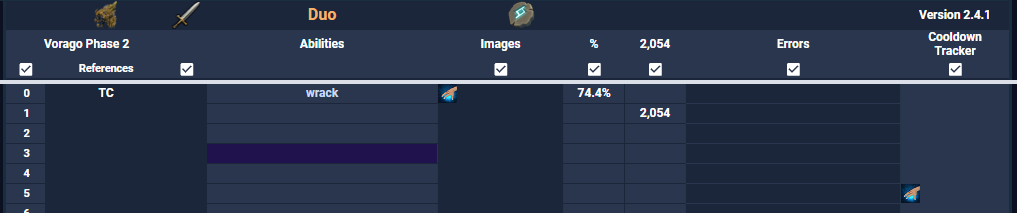
Each column has a different use and a checkmark 
You may disable these checkboxes to improve the performance and loading times of the sheet.
For better performance disable all chekboxes shown in the following images.
You can work on your rotation with only the adrenaline enabled and then once you are done you may re-enable damage, colours and images.
Google Sheets performance depends on a lot of factors, for example:
- Your PC specs
- How much traffic the sheet is receiving
- The complexity of your rotation


This column will display time. It can be Ticks (if the checkbox is enabled) or Seconds (if it is disabled).
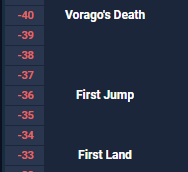
References can be changed in the Reference Editor tab of the sheet.
They can show useful information such as a mechanic starting (for example: Vorago's Reflect) or notes needed for that tick.
The Editor also changes the first tick of that reference, damage reductions and allows you to add notes to every tick.
When ticks are red it means that damage is nulled on that tick. This can be due to a specific mechanic or a phase transition.
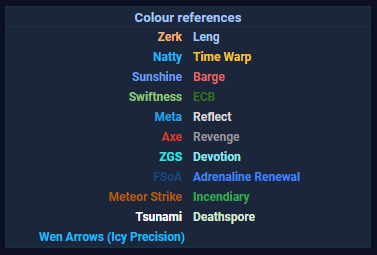
This is where you input your rotation. Colour references will appear to the left, showing when certain abilities are active.These abilities are:
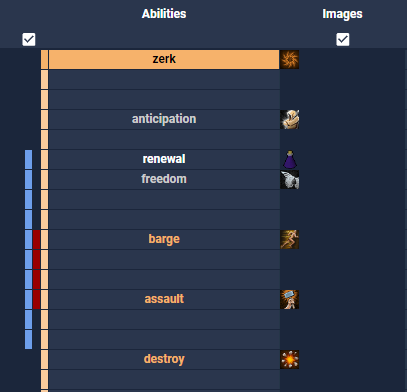
In this image Zerk is highlighted and an orange highlight appeared on the left side, showing the duration of Zerk.
This also happens the Renewal and GBarge timers.
Images will appear next to the rotation (right side) to show each ability. There are 5 columns of images for abilities, and a 6th column that displays stacks (Wen arrows, Exsanguinate and Incite Fear stacks).
Adrenaline is based on a priority system, where the adrenaline is calculated for every new input on that tick to prevent adrenaline overflow.
Damage calculations come from Ability Damage Maths in the form of pre-stored calculations to save resources in both sheets.
This column will allow you to equip/unequip gear, weapons, ammo and spells for a certain period of time and then removing them when needed.
Select the item you want to swap and it will remain active until you unequip it or equip something else in that same slot.
- If you have a spell auto-casted and use ammo they will not cancel each other
- If you have a head piece equipped and then use a weapon swap they will not cancel each other, and so on

Errors will be shown for diverse reasons such as: needing to use Limitless, wrong ability name, insufficient adrenaline, casting abilities under their required adrenaline, GCD errors, cooldowns and so on.
Displays when an ability comes off cooldown so it can be used again.