User Interface
As you reach further into the game, advancing through the levels, Eventhough each level changes the patterns and colours of the bubbles and the background, the layout remains identical for evey single one of them with 5 major areas where the game is displayed:
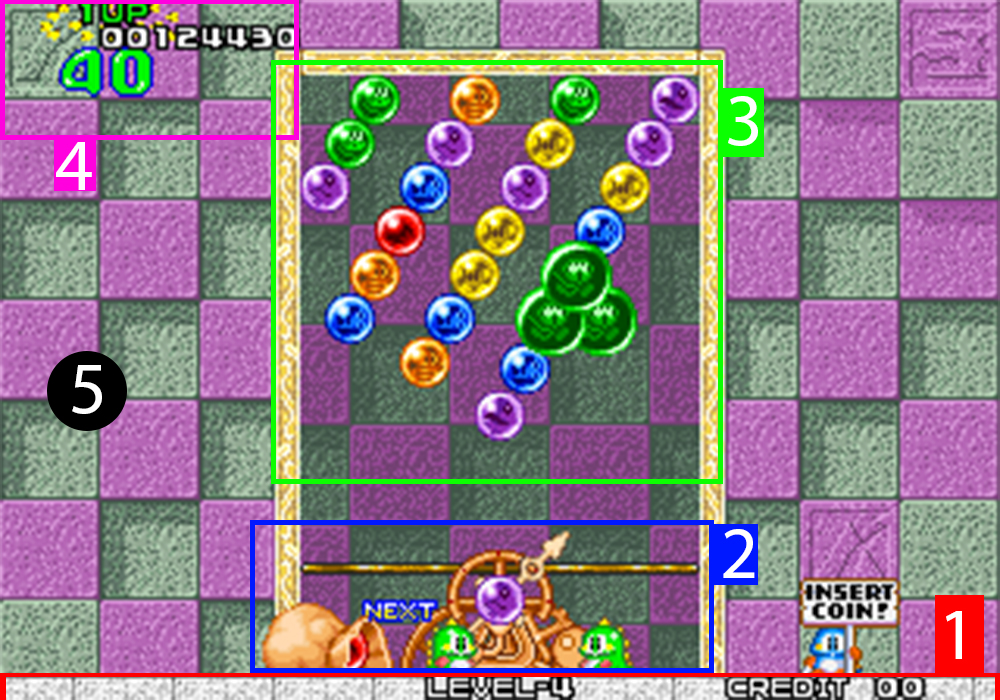
[1] - Game information: Located at the bottom part of the screen, displays the level you are currently playing in and the amount of credits left before you run out of chances to continue playing if losing.
[2] - Shooting area: Inside this block the main event of the game (shooting bubbles) is displayed in the center with an arrow pointing in the direction the bubble will be sent. Next to it a sack containing the next bubble that will be shot next turn. A line, more or less tangent to the circle where the arrow is, marks the limit that the bubbles can reach. At the same time Bub and Bob are there dancing to the chiptune music and will warn you of different events, such as running out of time to shoot the bubble.
[3] - Puzzle area: This area is where the bubbles are put in a pattern for you to decide where you want to shoot.
[4] - Level information: In this part the amount of points given by each explosion of bubbles is shown, which will add up to the total score also displayed. At the very top you have the player that is currently playing the level (Player 1 or Player 2).
[5] - Background: Not really more to say, the background is just a still mosaic that changes every 3 levels.
After the Neo Geo title screen, the first thing we see is a screen with the logo of Taito, the company that published Puzzle Bobble.
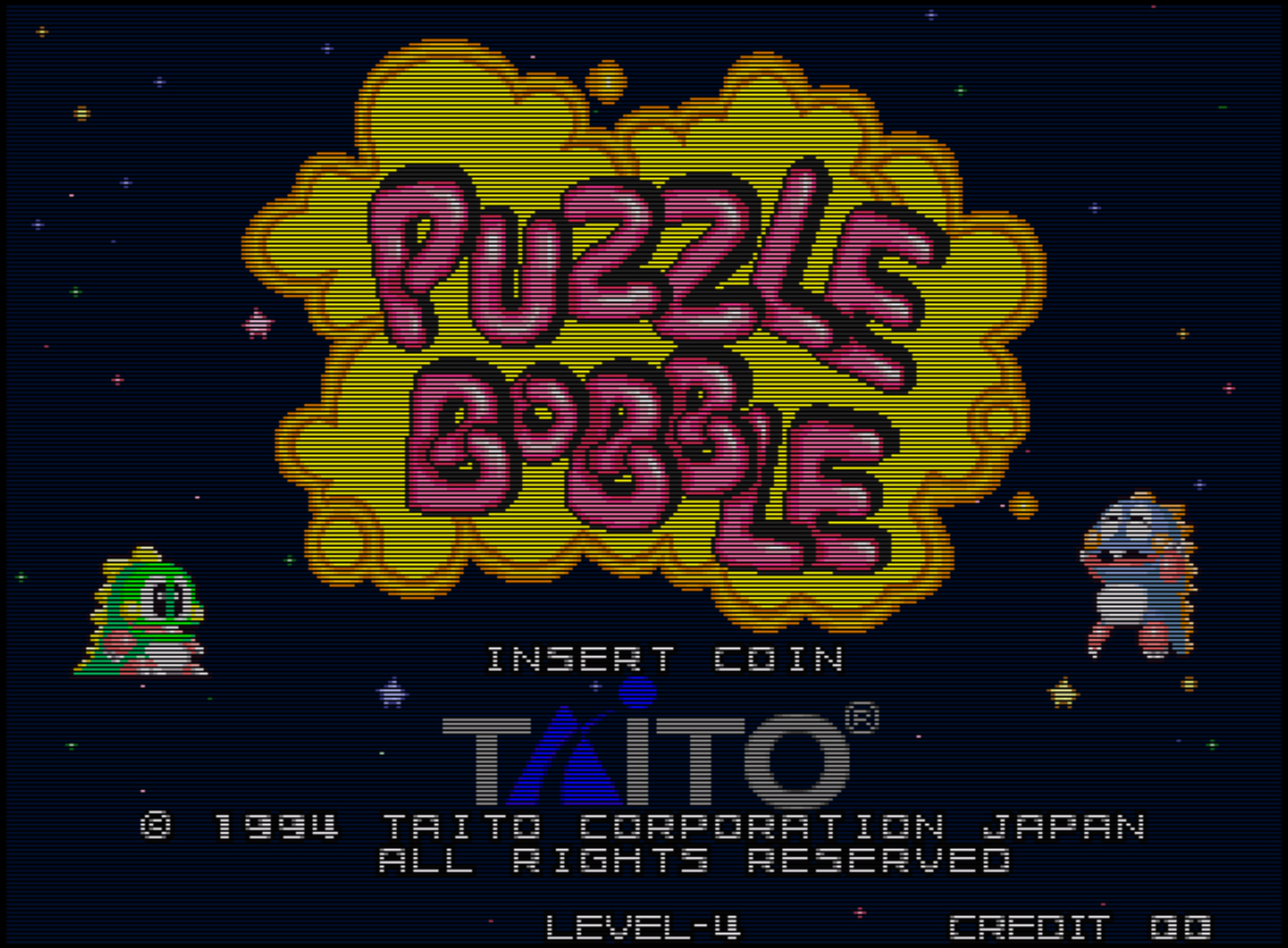
Once we have seen this, a screen with a background of space appears. Then, 12 bobbles are put in the middle of the screen after doing an animation with the sound that the bobbles make when they are thrown on the game. After the bobbles are placed in the middle of the screen, two dinosaurs fly from one side to the other (the green goes from left to right and the blue travels from right to left). While all this animations are happening, the sentence “INSERT COIN” is blinking.
Then, the blue dinosaur is placed on the left side of the 12 bobbles and the green dinosaur is placed on the right side. The dinosaurs throw bobbles to convert the 12 bobbles into the name of the game “PUZZLE BOBBLE”. They throw 9 bobbles and to destroy the 3 remaining letters ( P, Z and Z from the word PUZZLE) and they jump above them. After this, the letters start to bounce (joining each other) doing a choreography, following the rhythm of the music. The letters placed in the positions 1, 3 and 5 from the 2 words (PUZZLE BOBBLE) are moved to the right and the letters placed in positions 2, 4 and 6 are moved to the left.
Then, they return to their original position. Finally, after the size of the title is increased, we can hear a sound of a blast and then a yellow cloud is placed underneath the title “PUZZLE BOBBLE”. At the same time, the name of the company, Taito, and the credits appear below the title.
From this point, the blue dinosaur begins to jump without stop, the green dinosaur begins to wink the eye and a star keeps moving on the background. The title animation is finished.
To stop the animation at any point, what you have to do is clicking the configurated key on your keyboard to insert a coin. A new screen will appear. This new screen has the name “PUZZLE BOBBLE”, the name “TAITO”, a time counter, a credit counter and the same background and flying star than the previous screen. Every time you insert a coin, you can hear a sound of a coin. If you put only 1 coin, the sentence “PUSH 1P START BUTTON” will be blinking.
With 1 coin you can not play multiplayer mode. If you insert 2 or more coins, the sentence “PUSH 1P OR 2P START BUTTON” will be blinking and you will be able to play multiplayer mode. You can put 99 coins and when you want to put the 100th you will hear the sound of the coin but the counter of coins will remain in 99. If you do not insert a coin, after some seconds a video explaining how to play the game will be displayed on screen.
The sentence “INSERT COIN” will be blinking. After this, a screen with the top scores will appear and the sentence “INSERT COIN” will be also blinking in the middle of the screen. Then, a single player demonstration gameplay and a multiplayer one will be played with the sentence “INSERT COIN” blinking again. After this, Neo Geo’s title screen will appear and the loop with all the animations will begin again.
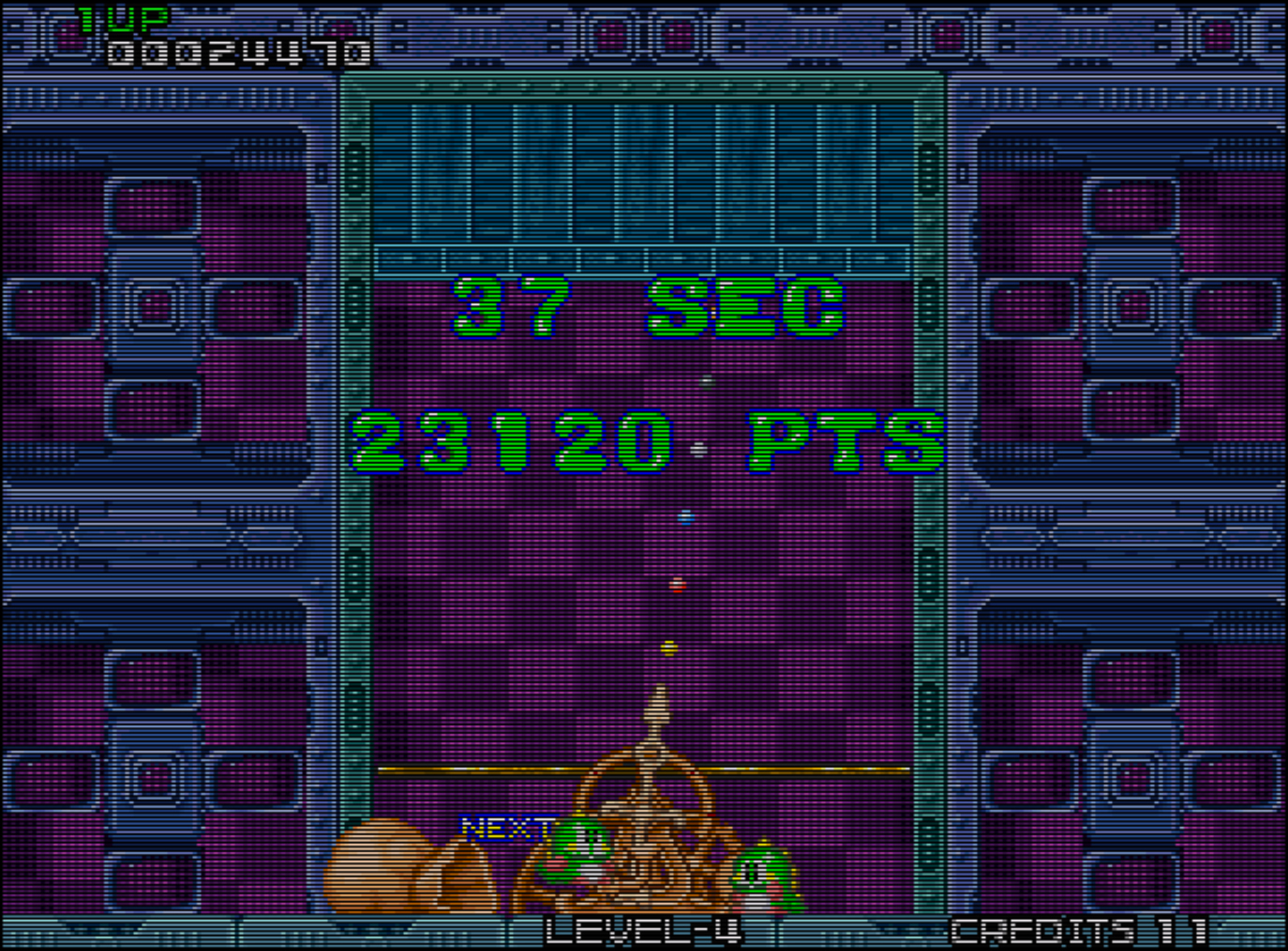
When we finish a level, the sentence “ROUND CLEAR” appears in the same screen of the level that we have just finished. The letters are green with a blue contour. After this, in the screen is shown the time we have spent doing the level (“X SEC” being X the number of seconds) and the points we have scored (“X PTS” being X the number of points that the player has scored). While these sentences are shown, we can hear a victory music to celebrate that we have finished the level. Also, the 2 dinosaurs (that prepare the bobbles to be thrown during a level) begin to move, one from left to right and the other is jumping.
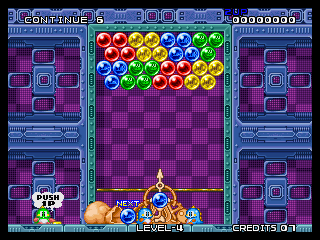
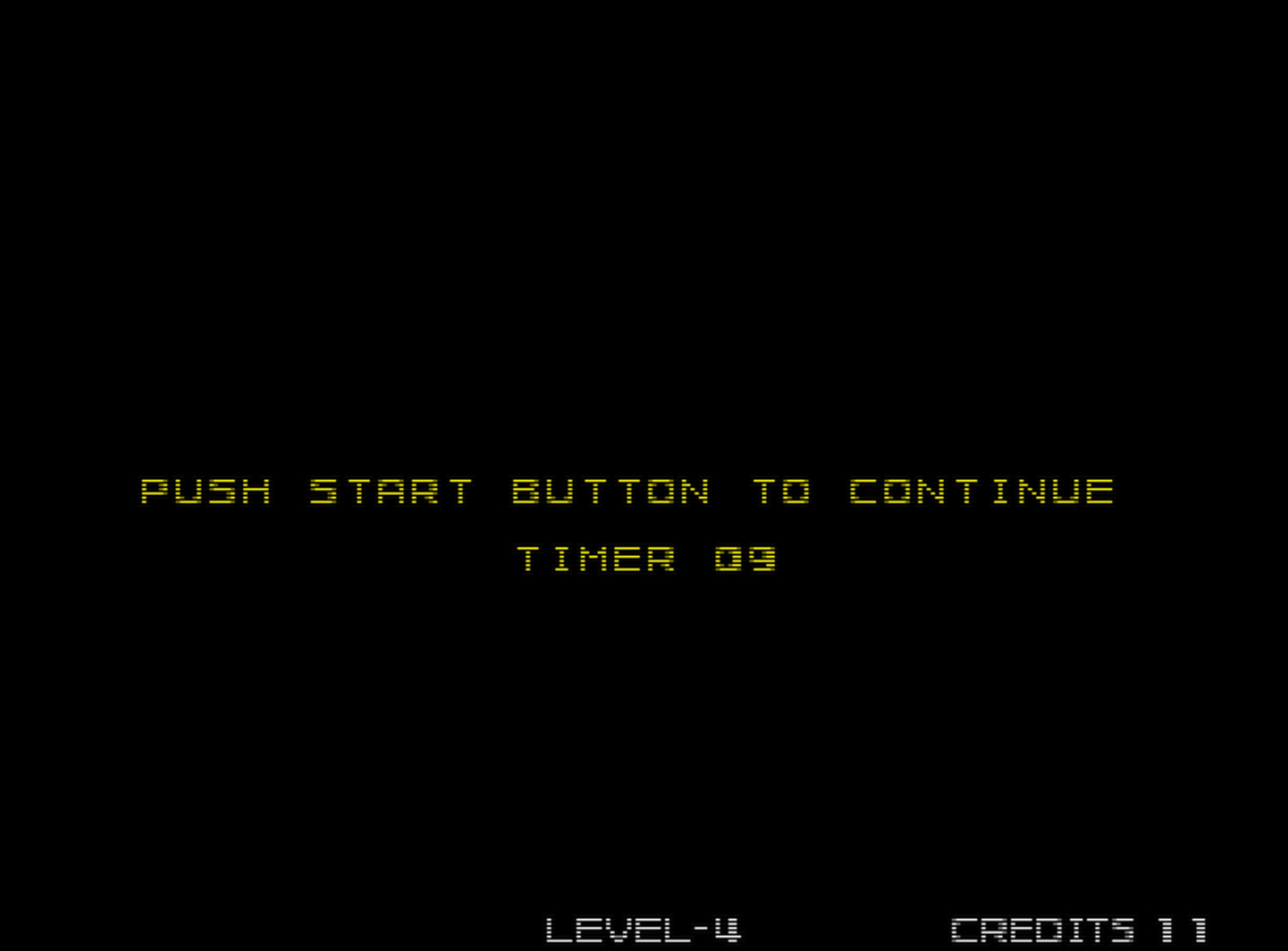
When you die in a level without scoring one of the 5 best punctuations of the game, the continue screen appears. There is a yellow sentence “PUSH START BUTTON TO CONTINUE” with a black background if you have coins left, and if not, there is the sentence “INSERT COIN TO CONTINUE”. Below the sentence, there is a timer that gives you 10 seconds to click 1 to continue playing. In these 10 seconds, you can put more coins. If you don’t put more coins, at the end of the 10 seconds the game over screen appears. It is a screen with the sentence “GAME OVER” in green with a blue contour and a black background. Then, the title screen appears.
When you die, if your score is one of the best 5, instead of going to the Continue screen, you are sent to the Name Entry screen. In the Name entry screen, we can find the sentence “NAME ENTRY” at the top of the screen in yellow. Also we are going to find the position we have achieved (“RANK X” being X the position) in green, our score (“SCORE X” being X our score) in cyan and the round where we have died (“ROUND X” being X the round). Then, at the bottom we can find the sentence “YOUR NAME” in pink and underneath this we have the option to type 3 letters as our name. Below every letter there is a dinosaur stopped but doing an animation. To type our name we have 20 seconds. After the 20 seconds, the name will be filled with A’s and all the letters will disappear doing a looping animation in the screen. Then we will see the Top Scores screen.
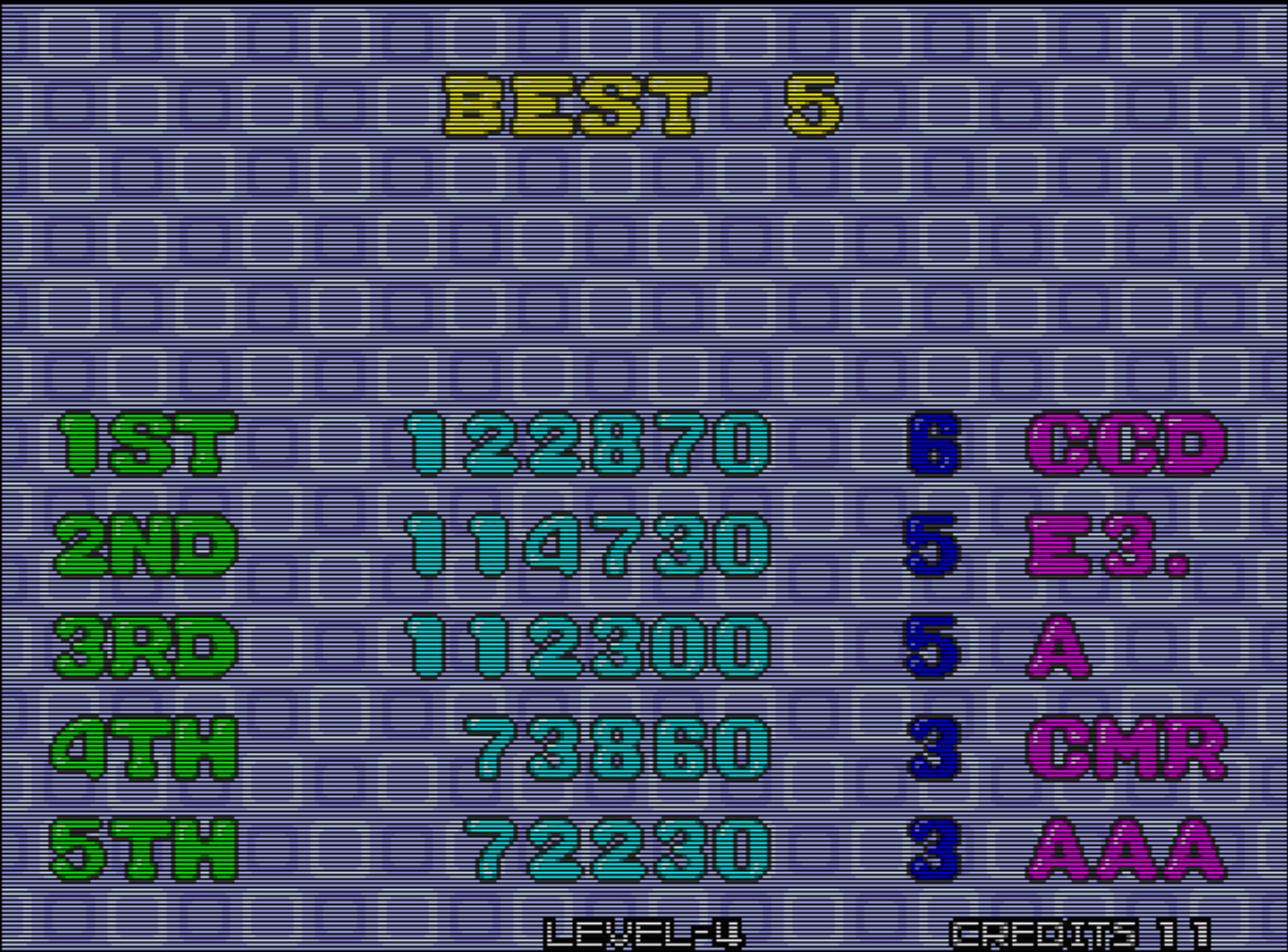
On the Top Scores screen we can see the title “BEST 5” on top of the screen. Below this, we will see the 5 best scores. In each line we find the position in green (e.g. : “1ST”), the score in cyan (e.g. : “112300”), the round where the player died in blue (e.g. : “5”) and the name in pink (e.g. : “ABC”).
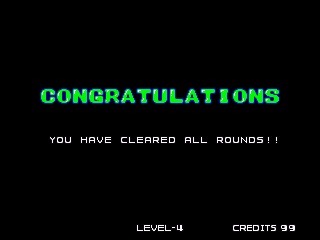
When you complete the 30 levels of Puzzle Bobble, the final screen is displayed. In the final screen we can find the word “CONGRATULATIONS” in green with a blue contour. The background is black and below we can find the sentence “YOU HAVE CLEARED ALL ROUNDS!!” in white. After this, we will see the credits screen.
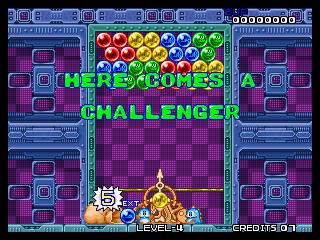
When the 2 player button is pressed, Text will pop-up saying "HERE COMES A CHALLENGER" and the two player mode will be started.
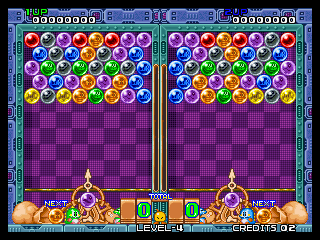
In the two-player mode, the user interface as well as the puzzle area is similar to the single player one but with the difference that is duplicated and mirrored in both sides so both player can have an independent stage, score, next-bubble interface and player wins counter.
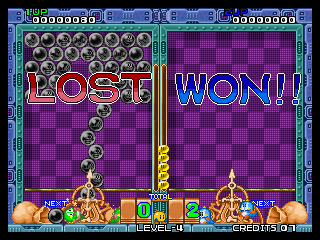
When one of the 2 players wins, two pop-ups appear saying "WON" and "LOST" each one appearing on the winner and loser half. After that, the game will take on from the stage it was left but winner will be the one playing and the character and the positioning of the interface will be the same as the one that had in the 2 player mode.