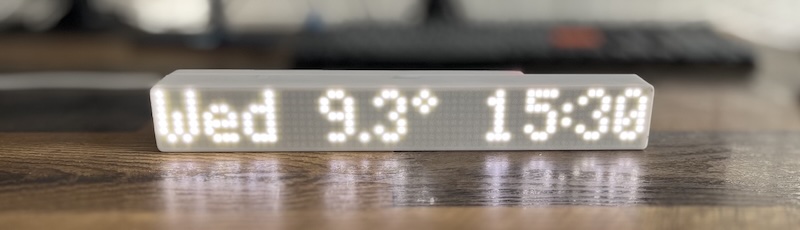
MAX7219 LED dot matrix display driven by an ESP32 or ESP8266 MCU.
The latest firmware version can be found in Releases
- Home Assistant client [display sensor values]
- OpenWeatherMap client [display: temperature (C/F), humidity, pressure, wind speed, weather icon]
- MQTT client [each display zone support own topic]
- Display controll through MQTT
- Wall NTP clock [NTP sync clock]
- Manual input
- Stock Ticker Mode: Display real-time stock prices on any zone. Supports multiple symbols, customizable display format, prefix/suffix, and price change arrows (↑↓)
- Countdown timer
- Progress Bar Overlay: 1-pixel bottom-row bar on any zone — supports HA sensors, MQTT topics, and time-based modes
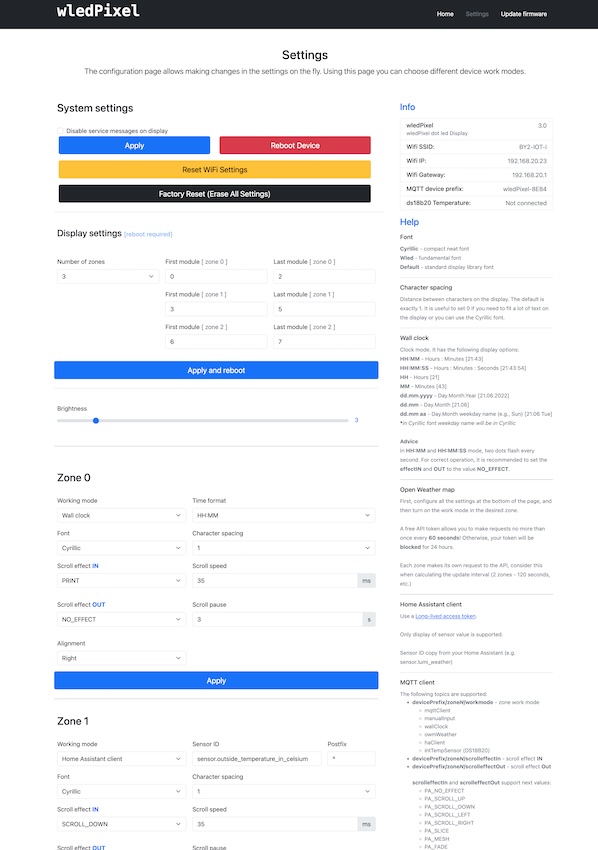
- Full controll through web UI
- Home Assistant MQTT discovery [When MQTT settings specified, device will be automatically send discovery message to HA]
- Control display as light in Home Assistant [MQTT setup required]
- Initial setup through wifi AP and web UI
- Support 4 independent display zones
- Support up to 12 display segments at the same time [configured in web UI]
- Included 3 different fonts
- Plus symbols font
- Dot matrix display MAX7219, something like this: https://aliexpress.com/item/32618155357.html
- ESP32 or WeMos D1 Mini (ESP8266), something like this: https://aliexpress.com/item/32651747570.html
- 3D Printed Case: Download from Printables
This font allows you to display text alongside icons within a single message.
 This font allows accessing special icons using the
 ~ prefix followed by a specific character.
Mapped by ~ + Character.
| Code | Index | Symbol | Code | Index | Symbol |
|---|---|---|---|---|---|
~! |
129 | Battery Empty | ~G |
167 | Key |
~" |
130 | Battery 25% | ~H |
168 | Male |
~# |
131 | Battery 50% | ~I |
169 | Alarm |
~$ |
132 | Battery 75% | ~J |
170 | Clock |
~% |
133 | Battery Full | ~K |
171 | Garbage |
~0 |
144 | WLED Logo | ~M |
173 | Moon |
~1 |
145 | X Symbol | ~N |
174 | Message |
~2 |
146 | Stop | ~O |
175 | Reminder |
~3 |
147 | Rain | ~S |
179 | Sun |
~4 |
148 | IP Icon | ~T |
180 | Thunderstorm |
~8 |
152 | Full Block | ~c |
195 | Scattered Clouds |
~A |
161 | Calendar | ~f |
198 | Mist / Fog |
~B |
162 | Windows Logo | ~m |
205 | Few Clouds (Night) |
~C |
163 | Broken Clouds | ~r |
210 | Rain |
~D |
164 | Door | ~s |
211 | Few Clouds (Sun) |
~E |
165 | Female | ~P |
224 | P Icon |
~F |
166 | Snow | ~@ |
230 | @ Symbol |
Support Germany alphabet

Support Cyrilic alphabet


This font maps standard ASCII characters directly to icons.
| Input | Index | Symbol | Input | Index | Symbol |
|---|---|---|---|---|---|
0 |
48 | WLED Logo | K |
75 | Garbage |
1 |
49 | X Symbol | M |
77 | Moon |
2 |
50 | Stop | N |
78 | Message |
3 |
51 | Rain | O |
79 | Reminder |
4 |
52 | IP Icon | P |
80 | P Icon |
8 |
56 | Full Block | R |
82 | Shower Rain |
A |
65 | Calendar | S |
83 | Sun |
B |
66 | Windows Logo | T |
84 | Thunderstorm |
C |
67 | Broken Clouds | c |
99 | Scattered Clouds |
D |
68 | Door | f |
102 | Mist / Fog |
E |
69 | Female | m |
109 | Few Clouds (Night) |
F |
70 | Snow | r |
114 | Rain |
G |
71 | Key | s |
115 | Few Clouds (Sun) |
H |
72 | Male | DEL |
127 | Hollow Up Arrow |
I |
73 | Alarm | ° |
176 | Degree Symbol |
J |
74 | Clock |
// Display pinout
#define DATA_PIN  23         // ESP32 GPIO23
#define CS_PIN    5          // ESP32 GPIO5
#define CLK_PIN   18         // ESP32 GPIO18

// Ds18b20 pinout
const int oneWireBus = 4;    // ESP32 GPIO04
// Display pinout
#define DATA_PIN  D7         // WeMos D1 mini or ESP8266 -> GPIO13
#define CS_PIN    D6         // WeMos D1 mini or ESP8266 -> GPIO12
#define CLK_PIN   D5         // WeMos D1 mini or ESP8266 -> GPIO14

// Ds18b20 pinout
const int oneWireBus = D4;   // WeMos D1 mini or ESP8266 -> GPIO02

- Device will boot in wifi access point mode and show "AP Mode" on the display.
- AP wifi name: wledPixel-[short MAC address]
- AP wifi password: 12345678
- Connect to this AP and configure your wifi settings (connect to your wifi network)
- When the device connects to the WIFI network, the device's IP address will be displayed on the zone0
- Open the browser and go to the device IP address
- PlatformIO (VSCode extension or CLI)
- Git
-
Clone the repository:
git clone https://github.com/widapro/wledPixel.git cd wledPixel -
Build for ESP32:
pio run -e esp32
-
Build for ESP8266 (D1 Mini):
pio run -e d1_mini
-
Upload firmware:
# For ESP32
pio run -e esp32 -t upload

# For ESP8266
pio run -e d1_mini -t upload
-
Monitor serial output:
pio device monitor -b 115200
If the device gets stuck at boot, erase the flash memory:
pio run -e esp32 -t erase
pio run -e esp32 -t upload/api/temperature - get measured temperature from connected ds18b20 sensor
Topic Structure: [devicePrefix]/[zone]/[command]
- devicePrefix:
wledPixel-{shortMAC}(e.g.,wledPixel-A071) - zone:
zoneNwhere N is 0, 1, 2, or 3.
| Topic Suffix | Description | Payload / Values |
|---|---|---|
/text |
Zone text | Text to display (active when workmode=mqttClient) |
/scrolleffectIn |
Scroll effect IN | Effect name (e.g., PA_PRINT) |
/scrolleffectOut |
Scroll effect OUT | Effect name |
/scrollspeed |
Scroll speed | 0 - 100 |
/scrollpause |
Scroll pause | Seconds |
/scrollalign |
Scroll alignment | PA_LEFT, PA_CENTER, PA_RIGHT |
/charspacing |
Character spacing | Pixels |
/workmode |
Zone work mode | mqttClient, manualInput, wallClock, countdown, wopr, etc. |
/scrollInfinite |
Infinite scroll | ON/OFF, true/false, 1/0 |
| Topic Suffix | Description | Values |
|---|---|---|
/intensity |
Brightness | 0 - 15 |
/power |
Power control | ON / OFF |
- Topic:
.../zoneN/countdown - Payload: String with date/time.
Supported Formats:
| Format | Example | Description |
|---|---|---|
YYYY-MM-DDTHH:MM:SS |
2026-12-31T23:59:59 |
Full ISO format |
YYYY-MM-DDTHH:MM |
2026-12-31T23:59 |
ISO without seconds |
YYYY-MM-DD |
2026-12-31 |
Date only (Time: 00:00:00) |
HH:MM:SS |
23:59:59 |
Time only (Date: Today) |
- Topic:
.../zoneN/countdownFormat - Payload: Format token string.
Options:
- Basic:
SS(seconds),MM(minutes),HH(hours),DD(days) - Combined:
HHMM,HHMMSS,DDHH,DDHHMM,DDHHMMSS - Calendar:
YY(years),YYMM,YYMMDDHHMM,YYMMDDHHMMSS - Automatic:
auto(hides zero leading units)
where devicePrefix = wledPixel-A071 zoneN = zone number (e.g. Zone0, Zone1, Zone2, Zone3)
workMode supported values:
mqttClient- MQTT clientmanualInput- Manual static text inputed in UIwallClock- NTP sync clockowmWeather- Open Weather Map clienthaClient- Home Assistant clientwopr- WarGames effectcountdown- Countdown timer
Both MQTT Client and Manual Input modes share the same display logic:
- The message appears using the selected IN effect.
- If Infinite Scroll is DISABLED:
- If OUT effect is
NO_EFFECT: The message stays static on the display until a new message arrives. - If OUT effect is any other effect: The animation plays once (IN → Scroll pause → OUT) and then stops. The message does not repeat.
- If OUT effect is
- If Infinite Scroll is ENABLED:
- If OUT effect is
NO_EFFECT: The message stays static on the display until a new message arrives. - If OUT effect is any other effect: The message loops continuously (IN → Scroll pause → OUT → repeat).
- If OUT effect is
- It automatically scrolls to show the full text.
- If Infinite Scroll is enabled: It scrolls in a loop.
- If Infinite Scroll is disabled: It scrolls once and stops.
- If a service message doesn't fit, it scrolls once and then remains static.
- Duplicate status messages are ignored to prevent flickering.
- Can be completely disabled via the "Disable service messages" setting.
Wall clock mode support next following display options:
HH:MM- Hours : Minutes [21:43]HH:MM:SS- Hours : Minutes : Seconds [21:43:54]HH- Hours [21]MM- Minutes [43]dd.mm.yyyy- Day.Month.Year [21.06.2022]dd.mm- Day.Month [21.06]dd.mm aa- Day.Month weekday name (e.g., Sun) [21.06 Tue] *in Cyrillic font weekday name will be in Cyrillicaa- Weekday name (e.g. Sun) *in Cyrillic font weekday name will be in Cyrillic
- If text fits in the zone:
- Displays statically.
- Dots blink (unless disabled).
- If text does NOT fit in the zone:
- Text scrolls completely until it disappears.
- Screen remains blank for the duration of Scroll Pause.
- Text starts scrolling again.
- Dots do NOT blink to prevent interrupting the scroll cycle.
Note: The Scroll Effect Out setting in the Web UI is disabled (greyed out) for Wall Clock mode because the loop animation doesn't use an exit effect.
A 1-pixel horizontal progress bar rendered on the bottom row (row 7) of any zone. It works as a transparent overlay — the bar coexists with clocks, text, weather, and other modes running in the same zone. Each zone can have its own independent progress bar configured in the "Progress Bar" section of the Settings page.
| Source | Description |
|---|---|
| Home Assistant | Any HA sensor entity (e.g., sensor.battery_level). Polled at the HA update interval. |
| MQTT | Any MQTT topic. Device subscribes automatically. |
| Time — Seconds | Fills over 60 seconds, resets each minute. |
| Time — Minutes | Fills over 60 minutes, resets each hour. |
| Time — Hours | Fills over 24 hours, resets each day. |
- Min / Max values: Define the scale for HA and MQTT sources (e.g., 0–100 for battery percentage). Time mode auto-calculates its scale.
- Conditional display: Optionally show the bar only when a condition is met — a specific HA sensor or MQTT topic value matches an expected string (exact match).
- WOPR exclusion: If a zone is running in WOPR mode, the progress bar is automatically disabled.
| Use Case | Data Source | Min | Max | Notes |
|---|---|---|---|---|
| Battery level | HA sensor / MQTT | 0 | 100 | Show charge state alongside clock |
| Seconds ticker | Time — Seconds | — | — | Visual second hand on a clock zone |
| Hour progress | Time — Hours | — | — | See how much of the day has passed |
| Download progress | MQTT | 0 | 100 | Publish progress % from a script |
| Tank / reservoir level | HA sensor | 0 | 500 | Scale to your sensor's range |
Default effects:
PA_RANDOMPA_PRINTPA_SCAN_HORIZPA_SCROLL_LEFTPA_WIPEPA_SCAN_VERTXPA_SCROLL_UP_LEFTPA_SCROLL_UPPA_FADEPA_OPENING_CURSORPA_GROW_UPPA_SCROLL_UP_RIGHTPA_BLINDSPA_CLOSINGPA_GROW_DOWNPA_SCAN_VERTPA_SCROLL_DOWN_LEFTPA_WIPE_CURSORPA_SCAN_HORIZXPA_DISSOLVEPA_MESHPA_OPENINGPA_CLOSING_CURSORPA_SCROLL_DOWN_RIGHTPA_SCROLL_RIGHTPA_SLICEPA_SCROLL_DOWNPA_SPRITE(Generic)
PACMANWAVEROLLLINESARROWSAILBOATSTEAMBOATHEARTINVADERROCKETFBALLCHEVRONWALKERMARIO(New!)GHOST(New!)DINO(New!)
Watch the effects demo on YouTube
Send sensor value each time when a value has been changed
---
- alias: Outside temp change - send new temp to wled panel mqtt
  initial_state: 'on'
  trigger:
    platform: state
    entity_id: sensor.outside_thp_sensor_3
  action:
    - service: mqtt.publish
      data:
        topic: wledPixel-A071/zone0/text
        payload_template: "{{ states('sensor.outside_thp_sensor_3') }} C"
Change wledPixel-A071 to device name with your prefix