


Quick Notes Sidebar is a powerful, lightweight, and user-friendly Chrome Extension that brings a rich-text notepad directly to your browsing experience. Instantly save highlighted text, write down thoughts, and manage your notes without leaving the current tab.
🔗 Repository: https://github.com/visernic/Quick-Notes-Sidebar
- Floating Sidebar: A non-intrusive sidebar that slides in from the right, sitting on top of any webpage.
- Rich Text Editor: Built with Quill.js, supporting Bold, Italic, Underline, Lists (Ordered/Unordered), and more.
- Instant Save: Notes are saved automatically to your browser's local storage.
- Context Menu Integration: Right-click any selected text on a webpage and choose "✍️ Save to Quick Notes" to save it instantly.
- Quick Popup: Select text on any page, and a small "✍️ Save to Notes" popup button will appear near your cursor for one-click saving.
- Search: Real-time search bar to filter notes and trash items by content.
- Trash System: Accidentally deleted a note? Find it in the Trash tab where you can Restore it or Delete Permanently.
- Export: Download any note as a
.txtfile for offline use. - Copy to Clipboard: One-click button to copy the entire note content.
| Sidebar View | Text Selection Popup |
|---|---|
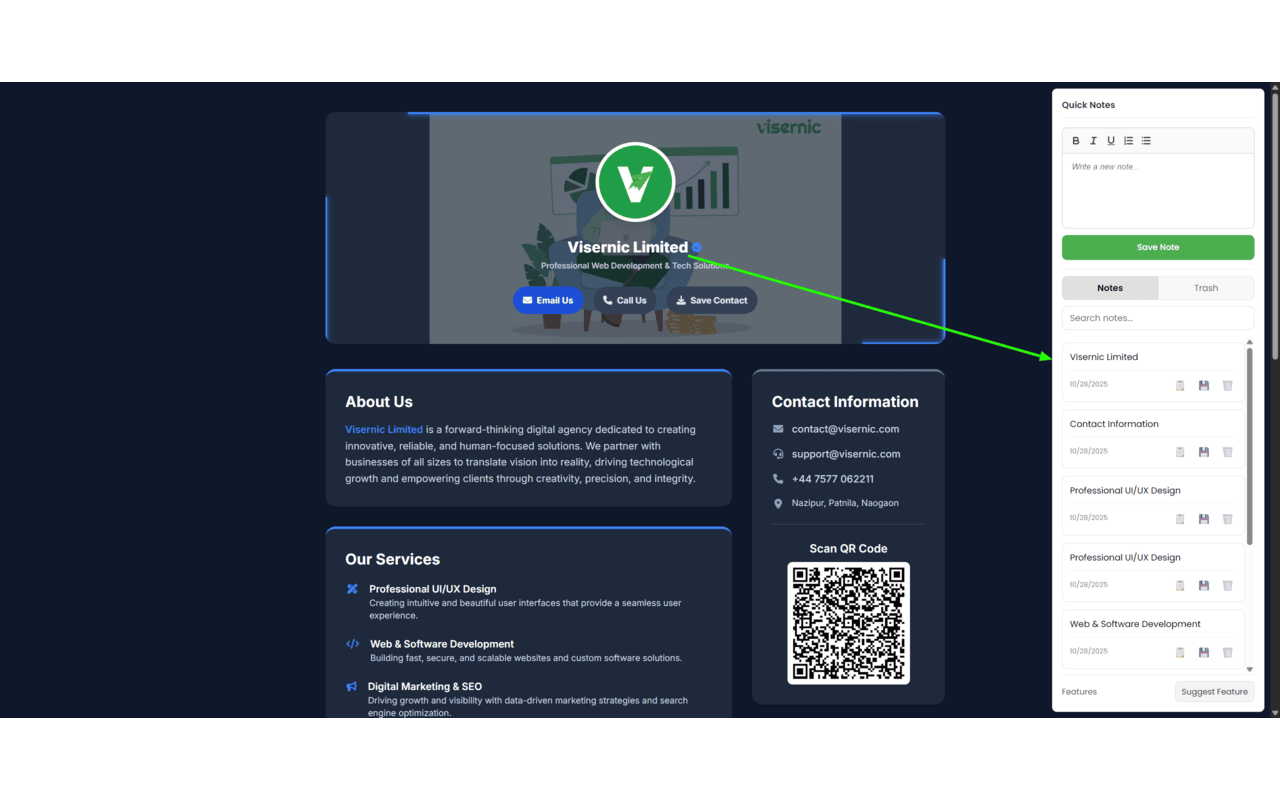 |
|
Since this extension is hosted on GitHub, you can install it manually in your browser:
-
Clone the Repository:
git clone [https://github.com/visernic/Quick-Notes-Sidebar.git](https://github.com/visernic/Quick-Notes-Sidebar.git)
Or download the ZIP file and extract it.
-
Open Chrome Extensions:
- Navigate to
chrome://extensions/in your browser address bar. - Toggle on Developer mode in the top right corner.
- Navigate to
-
Load Unpacked:
- Click the "Load unpacked" button.
- Select the folder where you cloned/extracted this repository (select the root folder containing
manifest.json).
-
Pin the Extension:
- Click the puzzle icon in your Chrome toolbar and pin Quick Notes Sidebar.
- Toggle Sidebar: Click the extension icon in your browser toolbar to open or close the notes sidebar.
- Add a Note: Type directly into the editor and click "Save Note".
- Save from Web:
- Highlight text -> Right Click -> "Save to Quick Notes".
- OR Highlight text -> Click the floating "Save" button that appears.
- Manage Notes: Use the tabs at the top to switch between "Notes" and "Trash".
This extension respects your privacy. All data is stored locally on your device using the chrome.storage.local API. No data is sent to external servers.
storage: To save your notes and settings locally.activeTab: To identify which tab you are currently browsing.scripting: To inject the sidebar into the current page.contextMenus: To add the right-click "Save" functionality.host_permissions (<all_urls>): Required to make the sidebar and highlight popup work on every website you visit.
- HTML5 & CSS3 (Flexbox, CSS Variables, 2D Card Design)
- JavaScript (ES6+)
- Chrome Extensions API (Manifest V3)
- Quill.js (Rich Text Editor Library)
A detailed look at how the extension files are organized. Click the arrow below to expand:
👁️ View File Tree
quick-notes-sidebar/
│
├── 📜 manifest.json            # Extension configuration (Manifest V3)
│
├── 📂 background/              # Handles background events
│   └── service_worker.js       # Manages context menus & sidebar toggling
│
├── 📂 content/                 # Scripts injected into web pages
│   ├── content.js              # Logic for the floating popup & sidebar iframe
│   └── content.css             # Styles for the sidebar container & popup buttons
│
├── 📂 sidebar/                 # The main User Interface (UI)
│   ├── sidebar.html            # HTML structure of the notes manager
│   ├── sidebar.css             # Styling for the notes list, tabs, and editor
│   └── sidebar.js              # Logic for saving, editing, deleting & tabs
│
├── 📂 lib/                     # External dependencies
│   ├── quill.js                # Quill rich text editor library
│   └── quill.snow.css          # Theme styles for the editor
│
└── 📂 icons/                   # Extension icons
    ├── icon16.png
    ├── icon48.png
    └── icon128.png
Contributions are welcome! If you have suggestions for features or bug fixes:
- Fork the repository.
- Create a new branch (
git checkout -b feature/AmazingFeature). - Commit your changes (
git commit -m 'Add some AmazingFeature'). - Push to the branch (
git push origin feature/AmazingFeature). - Open a Pull Request.
Created by Visernic.
- Website: visernic.com
- Feature Requests: visernic.com/contact
Made with ❤️ for productivity lovers.