


Opener is a customizable application/file opener utility for macOS. With it, you can map any application or file to two key strokes. The first hotkey makes Opener listen for an input, and the following letter opens the mapped application or file, as seen below.
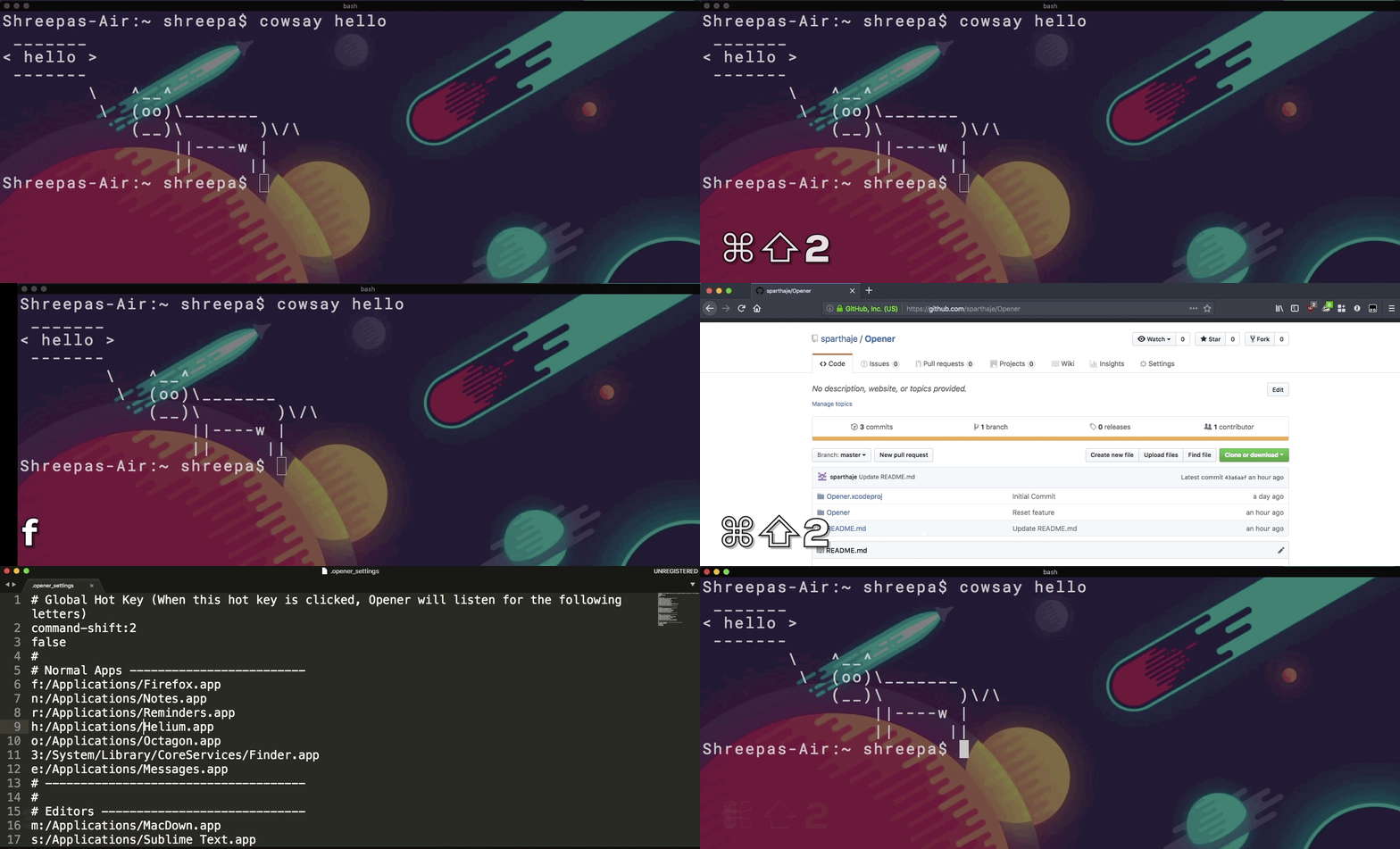 Note: the pop-up window shown in the GIF has been removed — Opener now listens silently.
All the commands can be mapped in a file called .opener_settings in the home directory. The first line in this file defines the hot key for the app. The following lines define what application/file to open following the hot key.
- Download the app from the releases page
- Move the app into the
/Applications/directory - Open the app
- Go to Security > Privacy > Accessibility and enable Opener.app
- Quit the application (double click the Opener.app file and then
⌘Q) - Re-open the application
- Edit the configuration file (
⌘⇧2followed by9)
Any line starting with a # will be ignored, so it can be used to separate/block off segments
The first line is command-shift:2 by default. This defines the hot key that activates Opener. The command-shift is the modifier and the 2 is the key. All the modifiers and keys are listed at the bottom of the README.md.
9:.opener_settings is the default binding for opening the settings file itself. Only change the key value before the colon. All the modifiers and keys are listed at the bottom of the README.md.
The following lines define what key will map to which application. The general format for this is key:absolute_file_path. Some examples are listed below:
n:/Applications/Notes.app
p:/Applications/PyCharm CE.app
t:/Applications/iTerm.app
3:/System/Library/CoreServices/Finder.app
A binding can also jump to a specific Mission Control space on a specific monitor. Format:
letter:space:<displayUUID>:<index0Based>
Example:
1:space:51CD4EB6-A648-4F66-87AD-F48E592DD496:0
2:space:51CD4EB6-A648-4F66-87AD-F48E592DD496:1
The space-switching engine is vendored from knollet/InstantSpaceSwitcher (sources under Opener/ISS/). It posts synthetic Dock-swipe CGEvents to jump directly to the target space with no slide animation. The standalone tool always operates on the display under the cursor; Opener wraps it so a binding can name a specific display by UUID, briefly warping the cursor to that display while the gesture is posted.
Because the same hotkey often means different things on different setups (laptop alone vs. laptop + external display vs. dock), bindings can be scoped to a monitor configuration — the sorted, +-joined list of all attached displays' UUIDs. Sections look like:
[monitor:<configID>]
1:space:<displayUUID>:0
2:space:<displayUUID>:1
Bindings inside a section apply only when the current configuration matches; they shadow globals for the same letter. The first time Opener boots into a configuration it has not seen, it appends a commented template section to .opener_settings — uncomment lines to enable. Plugging or unplugging a display does the same thing live (no restart required).
To find a display's UUID, attach the monitor and look at the auto-generated [monitor:...] header.
The app must be reloaded to see changes (the hot key (⌘⇧2 by default) followed by a delete).
Available Modifiers (case-sensitive):
command
option
control
shift
fn
command-shift
command-control
option-shift
option-command
Available Keys (case-sensitive):
a b c d e f g h i j k l m n o p q r s t u v w x y z
1 2 3 4 5 6 7 8 9 0 ; .
Numeric keys also dispatch from the numpad — pressing numpad 5 resolves to letter 5.