
MaccyPlus is a clipboard-automation fork of Maccy — macOS only.
Maccy is a lightweight clipboard manager that keeps a searchable history of everything you copy. MaccyPlus keeps all of that and adds an automation layer on top:
- Conditions — match what you copied (URL, email, Jira key, regex, source app, …)
- Actions — act on it (open in an app, web search, transform text, run a Shortcut, …)
- Per-action shortcuts — bind any action to a hotkey, or auto-run it the moment you copy
- Plugins — extend conditions & actions with declarative or JavaScript plugins, installable from a marketplace (or drop your own folder in — no rebuild)
Requires macOS Sonoma 14 or later.
- Features
- Install
- Usage
- Actions
- Plugins
- Advanced
- FAQ
- Why doesn't it paste when I select an item in history?
- When assigning a hotkey to open Maccy, it says that this hotkey is already used in some system setting.
- How to restore hidden footer?
- How to ignore copies from Universal Clipboard?
- My keyboard shortcut stopped working in password fields. How do I fix this?
- Translations
- Motivation
- License
- Lightweight and fast
- Keyboard-first
- Secure and private
- Native UI
- Open source and free
MaccyPlus is distributed through a Homebrew tap:
brew install --cask roypadina/tap/maccyplus…or download the .zip from the latest release.
MaccyPlus is self-signed (not notarized), so on first launch macOS may block it. Right-click
MaccyPlus in /Applications → Open (once), or run:
xattr -dr com.apple.quarantine "/Applications/MaccyPlus.app"It's a menu-bar app (no Dock icon). On first launch, grant Accessibility when prompted (System Settings → Privacy & Security → Accessibility) so paste works.
- SHIFT (⇧) + COMMAND (⌘) + C to popup MaccyPlus or click on its icon in the menu bar.
- Type what you want to find.
- To select the history item you wish to copy, press ENTER, or click the item, or use COMMAND (⌘) +
nshortcut. - To choose the history item and paste, press OPTION (⌥) + ENTER, or OPTION (⌥) + CLICK the item, or use OPTION (⌥) +
nshortcut. - To choose the history item and paste without formatting, press OPTION (⌥) + SHIFT (⇧) + ENTER, or OPTION (⌥) + SHIFT (⇧) + CLICK the item, or use OPTION (⌥) + SHIFT (⇧) +
nshortcut. - To delete the history item, press OPTION (⌥) + DELETE (⌫).
- To see the full text of the history item, wait a couple of seconds for tooltip.
- To pin the history item so that it remains on top of the list, press OPTION (⌥) + P. The item will be moved to the top with a random but permanent keyboard shortcut. To unpin it, press OPTION (⌥) + P again.
- To clear all unpinned items, select Clear in the menu, or press OPTION (⌥) + COMMAND (⌘) + DELETE (⌫). To clear all items including pinned, select Clear in the menu with OPTION (⌥) pressed, or press SHIFT (⇧) + OPTION (⌥) + COMMAND (⌘) + DELETE (⌫).
- To disable MaccyPlus and ignore new copies, click on the menu icon with OPTION (⌥) pressed.
- To ignore only the next copy, click on the menu icon with OPTION (⌥) + SHIFT (⇧) pressed.
- To customize the behavior, check "Preferences…" window, or press COMMAND (⌘) + ,.
Actions let MaccyPlus do something with a copied value instead of just storing it. An action rule has conditions (when it applies) and one or more ordered actions (what it does). A rule can run from the popup's right-click menu, from a global shortcut, from a per-action shortcut, or automatically the moment a matching value is copied. Rules are edited under Preferences → Actions.
Conditions — kind (URL, email, phone, file path, color hex, image, text), regex, contains-text, source app, soft-wrapped (the value looks like a wrapped terminal command), and from a terminal (the copy came from a configured terminal app). A rule matches when all or any of its conditions hold.
Actions — open as URL, open in a specific app, web search, transform text (trim, UPPERCASE, lowercase, strip formatting, unwrap), and run a macOS Shortcut.
When a coding agent or CLI prints a long command in the terminal, the terminal wraps it across several visual lines. Copying it brings along the line breaks, so pasting it elsewhere fails. The unwrap transform strips those wrap breaks and leaves a single, ready-to-paste command on the clipboard.
The built-in "Unwrap terminal command" rule does this automatically: when a copy comes from a terminal app and shows a fixed-width wrap signature, the wrap breaks are removed (the original command is reconstructed exactly — no merged tokens, no spurious spaces). Genuine multi-line scripts are left untouched. You can also trigger unwrap manually by giving the action a per-action shortcut.
Any single action can carry its own keyboard shortcut (recorded in the rule editor). That
shortcut runs only that action on the current clipboard, unconditionally — independent
of rule matching and of the global default-action shortcut. Specs look like cmd+shift+u.
The from a terminal condition matches copies whose source app is in a configurable list (Terminal.app, iTerm2, Warp, kitty, Alacritty, WezTerm, Ghostty, VS Code by default). Edit the list under Preferences → Actions → "Terminal apps…", or from the command line.
MaccyPlus ships a headless CLI so rules, actions, the terminal-app list, and per-action shortcuts can be managed without the GUI — useful for scripting and for AI coding agents. The running app picks up changes immediately.
APP=$(mdfind "kMDItemCFBundleIdentifier == 'com.royp.MaccyPlus'" | head -1)
BIN="$APP/Contents/MacOS/MaccyPlus"

"$BIN" rules describe          # live JSON schema: condition/action/transform catalog
"$BIN" rules list              # all rules as JSON
"$BIN" rules add  --json '…'   # create a rule (also: get/update/remove/move/enable/disable/import)
"$BIN" terminals list          # the terminal-app list (also: add/remove/reset)
"$BIN" plugins list            # packages, disabled ids, local folders, marketplace URLs
"$BIN" plugins enable  <id>    # toggle a package on  (also: disable)
"$BIN" folders list            # registered local plugin folders
"$BIN" folders add    <path>   # register a folder — use this after building a plugin
"$BIN" folders remove <path>   # unregister a folder
All commands take and emit JSON and validate input before writing. For the full schema,
command reference, and recipes — including how an agent should drive it — see the bundled
skill at .claude/skills/maccyplus/SKILL.md.
Conditions and actions aren't hard-coded — most ship as plugins, and you can add your
own. A plugin is a folder with a plugin.json manifest declaring one or more providers
(conditions and/or actions), implemented two ways:
- Declarative — pure JSON: a transform pipeline (regex-replace, case, trim, prepend/append) or a predicate tree (regex / contains / kind / source-app, combined with all / any / not). No code.
- JavaScript — a small sandboxed script (no network, no filesystem, no timers; ~250 ms watchdog) that returns the transformed string or a boolean.
GUI path: Manage plugins under Settings → Plugins: browse a marketplace, install / uninstall packages, read each provider's description, enable/disable individual packages, and add local folders during development. The first-party plugins (terminal unwrap, text transforms, …) ship bundled and can be disabled like any other. Marketplace install and uninstall are GUI-only — they involve async network I/O that the CLI does not expose.
Agent / CLI path: Build a plugin as a folder with a plugin.json manifest (and
optional .js entry files), then register it with "$BIN" folders add <path>. The
running app reloads immediately. Use "$BIN" plugins enable/disable <id> to toggle
packages. See .claude/skills/maccyplus/SKILL.md
for the full plugin schema and a step-by-step agent recipe.
The official marketplace lives at
roypadina/MaccyPlus-Plugins — see
its docs/ for how to author and publish your own.
You can tell MaccyPlus to ignore all copied items:
defaults write com.royp.MaccyPlus ignoreEvents true # default is falseThis is useful if you have some workflow for copying sensitive data. You can set ignoreEvents to true, copy the data and set ignoreEvents back to false.
You can also click the menu icon with OPTION (⌥) pressed. To ignore only the next copy, click with OPTION (⌥) + SHIFT (⇧) pressed.
By default MaccyPlus will ignore certain copy types that are considered to be confidential or temporary. The default list always include the following types:
org.nspasteboard.TransientTypeorg.nspasteboard.ConcealedTypeorg.nspasteboard.AutoGeneratedType
Also, default configuration includes the following types but they can be removed or overwritten:
com.agilebits.onepasswordcom.typeit4me.clippingde.petermaurer.TransientPasteboardTypePasteboard generator typenet.antelle.keeweb
You can add additional custom types using settings. To find what custom types are used by an application, you can use free application Pasteboard-Viewer. Simply download the application, open it, copy something from the application you want to ignore and look for any custom types in the left sidebar. Here is an example of using this approach to ignore Adobe InDesign.
By default, MaccyPlus checks clipboard every 500 ms, which should be enough for most users. If you want
to speed it up, you can change it with defaults:
defaults write com.royp.MaccyPlus clipboardCheckInterval 0.1 # 100 ms- Make sure you have "Paste automatically" enabled in Preferences.
- Make sure "MaccyPlus" is added to System Settings -> Privacy & Security -> Accessibility.
When assigning a hotkey to open Maccy, it says that this hotkey is already used in some system setting.
- Open System settings -> Keyboard -> Keyboard Shortcuts.
- Find where that hotkey is used. For example, "Convert text to simplified Chinese" is under Services -> Text.
- Disable that hotkey or remove assigned combination (screenshot).
- Restart MaccyPlus.
- Assign hotkey in MaccyPlus settings.
How to restore hidden footer?
- Open MaccyPlus window.
- Press COMMAND (⌘) + , to open preferences.
- Enable footer in Appearance section.
If for some reason it doesn't work, run the following command in Terminal.app:
defaults write com.royp.MaccyPlus showFooter 1How to ignore copies from Universal Clipboard?
- Open Preferences -> Ignore -> Pasteboard Types.
- Add
com.apple.is-remote-clipboard.
If your shortcut produces a character (like Option+C → "ç"), macOS security may block it in password fields. Use Karabiner-Elements to remap your shortcut to a different combination like Cmd+Shift+C. See detailed solution.
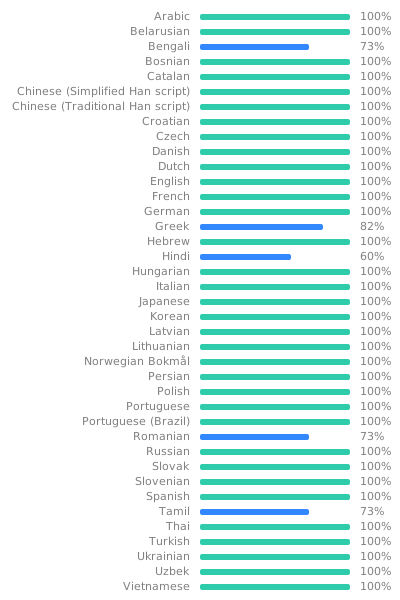
The translations are hosted in Weblate. You can use it to suggest changes in translations and localize the application to a new language.
There are dozens of similar applications out there, so why build another? Over the past years since I moved from Linux to macOS, I struggled to find a clipboard manager that is as free and simple as Parcellite, but I couldn't. So I've decided to build one.
Also, I wanted to learn Swift and get acquainted with macOS application development.