LM Studio Pocket is a Web App designed to connect you remotely (from your phone or any device) to your local LM Studio server.
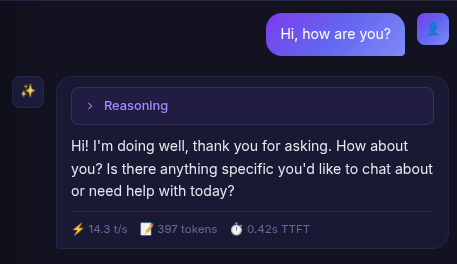
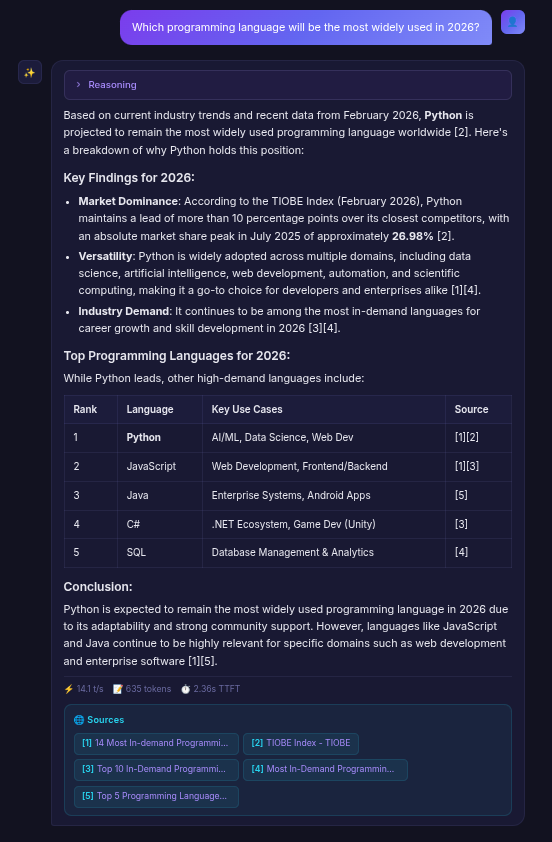
Featuring a premium "mobile-first" design, dark mode, and glassmorphism aesthetics, it allows you to comfortably chat with your LLMs, manage your models, and process images.
git clone https://github.com/rocopolas/lm-studio-pocket.git && cd lm-studio-pocket && chmod +x install.sh && ./install.shThis single command will:
- Install all npm dependencies
- Pull and configure a SearXNG Docker container for web search
- Auto-detect your LAN IP and create the
.envfile - Print next steps to get started
After installation, start the app with:
npm run devIf you prefer to set things up yourself, follow these steps:
- Open LM Studio on your computer.
- Go to the Developer / Local Server tab.
- Make sure the CORS (Cross-Origin Resource Sharing) option is enabled.
- Enable the option for the server to listen on your local network (On local network). This allows access from your phone.
- Click on Start Server (defaults to port
1234).
npm installOpen the .env file and set your LM Studio server IP address:
VITE_SERVER_URL=http://[IP_ADDRESS]:1234Pull and run the SearXNG Docker container:
mkdir -p searxng
cat > searxng/settings.yml << 'EOF'
use_default_settings: true
search:
  formats:
    - html
    - json
server:
  secret_key: "your-secret-key"
  limiter: false
  image_proxy: true
  port: 8080
  bind_address: "0.0.0.0"
EOF

docker run -d \
  --name searxng-pocket \
  --restart unless-stopped \
  -p 8080:8080 \
  -v $(pwd)/searxng/settings.yml:/etc/searxng/settings.yml:ro \
docker.io/searxng/searxng:latestnpm run dev(The server is exposed to your local network by default).
- Make sure your phone is connected to the same WiFi as your computer.
- Open the browser on your phone and enter your computer's IP address followed by the Vite port (e.g.,
https://192.168.1.100:5173).- Note: Since this is a local connection, your browser will warn you that the connection is "Not Private" or "Not Secure". Click Advanced > Proceed/Accept Risk to access the app.
- (Optional) Tap the 3 dots in your mobile browser and select "Add to Home Screen" to use it as a native app.
- In the app, open the sidebar > Settings, and make sure the Server URL points to your PC's IP in LM Studio (e.g.,
http://192.168.1.100:1234). - Enable Web Search in Settings to use SearXNG.
- Start chatting!
Want to use LM Studio Pocket while away from home (on mobile data or another WiFi)? The easiest and most secure way is to use Tailscale, a free Zero-Tier VPN.
- Create a free account at tailscale.com.
- Install the Tailscale app on your Host Computer (where LM Studio runs).
- Install the Tailscale app on your Phone (available on iOS and Android).
- Log into the same account on both devices and connect them.
Once Tailscale is connected on your computer, it will assign you a internal IP address (usually starting with 100.x.x.x).
- Find your computer's Tailscale IP (click the Tailscale icon in your computer's system tray/menu bar, or run
tailscale ipin terminal). - Open the
.envfile in thelm-studio-pocketdirectory and update theVITE_SERVER_URLto use your computer's Tailscale IP instead of the local LAN IP:
VITE_SERVER_URL=http://[YOUR_TAILSCALE_IP]:1234- Restart the web app:
Ctrl+Cthennpm run dev.
- Make sure the Tailscale VPN is active on your phone.
- Open your phone's browser and go directly to your computer's Tailscale IP on port 5173 using HTTPS:
https://[YOUR_TAILSCALE_IP]:5173- Note: You will need to accept the browser's "Not Private" self-signed certificate warning (Advanced > Proceed) the first time you connect.
- Everything will work seamlessly, securely encrypted through your own private network!