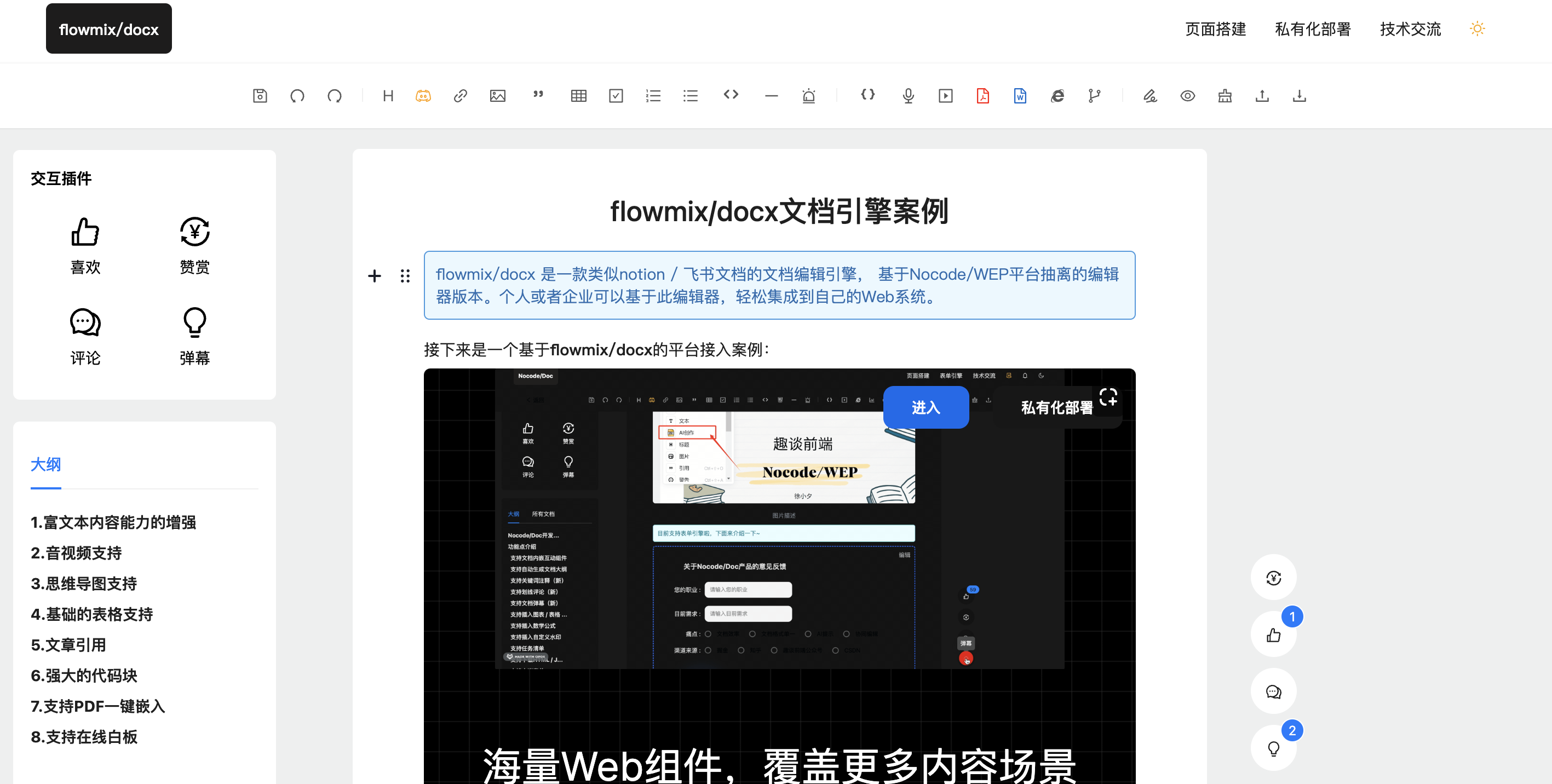
-
轻文档 Sass 地址: Sass | 立即体验
-
编辑器版本体验地址: flowmix/docx | 立即体验
-
Vue 版编辑器地址: flowmix/docx-vue | 立即体验
-
flowmix/docx AI 助手
-
高级思维导图
-
划词评论
-
批注
-
图文组件
-
标题组件
-
引用组件
-
警告提示框
-
轮播图组件
-
表格组件
-
表单组件
-
OCR 图片识别
-
链接卡片
-
思维导图
-
原型画板组件
-
音频组件
-
视频组件
-
信息流卡片
-
AI 创作
-
分页器
-
任务列表
-
负责数学公式
-
PDF 解析
-
DOC 解析
-
内嵌网页
-
分割线
-
多语言代码块
- 导入 markdown, json 文件
- 导出 json, doc, markdown 文件
- 基于内容生成文章大纲
- 互动组件
- 点赞 & 赞赏
- 留言评论
- 文档弹幕
- 支持自定义分页
- 支持自定义水印
接下来拿一个编辑器的组件作为例子, 进行二次开发, 比如我们想在编辑器中添加一个 AI 生成的组件, 可以这样进行开发:
import styles from "./index.module.less"
import { make } from "../../utils/dom"
import { marked } from "marked"
import { ai2Text } from "./api"

class AIWrite {
	static get toolbox() {
		return {
			title: "AiWrite", // 组件显示名
			icon: `你的组件图标`,
		}
	}

	// 是否支持只读
	static get isReadOnlySupported() {
		return true
	}

	constructor({ data, api, config, readOnly }) {
		this.data = {
			text: data.text,
		}

		this.api = api

		this.readOnly = readOnly

		this.config = config || { placeholder: "向AI发送你的需求~" }

		this.wrapper = undefined
	}

	render() {
		this.wrapper = make("div", styles["cx-custom-aiWrite"])

		if (this.data && this.data.text) {
			const wrap = make("div", styles.wrap, { innerHTML: this.data.text })
			const applyBtn = make("div", styles.applyBtn, { innerHTML: "应用" })
			const resetBtn = make("div", styles.resetBtn, { innerHTML: "重新生成" })
			this.wrapper.append(wrap, applyBtn, resetBtn)
			applyBtn.addEventListener(
				"click",
				() => {
					const curIdx = this.api.blocks.getCurrentBlockIndex()
					this.api.blocks.insert(
						"paragraph",
						{
							text: this.data.text,
						},
						null,
						curIdx,
						true
					)
					this.api.blocks.delete(curIdx + 1)
				},
				false
			)

			resetBtn.addEventListener(
				"click",
				() => {
					this.update("")
				},
				false
			)
		} else {
			// 创建输入框, 按钮
			const controlBox = make("div", styles.controlBox)
			const saveBtn = make("div", styles.saveBtn, { innerText: "AI生成" })
			const ipt = make("input", styles.ipt, { placeholder: this.config.placeholder })
			controlBox.append(ipt, saveBtn)
			this.wrapper.append(controlBox)

			// 监听编辑和保存事件
			this.api.listeners.on(
				saveBtn,
				"click",
				() => {
					// 前端手动控制AI调用次数
					let aiCount = localStorage.getItem("a_count")
					if (aiCount === null) {
						localStorage.setItem("a_count", 20)
						aiCount = 20
					}
					if (aiCount < 1) {
						alert("您的AI次数已用完,请关注[趣谈前端]公众号反馈升级")
					}
					if (ipt.value) {
						saveBtn.innerHTML = `${IconLoader} 生成中`
						saveBtn.style.pointerEvents = "none"
						ai2Text(ipt.value).then((res) => {
							localStorage.setItem("a_count", aiCount - 1)
							const text = res.output?.text || "生成失败"
							this.update(marked.parse(text))
						})
					}
				},
				false
			)
		}

		return this.wrapper
	}

	update(text) {
		const curIdx = this.api.blocks.getCurrentBlockIndex()
		const curBlock = this.api.blocks.getBlockByIndex(curIdx)
		this.api.blocks.update(curBlock.id, {
			text,
		})
	}

	save(blockContent) {
		return this.data
	}

	static get sanitize() {
		return {
			text: true,
		}
	}
}

export default AIWrite
然后在编辑器组件注册即可使用.
如果要开发一个自定义的文档组件, 我们可以在 src/components/Editor/components/ 下新建一个组件目录, 如 MyImage, 接下来我们需要来设计这个文档组件, 它是一个 js 类:
class MyImage {
	static get toolbox() {
		return {
			// 文档组件的名称
			title: "Image",
			// 自定义图标
			icon: "",
		}
	}

	constructor({ data, api }) {
		// 初始化文档组件所需数据
		this.data = data
		// 赋值编辑器全局api, 以便可以在文档组件内调用
		this.api = api

		// 比如通过api 来获取当前文档组件在文档中的位置
		// this.api.blocks.getCurrentBlockIndex()
	}

	render() {
		// 渲染文档组件, 需要用一个容器包裹
		const wrapper = document.createElement("div")
		// 以下是一个案例
		const input = document.createElement("input")

		wrapper.classList.add("my-image")
		wrapper.appendChild(input)

		input.placeholder = "输入图片地址"
		input.value = this.data && this.data.url ? this.data.url : ""

		return wrapper
	}

	save(blockContent) {
		// 当保存时调用的方法, 这里可以用来保存文档组件的数据
		const input = blockContent.querySelector("input")

		return {
			url: input.value,
		}
	}

	validate(savedData) {
		// 校验保存的数据是否符合我们的需求, 返回false, 则不保存文档数据
		if (!savedData.url.trim()) {
			return false
		}

		return true
	}
}
接下来展示一下文档组件实际保存的数据结构:
{
    "time": 1552751783129,
    "blocks": [
        {
            "type": "myImage",
            "data": {
                "url": "https://cdn.pixabay.com/photo/2017.jpg"
            }
        }
    ],
    "version": "2.16.10"
}
在开发完文档组件之后, 我们可以在编辑器中注册该组件, 方法如下:
// src/components/Editor/index.tsx
// 引入组件
import MyImage from "./components/MyImage"

// 其他业务代码......

const editor: any = new Editor({
	onReady: () => {
		// 编辑器初始化的一些操作
	},
	onChange: function (api: any, event: string) {
		// 编辑器内容变化的回调
	},
	// 编辑器初始化数据
	data: JSON.parse(localStorage.getItem("data") || "{}"),
	// 挂载的元素节点
	holder: editorRef.current,
	// ...
	tools: {
		MyImage: {
			class: MyImage,
			// ...
			config: {
				placeholder: "请输入图片地址",
			},
		},
		// 挂载其他组件...
	},
})内嵌第三方组件或者页面的方式其实也是需要基于上述的框架, 我们可以通过 iframe 的方式来快速整合企业内部组件或者页面, 这里我以 白板组件 来举例:
// @ts-nocheck
import styles from "./index.module.less"
import { make } from "../../utils/dom"

class Board {
	static get toolbox() {
		return {
			title: "Board",
			icon: `白板svg图标`,
		}
	}

	static get isReadOnlySupported() {
		return true
	}

	constructor({ data, api, config, readOnly }) {
		this.data = {
			id: data.id || "",
		}

		this.api = api

		this.readOnly = readOnly

		this.config = config || {}

		this.wrapper = undefined
	}

	render() {
		this.wrapper = make("div", styles["cx-custom-board-iframe"])

		const iframe = make("iframe", styles.iframe, { src: `/docx/design/board?id=${this.data.id}&i=1` })
		const fullBtn = make("div", styles.fullBtn, { innerHTML: "全屏", title: "全屏" })
		this.wrapper.append(iframe, fullBtn)
		window.handleSaveBoard = (id) => {
			if (!this.data.id) {
				this.data.id = id
			}
		}
		fullBtn.addEventListener(
			"click",
			() => {
				iframe.requestFullscreen()
			},
			false
		)

		return this.wrapper
	}

	save(blockContent) {
		// console.log(this.mfe.value())
		return this.data
	}
}

export default Board
大家可以看到上述代码中, 在 render 方法里通过渲染 iframe 标签, 然后通过 url 参数 来实现第三方组件或者页面快速集成到文档组件中.
目前前端文档编辑器不包含服务端代码, 大家可以根据需求自行开发, 这里我罗列一下编辑器版本的服务端功能:
- 文件上传服务(案例中使用的是七牛云存储)
- AI 创作(案例中采用阿里通义千问)
当然整套设计机制包括文档数据流转模式都在源码中体现, 私有化后会统一提供技术培训服务.
-
编辑器版本体验地址: flowmix/docx | 立即体验
-
Vue 版编辑器地址: flowmix/docx-vue | 立即体验
-
Pro 版文档知识引擎地址: Nocode/wep | 立即体验