Home
There are a few main components to the Reproducible Reporting project, that I have tried to modularize as much as possible. They are:
The shiny app: this is the flashy front end for the tool. The relevant files are under: /app/, /app/R, /app/modules/
The processed data: This is stored in .RData files, remotely on the IN drive: R:\Science\BIODataSvc\IN\MSP\Data\RData\data and locally in /app/data. The local files get synchronized to the remote files when running any section of the report.
The raw data: exist in a wide number of locations documented in the metadata sheet: ReproducibleReporting-Data-Metadata.xlsx
The reporting templates: These are .Rmd’s that select which sections are included in which report as well as setting the overall structure of the reports. The error-prone intro section and summary tables are included here. These are managed in app/templates.
The report functions: These are the functions used to generate each section of the report, creating tables, performing intersects, generating plots etc. There are in /reports/R
The individual report sections: Each section of the report will have its own preprocessing and Rmd’s. This makes it easier to troubleshoot and modularize the report. It also encourages better coding practices such as writing helper functions and avoiding dependencies. These can be found in /reports/sections
Config: The configuration values for the application are stored in config.R. Any type of value that might be considered a global variable is stored in this file.
Additional components: There are additional files and code scattered throughout the repository of varying levels of importance for your coding pleasure.
The shiny app is the flashy front end and is well isolated from the rest of the project. Ideally, you should not need to make any major changes to the functionality of it. The key files are as follows:
/app/ui.R and app/server.R: These are the standard shiny files: ui.R handles what the app looks like and server.R handles what happens when buttons get clicked.
/app/modules/*.R: These contain submodules of the app, each with their own ui and server section.
/app/R/*.R: Contains R helper functions for the shinyapp side of things.
The most important part of the front end revolves around how the reports get rendered from the app. This process is more complicated than normally knitting an RMD as information entered in the app needs to be incorporated into the reports. The reports also need to be rendered twice to generate some of the summary tables at the top of the reports. This behaviour is managed in /app/R/renderReport.R and in the server part of /app/modules/fullReport.R
The processed version of all the datasets is stored on the IN drive at: R:\Science\BIODataSvc\IN\MSP\Data\RData\data. These files are generated and saved in the preprocessing scripts for each section into a subfolder indicating the security level (open, secure, protected) of the data. Each file is named using the shorthand name for the section of the report which should correspond to a directory under /reports/sections/.
The data on the IN drive is the authoritative version of the data. The master branch of the repository should always be able to render the report using a copy of the IN drive version of the data. To minimize how much the IN drive data is updated as well as time spent downloading it, a local copy of the data is used when rendering the report in /app/data/. This is where any data should be updated for testing purposes.
To ensure that the data directories stay synchronized across all collaborators, the copy_rdata_files() script is run whenever a report section is rendered as part of the intro_setup() script. This will update any of data local RData files with an updated version from the IN drive, based on the last modified date.
Requesting access to the IN drive: To get access to the IN drive, a ticket needs to get filed with IT and be approved by Robert Benajmin in ODIS. You can either file the ticket directly (http://assystselfservice.ent.dfo-mpo.ca/assystnet/#serviceOfferings/169) or ask Robert to grant you access to the drive.
The raw data used in the reports is stored in a wide variety of locations and formats. These disparities are where the value in the reproducible reports is created. There is a collection of data stored on the IN drive under R:\Science\BIODataSvc\IN\MSP\Data\NaturalResources\Species but the goal is to minimize the number of data copies needed for this project. Other data sources include Esri mapservers, Open Data and the OBIS database. The full list can be found in the metadata sheet: ReproducibleReporting-Data-Metadata.xlsx, request access if needed.
These are the templates that pick and choose which individual data sources will be included in the rendered report using “child” RMD chunks. At their simplest they look like something like the habitat section (app/templates/EN/context/habitat.rmd):
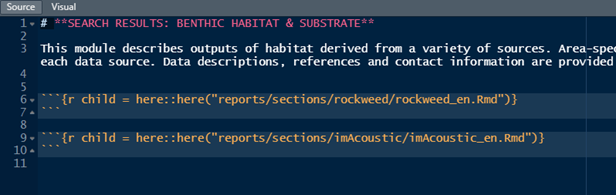
This template includes an intro paragraph and two individual data source sections. The most complicated section is the generic intro section (app/templates/EN/generic_intro.rmd) which includes summary tables and the whisker tags (the {{add_parts}} line below):
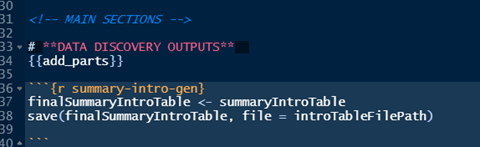
These tags get replaced by text from the shiny app before the report is rendered and are what allows the dynamic table of contents in the app to work.
The summary tables are some of the most error prone components of the reports, due to their global variable nature. In general, the approach is to create them in the CommonIntro section and extend them using functions in each individual section to ensure the formatting stays the same.
There are a handful of functions that are used in almost every individual section of the report. These are stored in reports/R/*.R. The most used ones are:
Intro_setup: Loads many of the common variables into the report environment. This creates the summary tables, and the mapDataList which contains the key geometric features and maps (study area, area map, region map, bounding boxes). Also syncs the local data directory with the remote one.
Load_rdata: Looks for an .RData file in the local data directory. As well as a name, this function takes a region parameter to select data from different regions and an environment parameter that is essential for loading data into the RMD environments.
Write_meta: Given an RR object, this function returns the formatted metadata string found at the start of each section.
Master_intersect: this is where most of the time-consuming geospatial operations occur. It returns a list of cropped versions of the input simple feature object, one for each the map area (for plotting), study area (for tables), and optionally the region (for plotting)
add_row_to_intro_summary: Adds a row to the summary tables
plot_rr_sf: Overlaps the input data on top of the input plot, using a common style/formatting to ensure consistency across the report. This should probably be rewritten.
There are a wide variety of reasons that will cause the report to crash during rendering. The most common case arises when a dataset has no values in a search area and does not have an error check for this null case. A typical debugging workflow is to move to progressively smaller sections of the report, using the same search area that caused the crash and seeing if you can spot the bug at each step. I.e.:
Run the whole report. If this crashes, the log should indicate which section the exception occurred in
Knit the problematic section individually, which should identify the specific chunk
Run the section line by line, this should identify exactly which line of code is triggering the bug.
If necessary, run through the function called line by line. This will likely require assigning variables to the input parameters. So, if the function is defined as:
my_func <- function(data_sf) {...}
Set the value of data_sf before stepping through it. Make sure to clear the environment variables after doing this.