Look under the releases tab for the newest version!
- After downloading the zip file in the releases tab, open it and drag the monkeys (Congolese Bonobos) into your Applications folder.
- Double-click the bonobos. Beware – it will get mad at you! Now, depending on your version of MacOS:
- (NEW) Go to system settings, go to “Privacy and Security”. Scroll to the bottom. Under “Security”, click “Allow Anyway”.
- (OLD) Go to system preferences, go to “Privacy and Security”. In the “General” tab, click “Allow Anyway”.
- Good job! From now on, you can just double-click on the application to run it!
- Use the Add/Drop button to add or drop classes. Classes will appear exactly as you type them.
- If you are dropping a class, it needs to be written exactly as it appears.
- When a lecture begins, go to your class and press start!
- Your status defaults to green – update your status over the course of the lecture! (See "Status Definitions")
- You can pause the lecture by clicking the time. Clicking again will resume the lecture.
- When the lecture is finished, click “END”. If you accidently start a lecture you don't want to (use the OTHER class for testing), and you don't want the data being saved, just exit the app, don't press "END"!
- Use the "Settings" button to select whether or not you want the status screen (the small screen during a lecture) to also appear on top of your other screens. It will disappear when you go full screen. You can also set it so that the whole application is always on top. Test each version out, perhaps using the "OTHER" class and see which way you like more!
- Green: You are learning. It is still taking effort to learn, but you are not confused. Your current presence in this class is important.
- Yellow: You are getting confused. Content is starting to not make total sense, and you’re going to have to go back & review. Usually by focusing and asking questions, you can get back on track to green.
- Red: You are not learning - content is either too complicated or this is bad teaching. Your presence in this class is essentially pointless at this moment.
- White: You are not paying attention! Either you are focused on something else because you don't want to pay attention, or you are texting, emailing, in bathroom, etc. Any smidge of MULTITASKING and you need to click white. You can’t cheat this, or I'll be furious. Even just a text, or a quick check of your email... you think you're still paying attention, but you aren't – WHITE.
- Purple: Class is way too easy, or content is becoming repetitive. Being in class is currently of no use. The content is so simple that you could ace a test on this material without any studying, and if this goes on you may as well leave.
- All data is in the “Engagement Data” folder of your home directory. If you can’t find your home directory, go to Finder settings/preferences, click on the “Sidebar” tab, and make sure the house with your name next to it is checked!
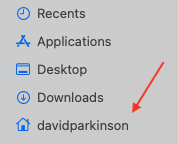
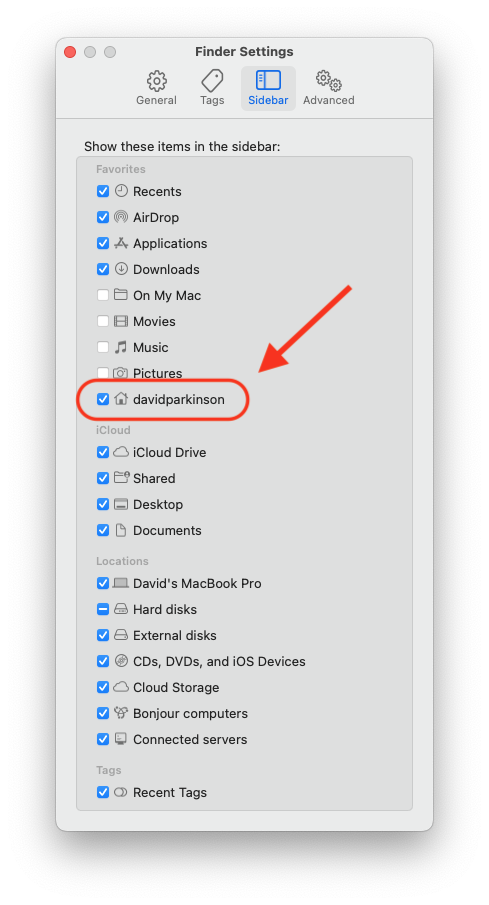
- Now go find the “Engagement Data” folder. The “Current Class Data” folder contains data for your active classes, the “Archived Data” folder contains data for your dropped classes.
- For each class, you have:
- Overall Pie Chart: this is a pie chart showing the distribution of your status across all lectures. This will update automatically as you record additional lectures.
- Overall Stats: A raw csv file of your stats. You probably won’t care about this one.
- A dated folder for each lecture, containing:
- A lecture-specific Pie Chart
- A lecture-specific Time Plot, showing your status over time.
- Two other lecture specific raw data files you probably don’t care about...
- Each of these plots will appear after you finish each class.
–––––––– Enjoy! ––––––––