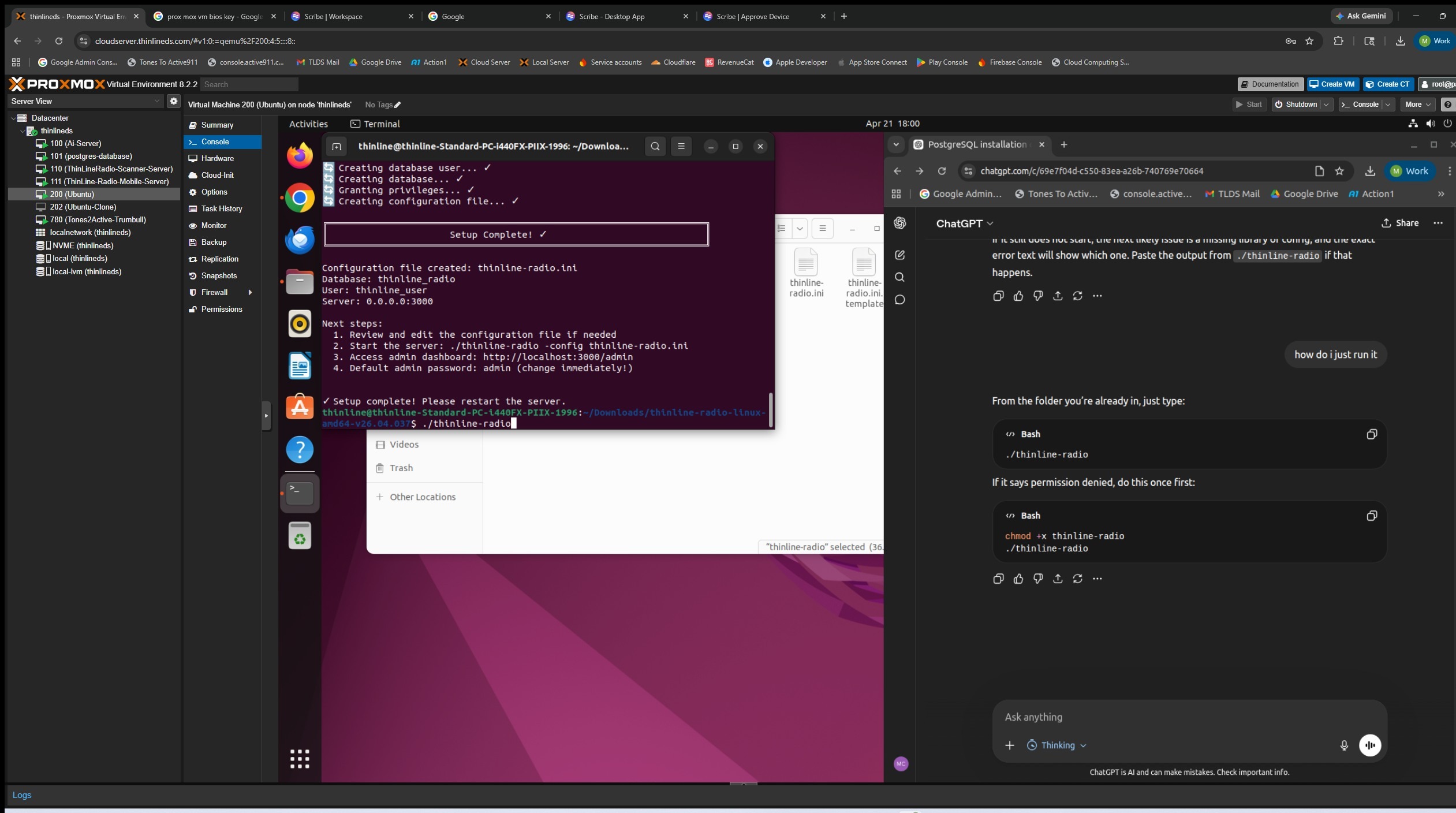
1.1.0 Linux Installation
This guide covers the technical process of installing Postgres database, and Thinline Radio.
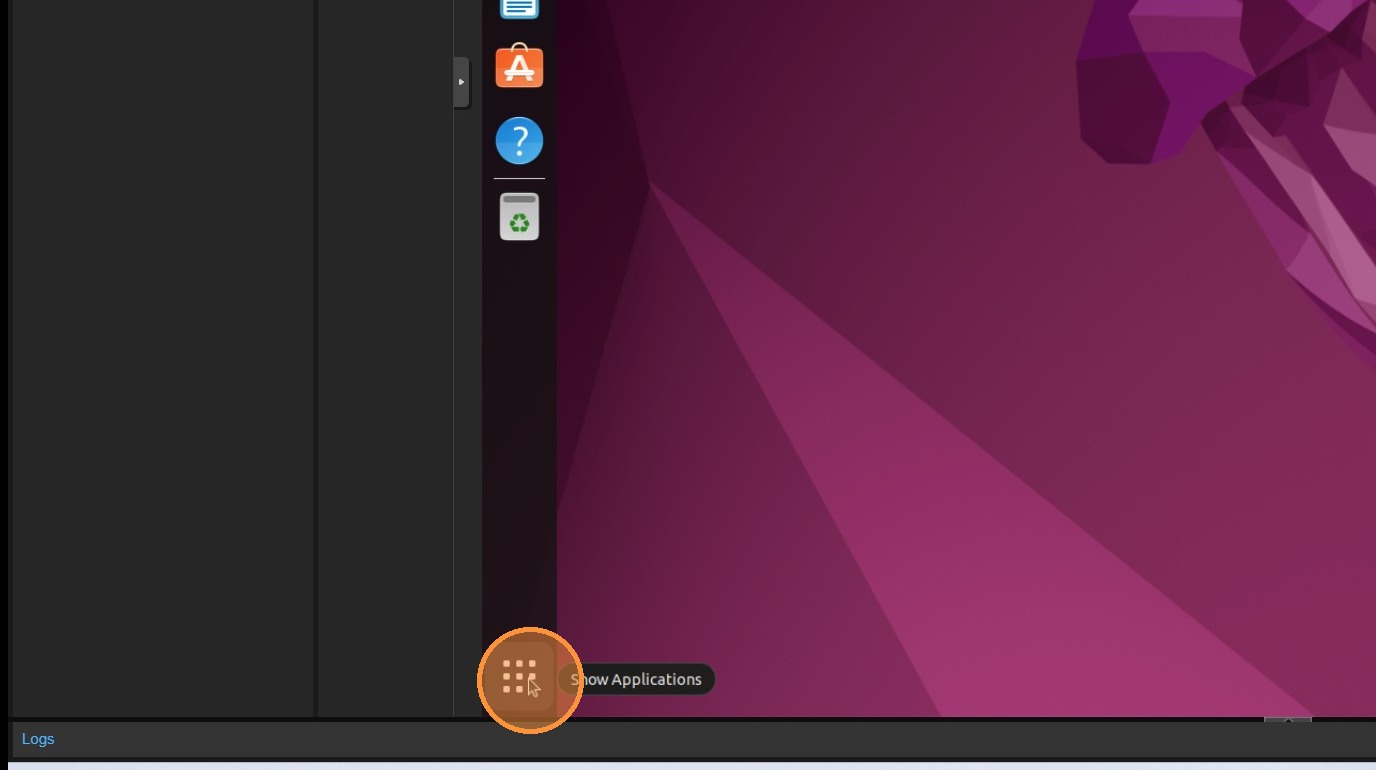
1. Click Show Applications at the bottom
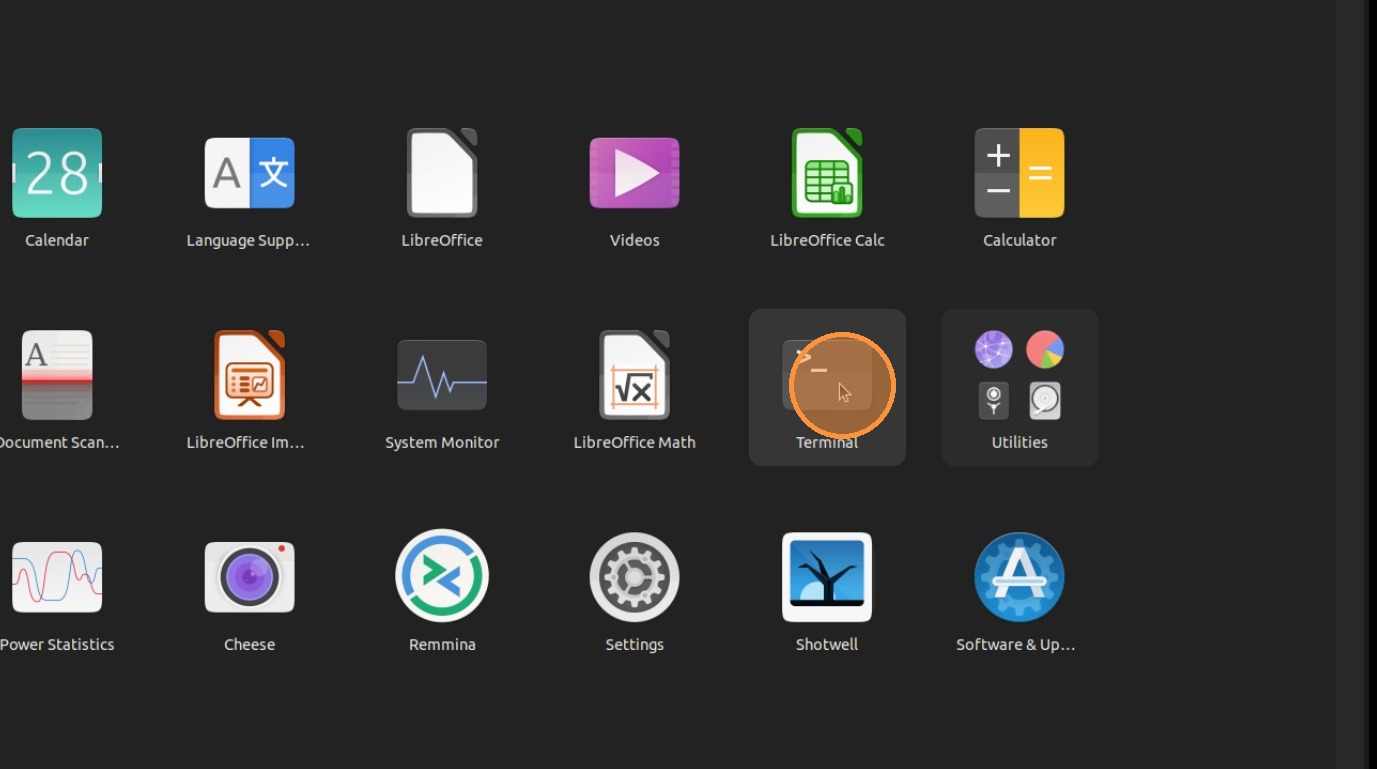
2. Open Terminal
3. Run This Command "sudo apt update"
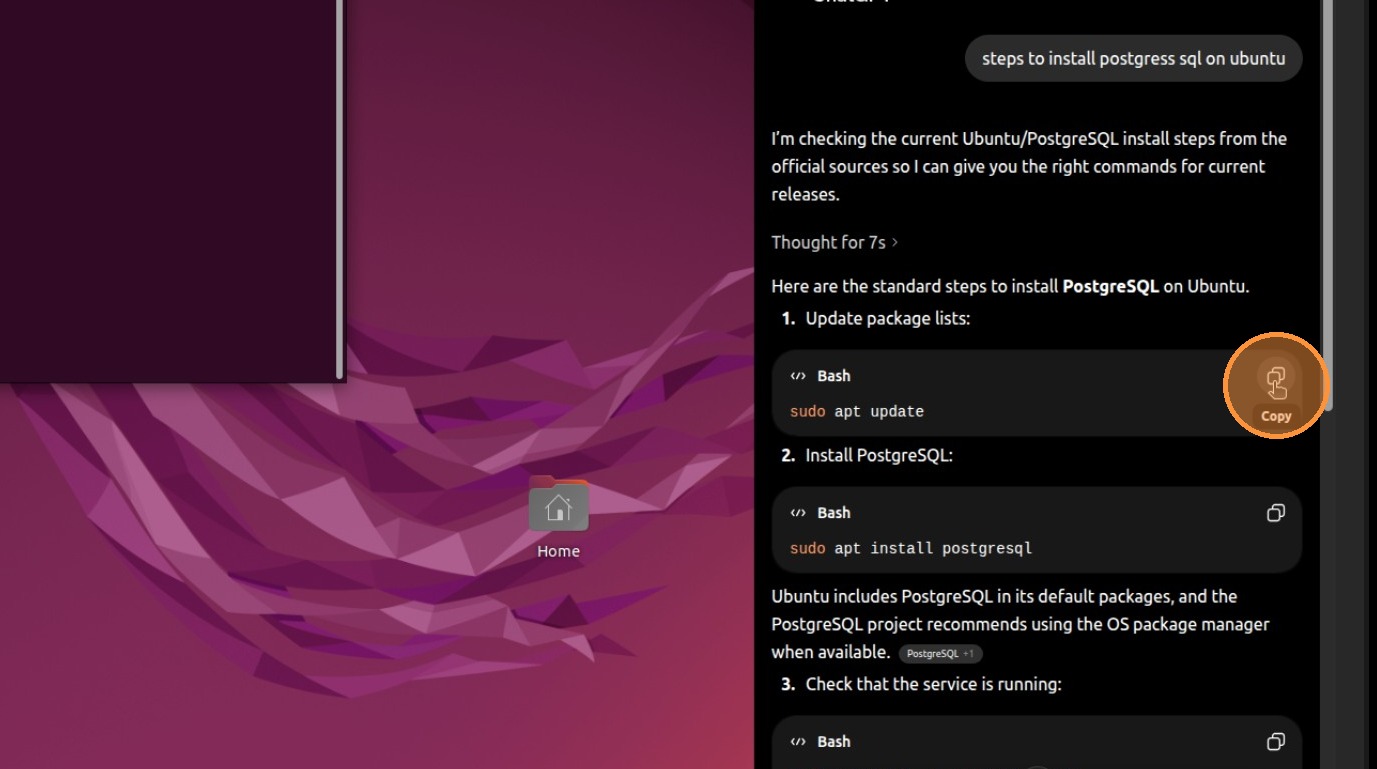
4. Press Return
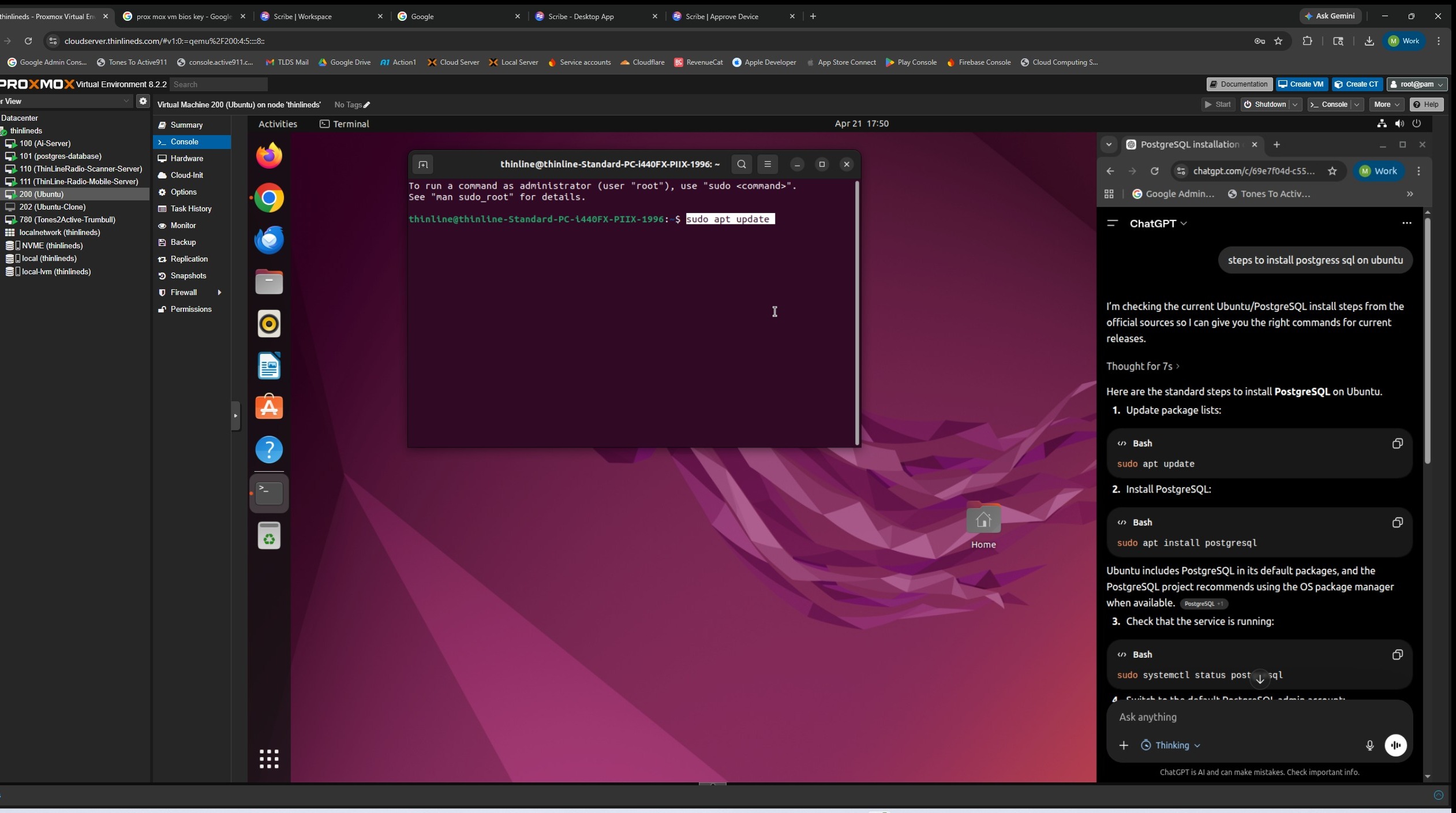
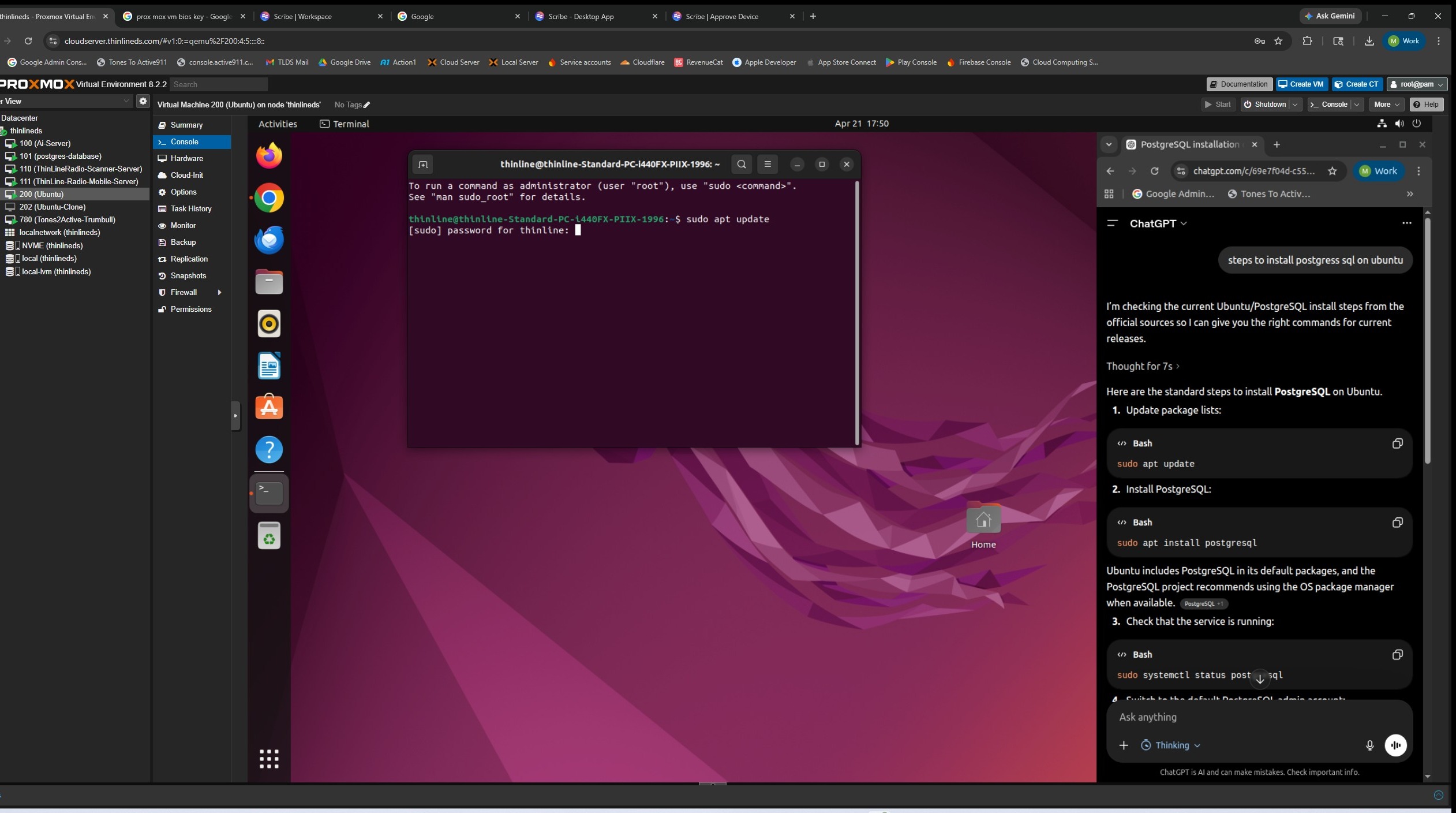
5. Enter Your Admin Password
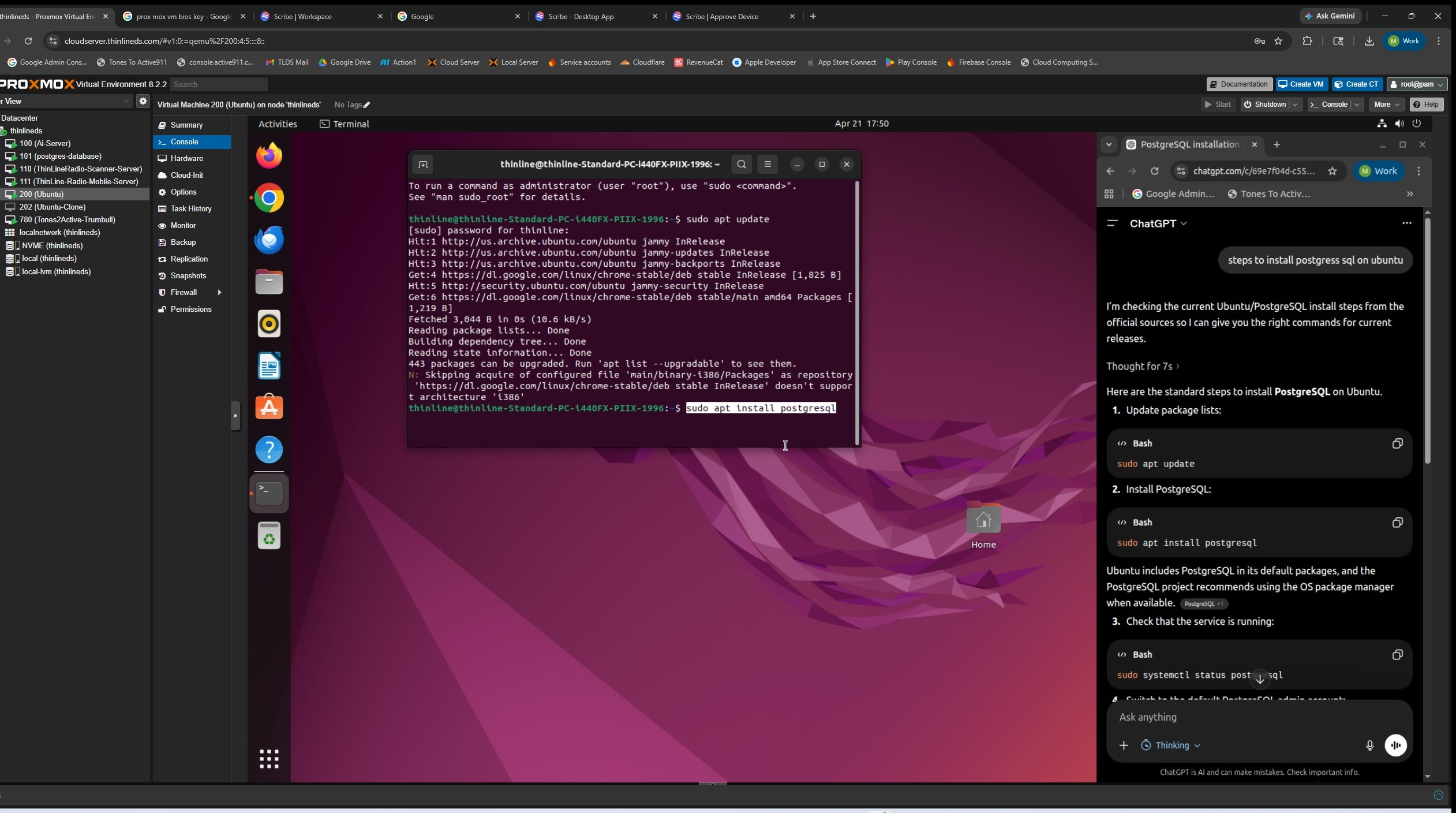
6. Once Updating is finished, run the Postgres apt install command.
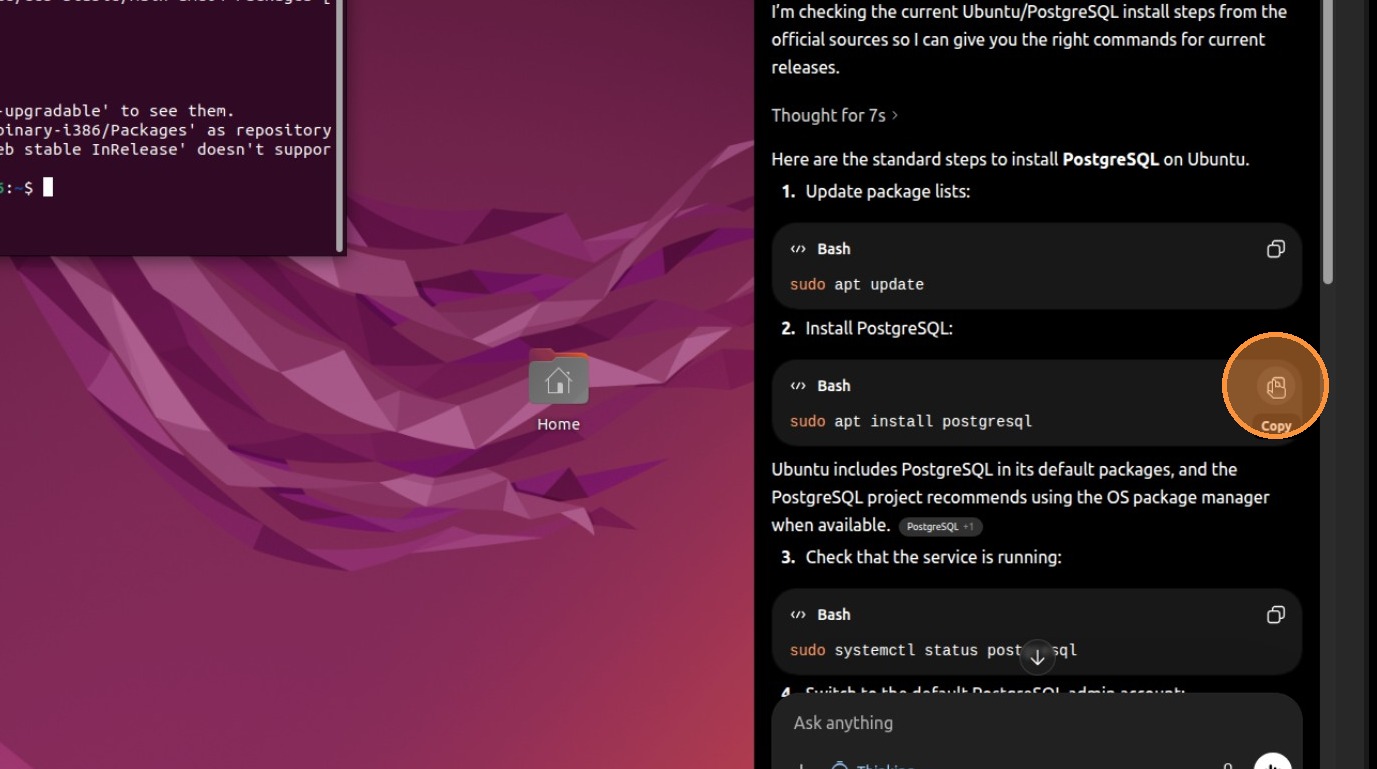
7. Press Return
8. Type Y then hit enter
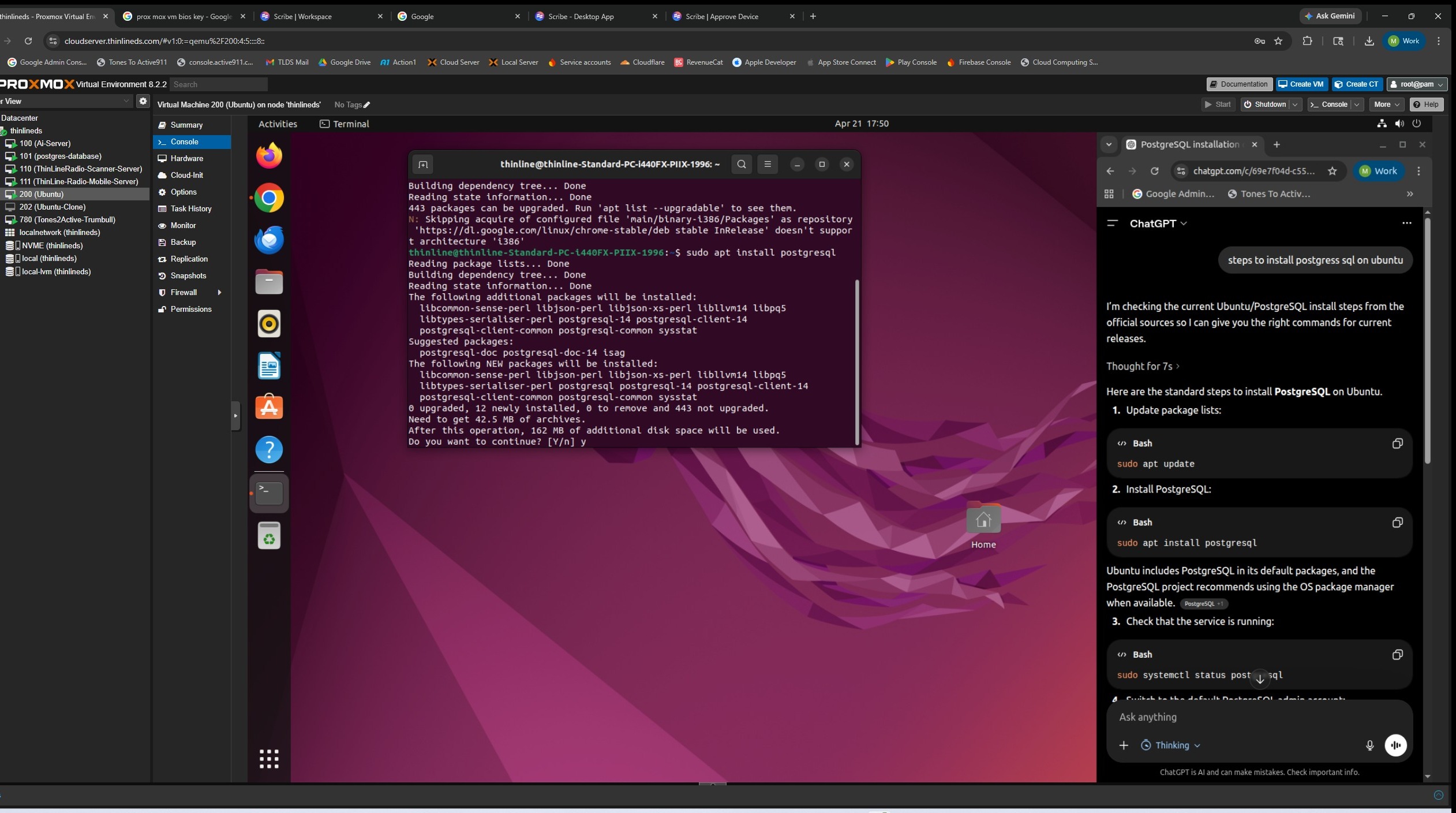
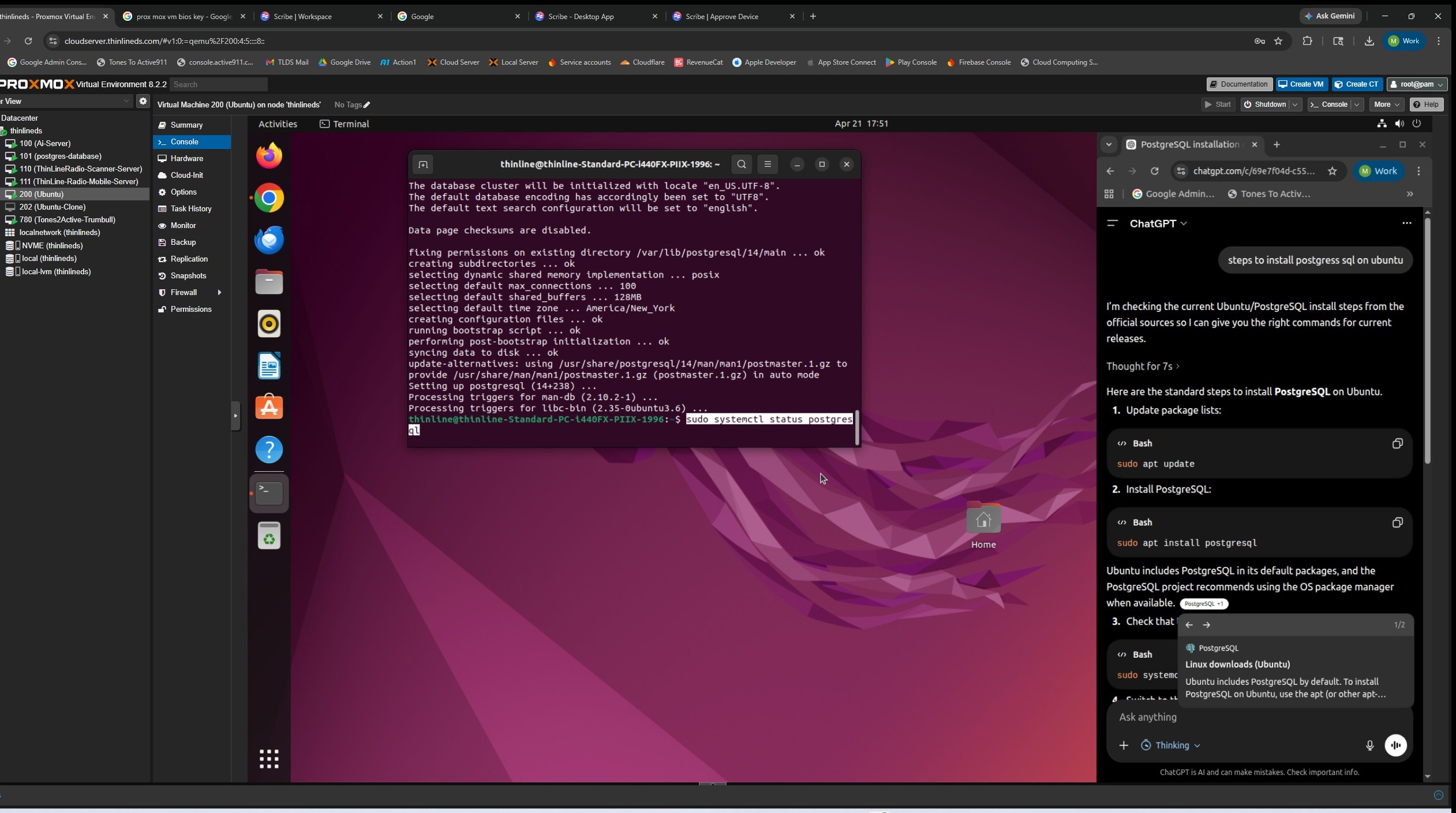
9. After its finished, run this command to see if its running
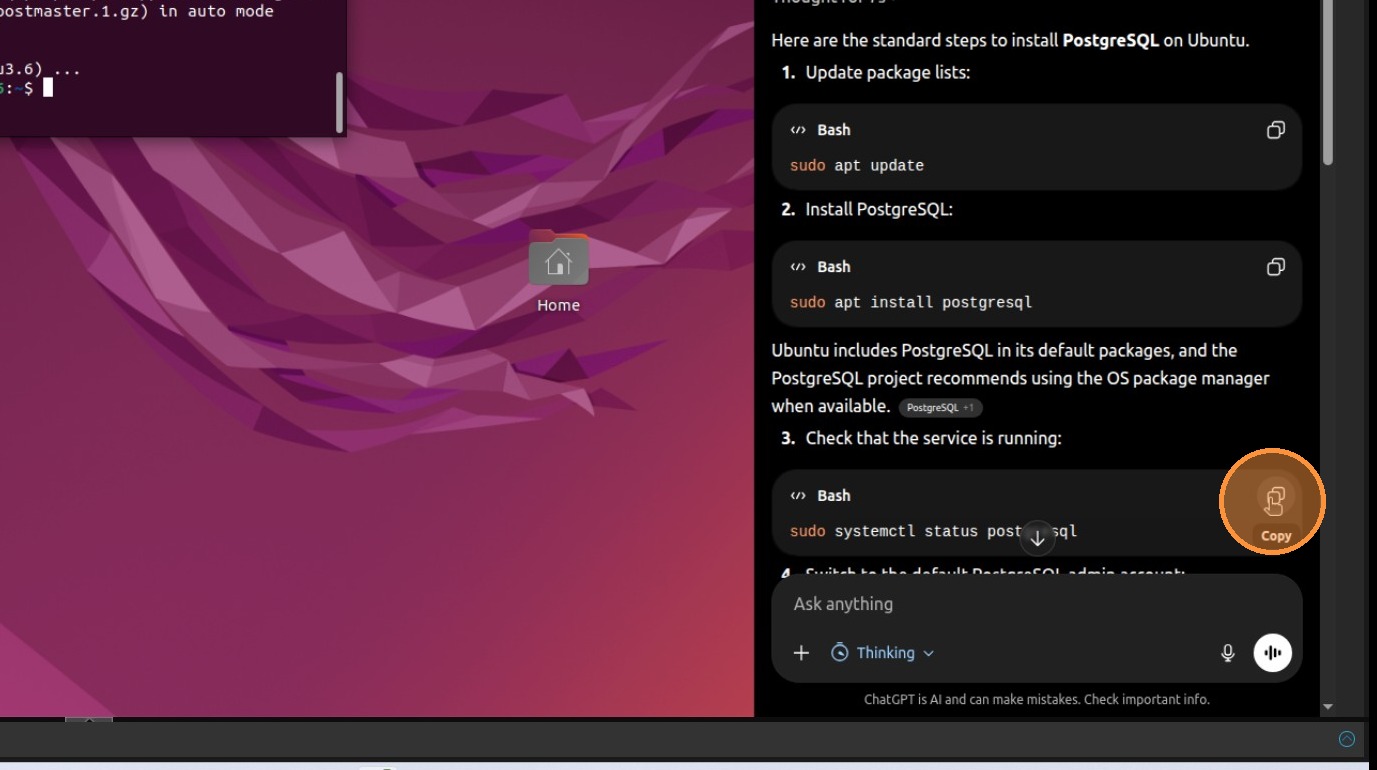
10. Press Return
11. run psql
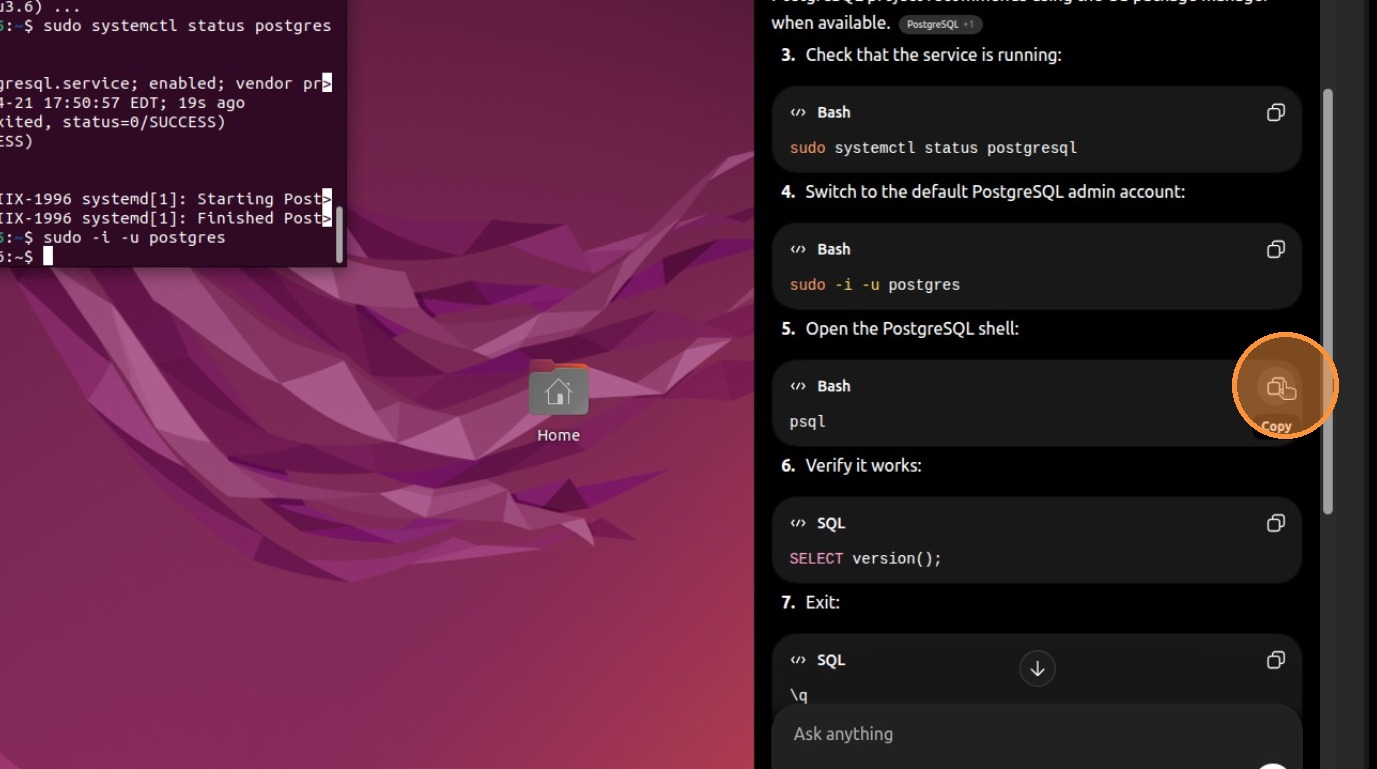
12. Press Return
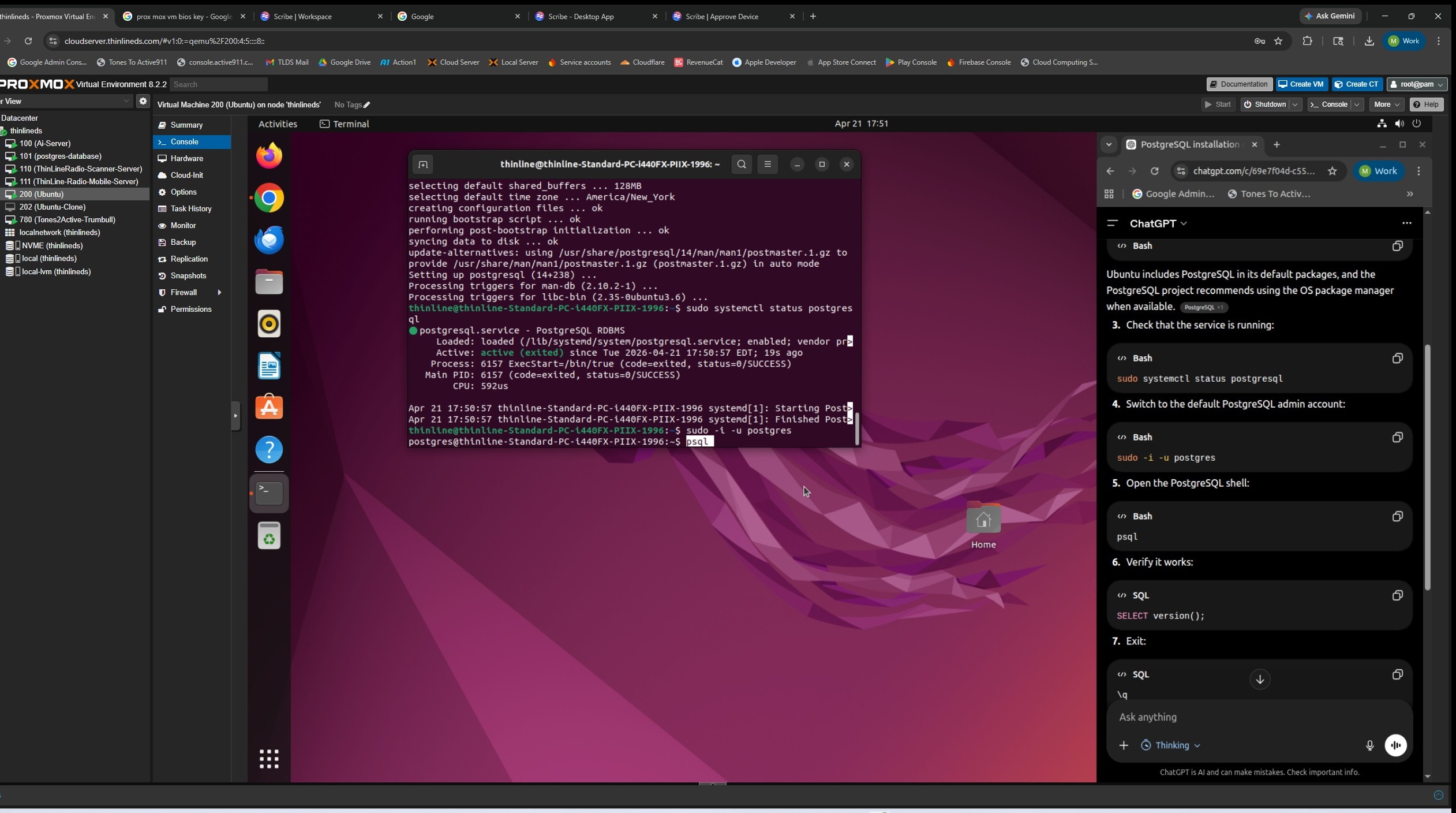
13. You should see postgres=#
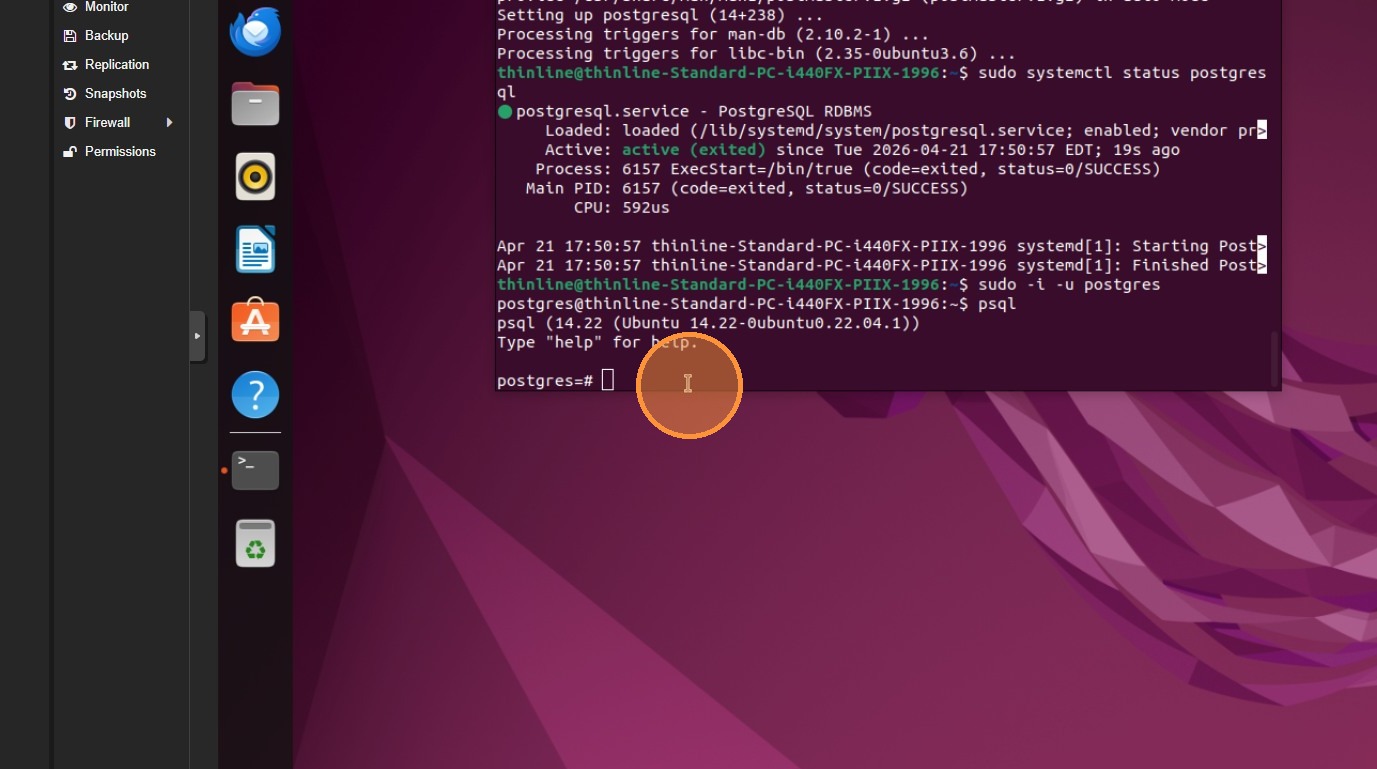
14. Run this command and set your password change "your_strong_password" to "your_desired_password"
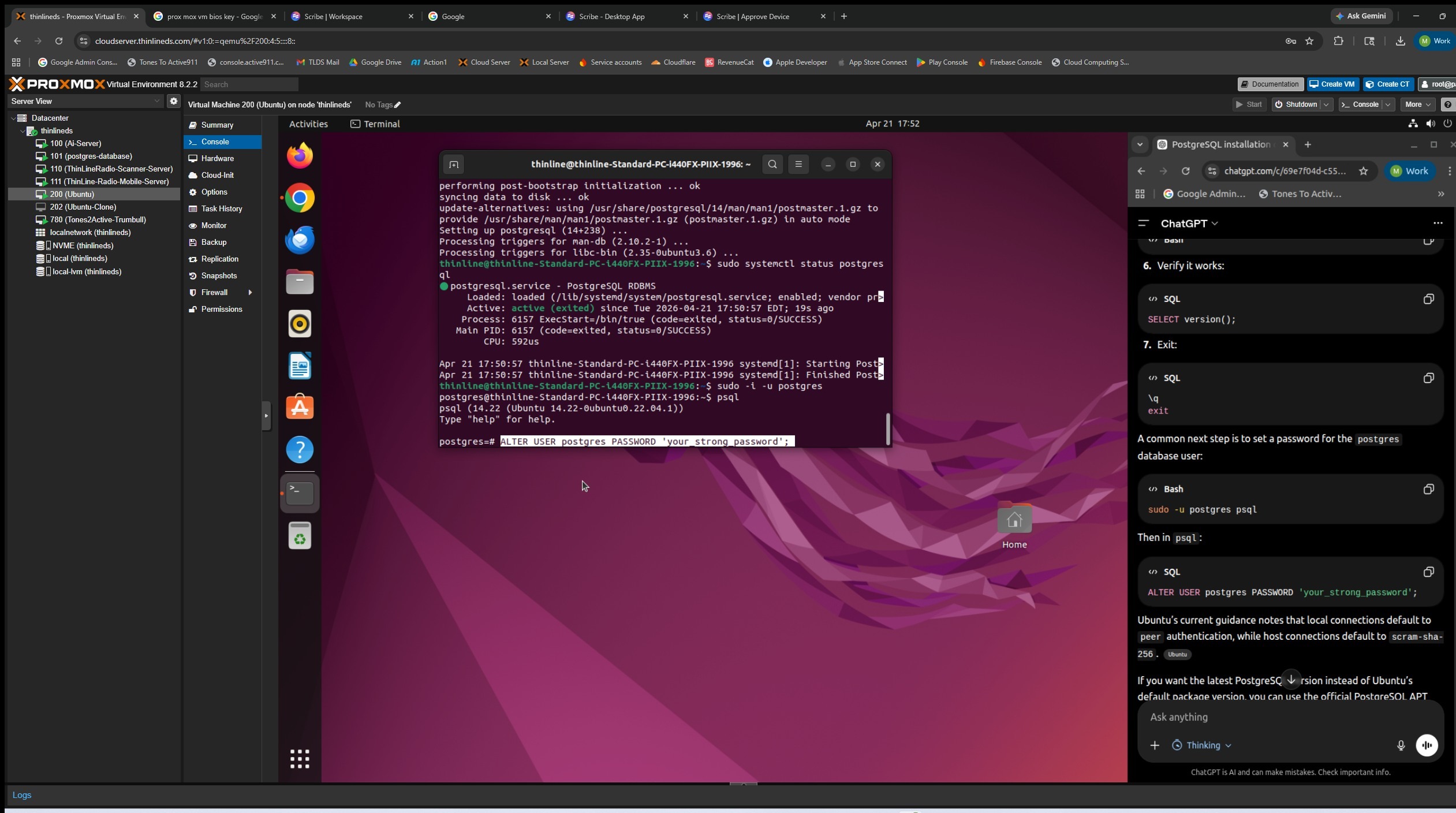
15. postgres=# means it was successful
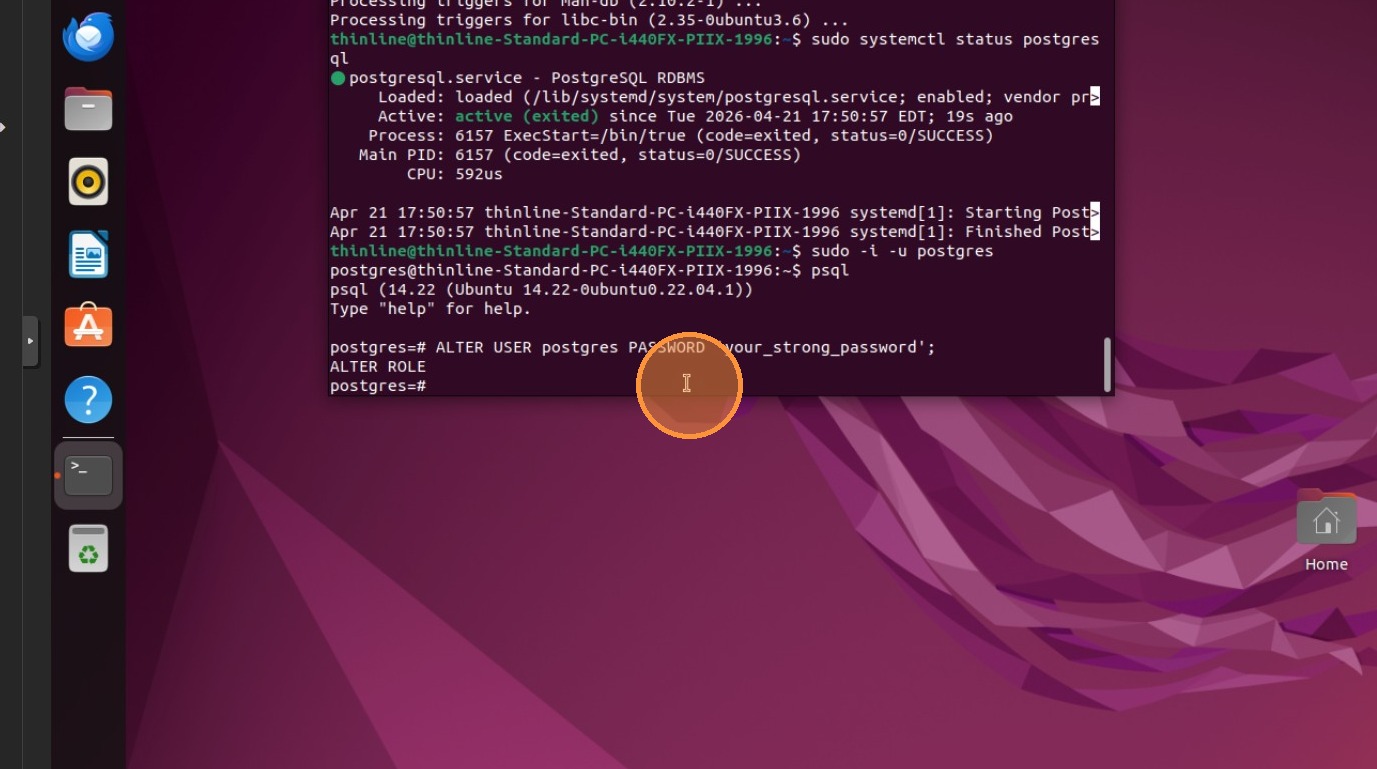
16. Example of password "NOTE THIS PASSWORD, YOU WILL NEED IT!"
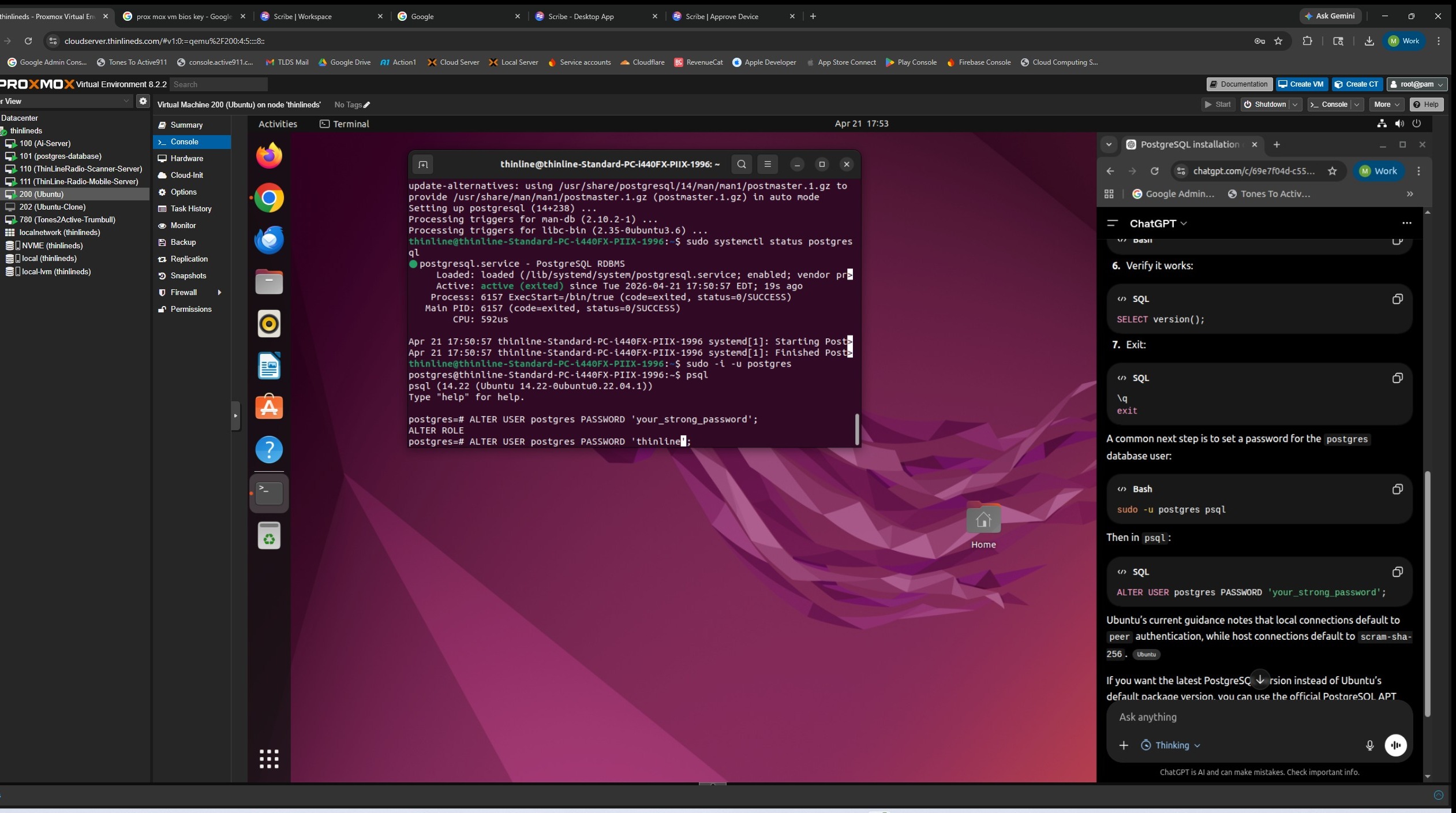
17. Google Search "Thinline Radio Github"
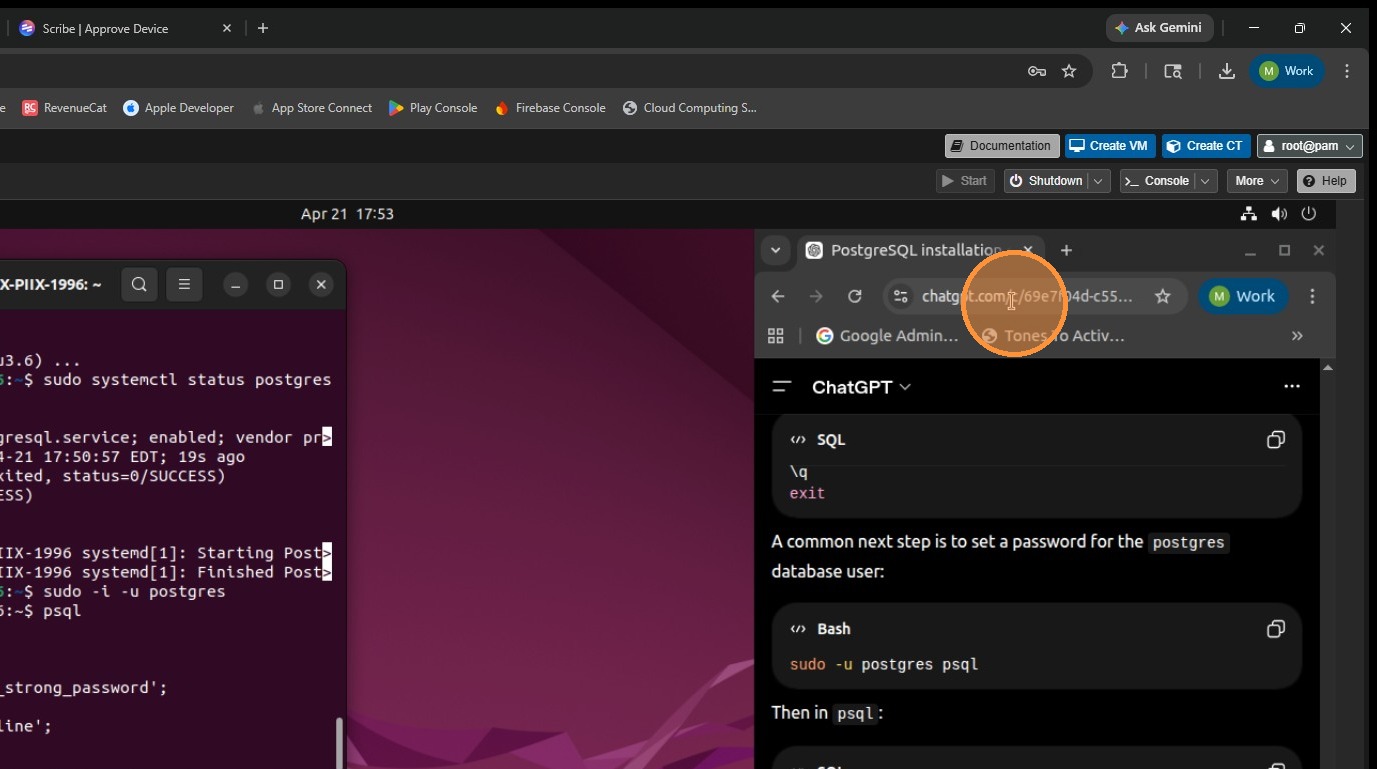
18. Click The one that looks like this.
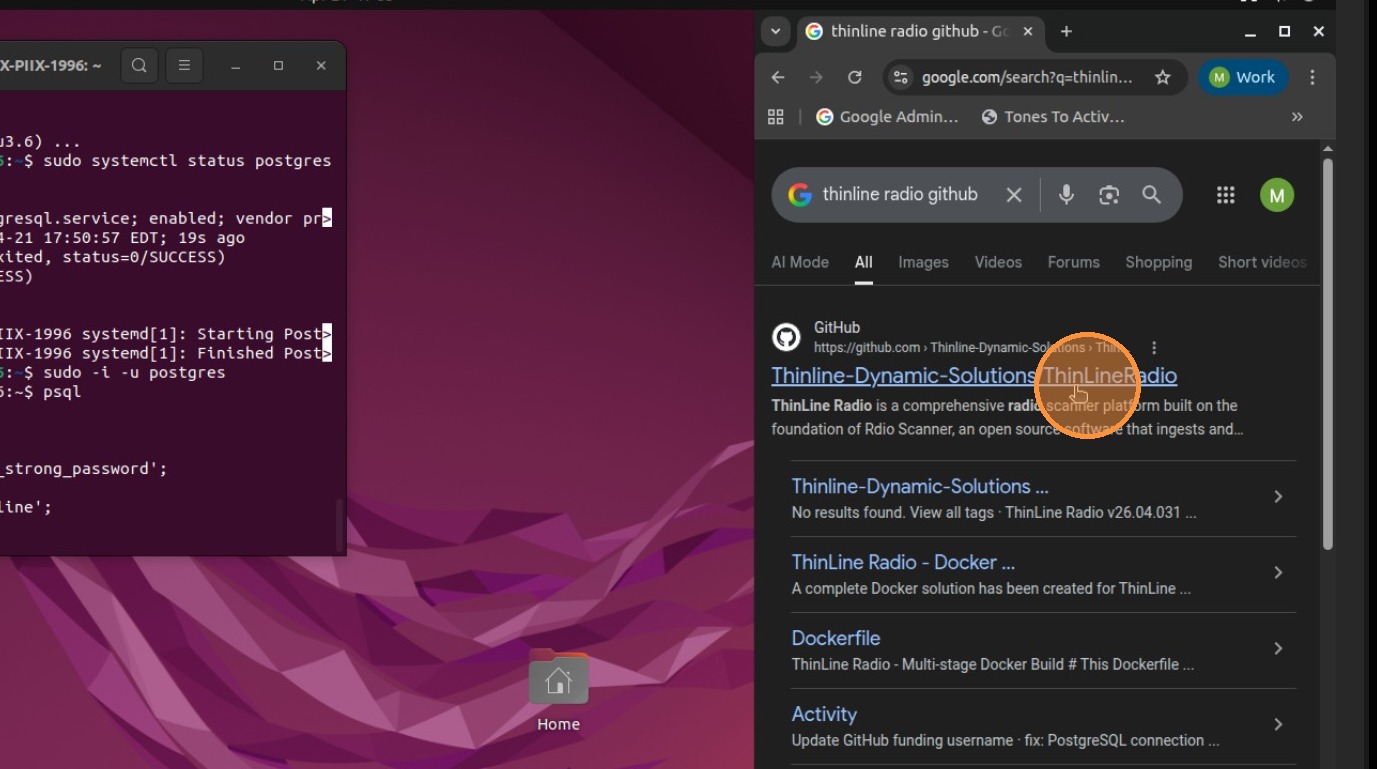
19. Go To "Releases"
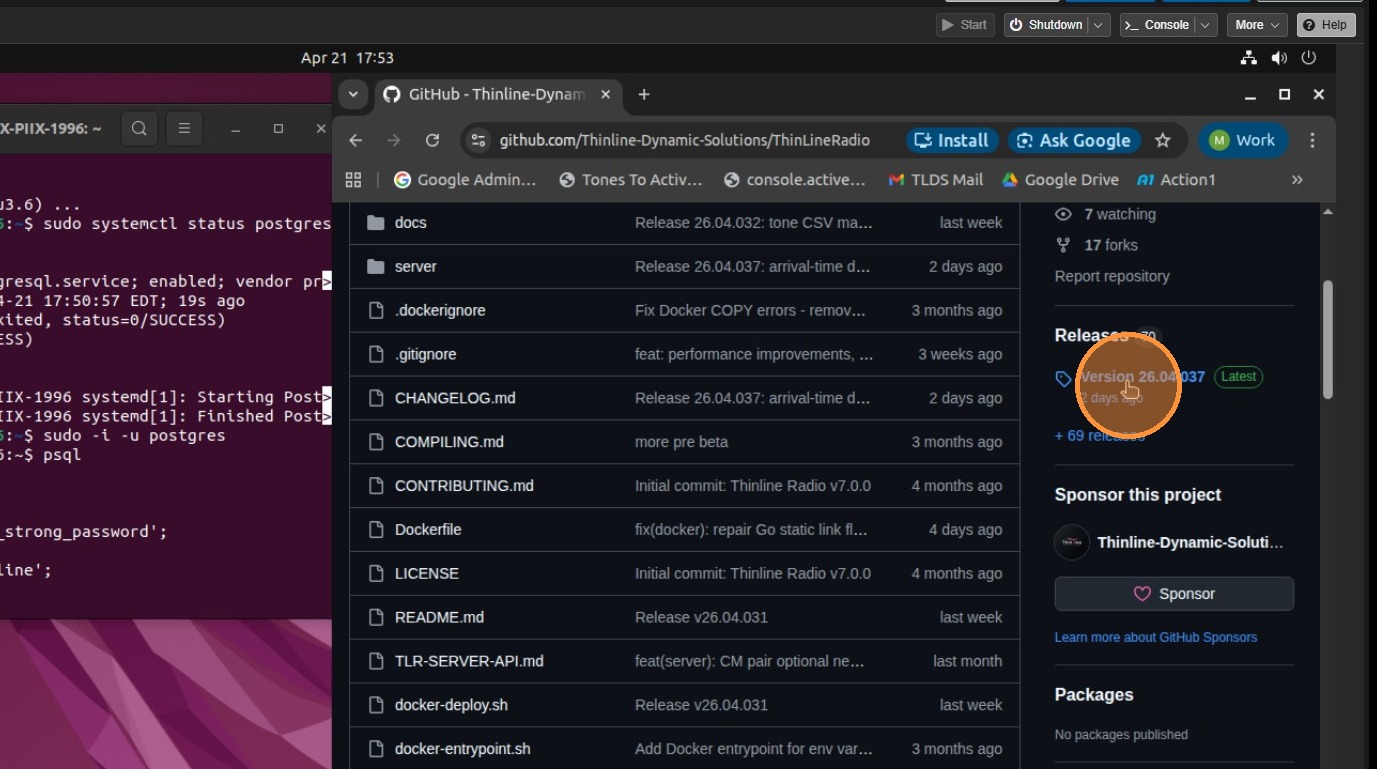
20. Download the correct package for your hardware
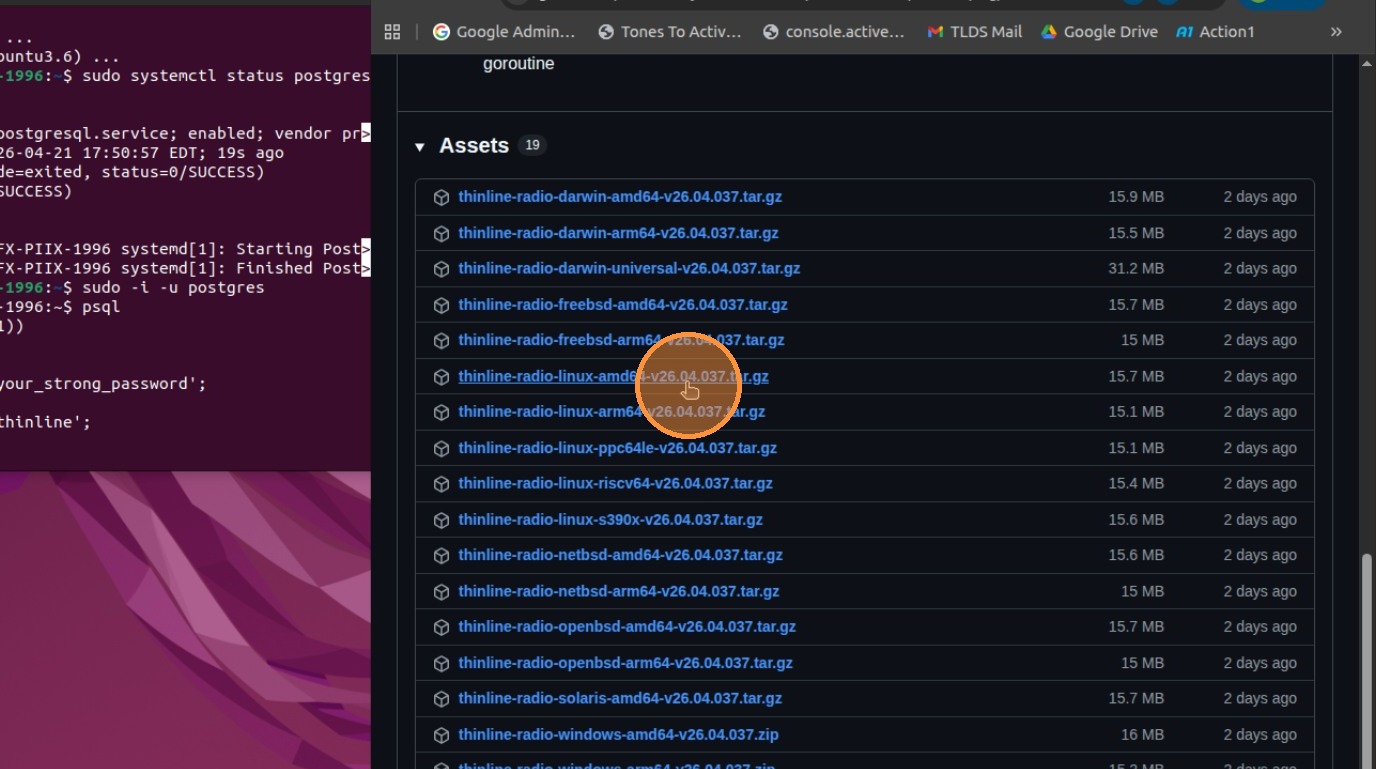
21. Open The Folder
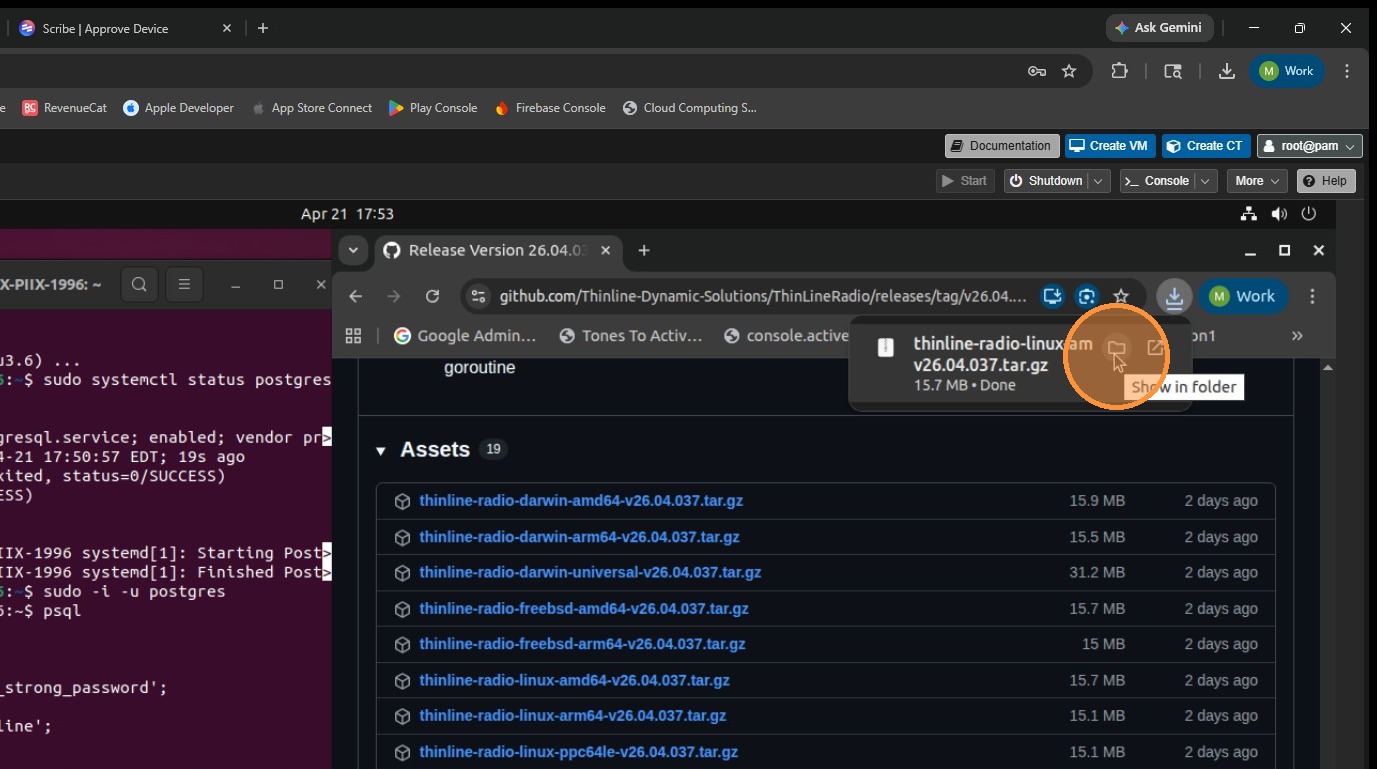
22. Right click "Extract Here"
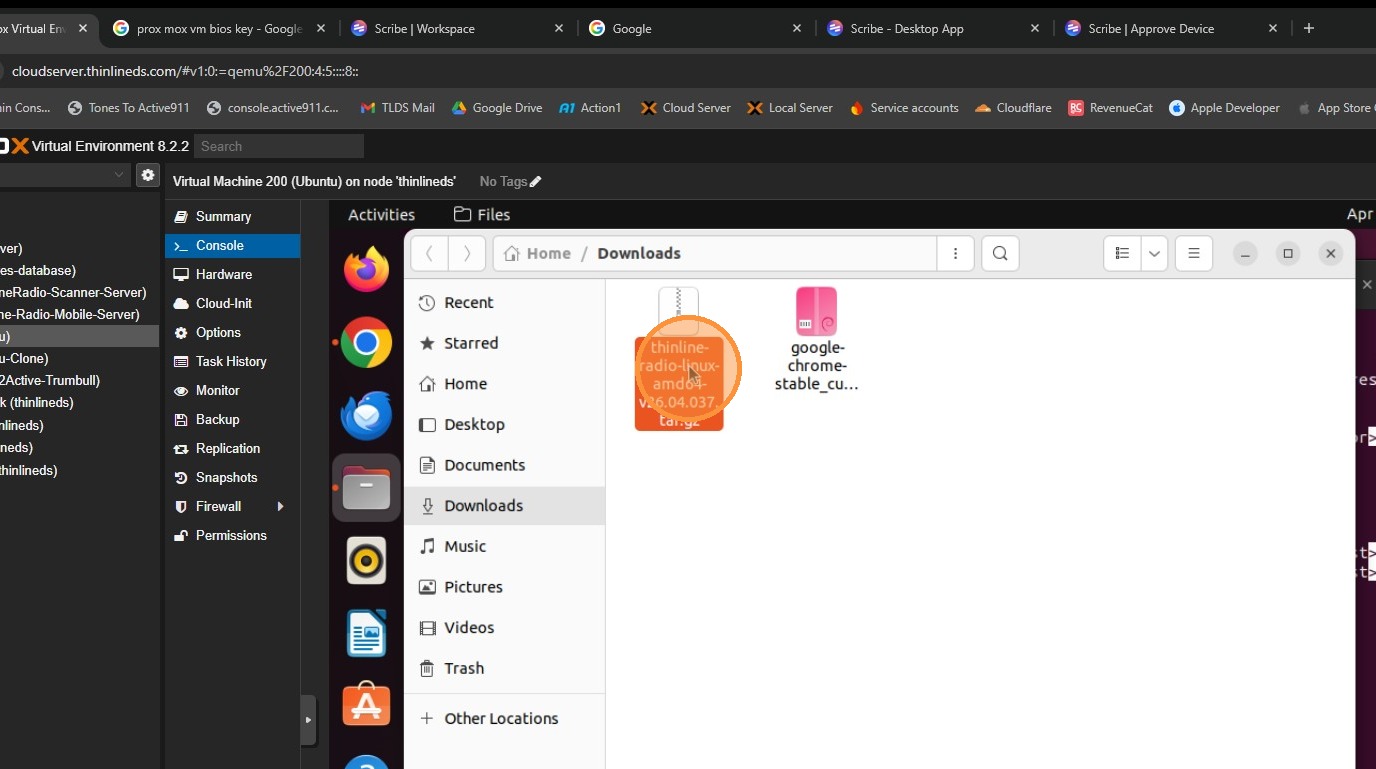
23. Click "QEMU (Ubuntu) - noVNC"
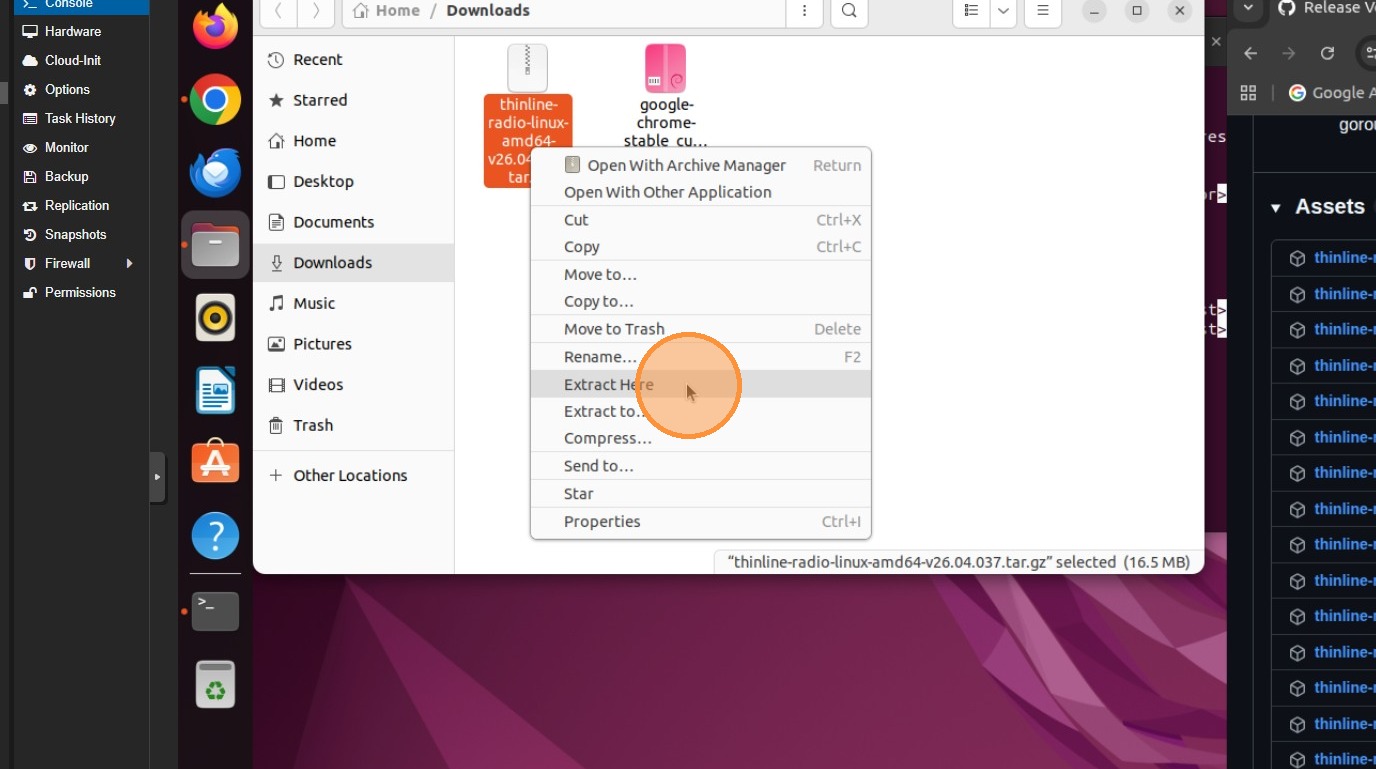
24. Open The Extracted Folder
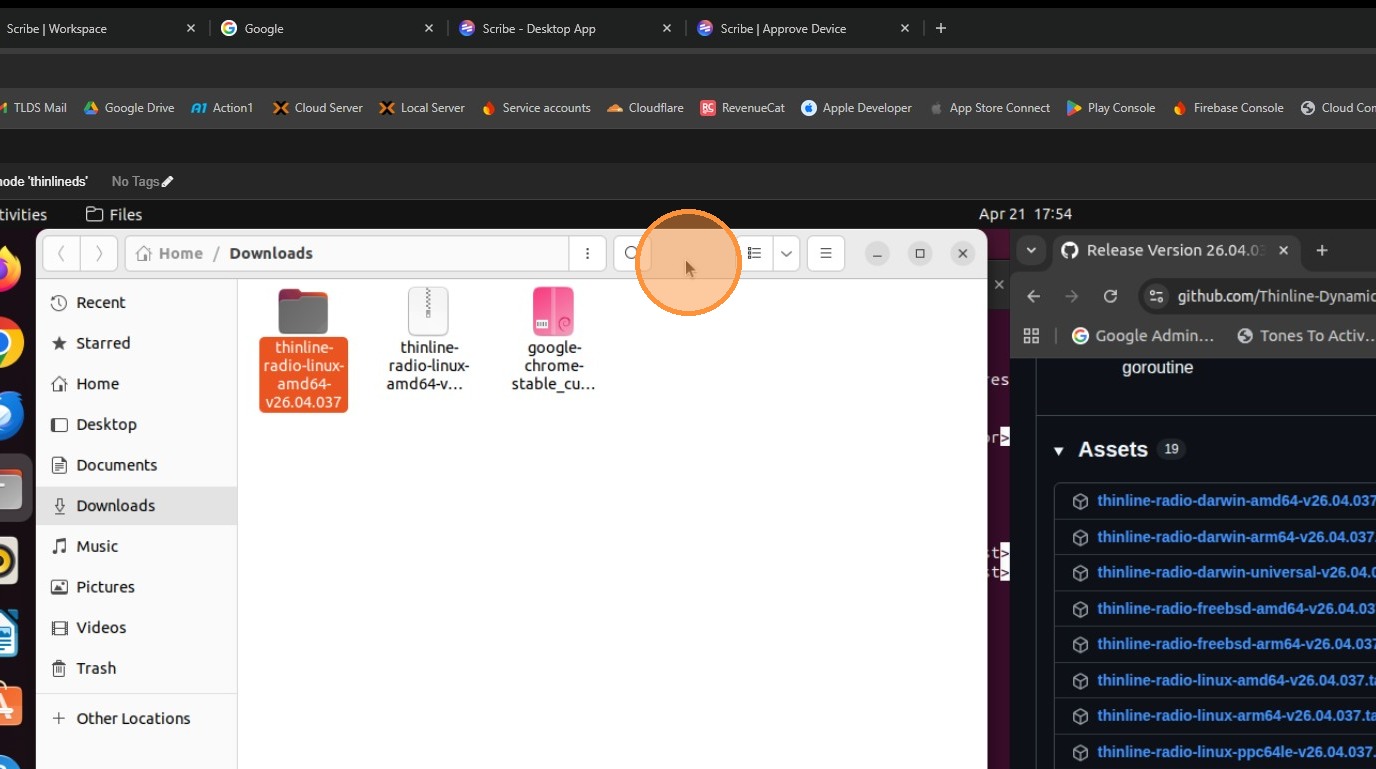
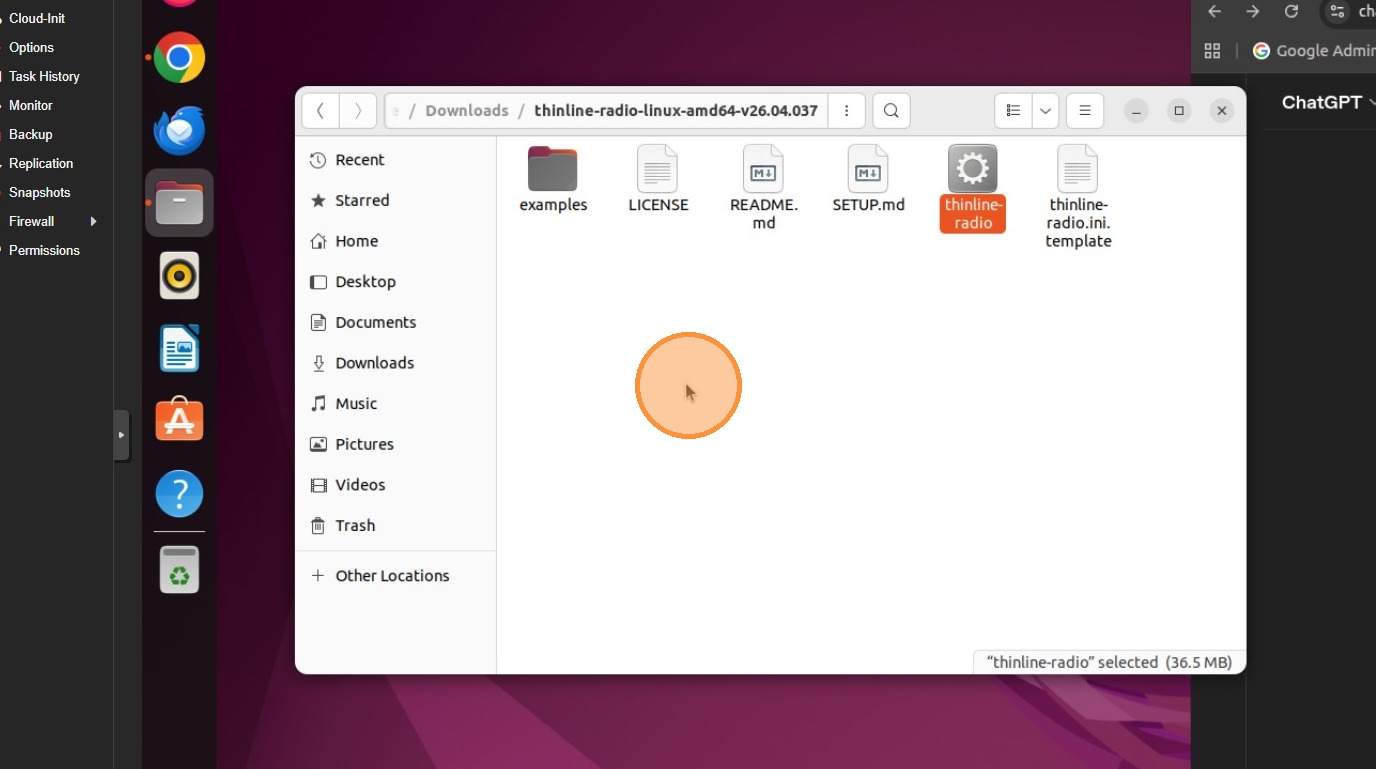
25. Right click in the Folder
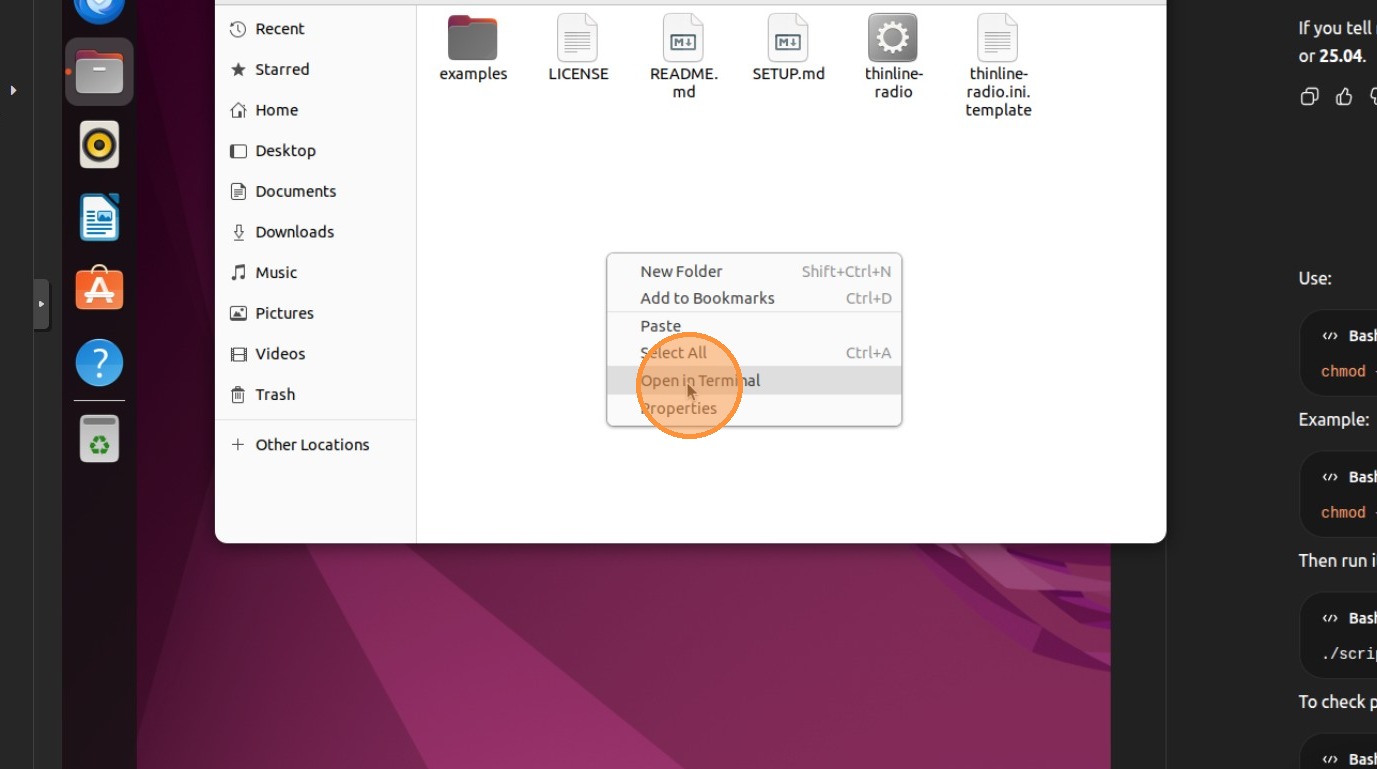
26. Select Open in Terminal
27. run chmod on the thinline-radio
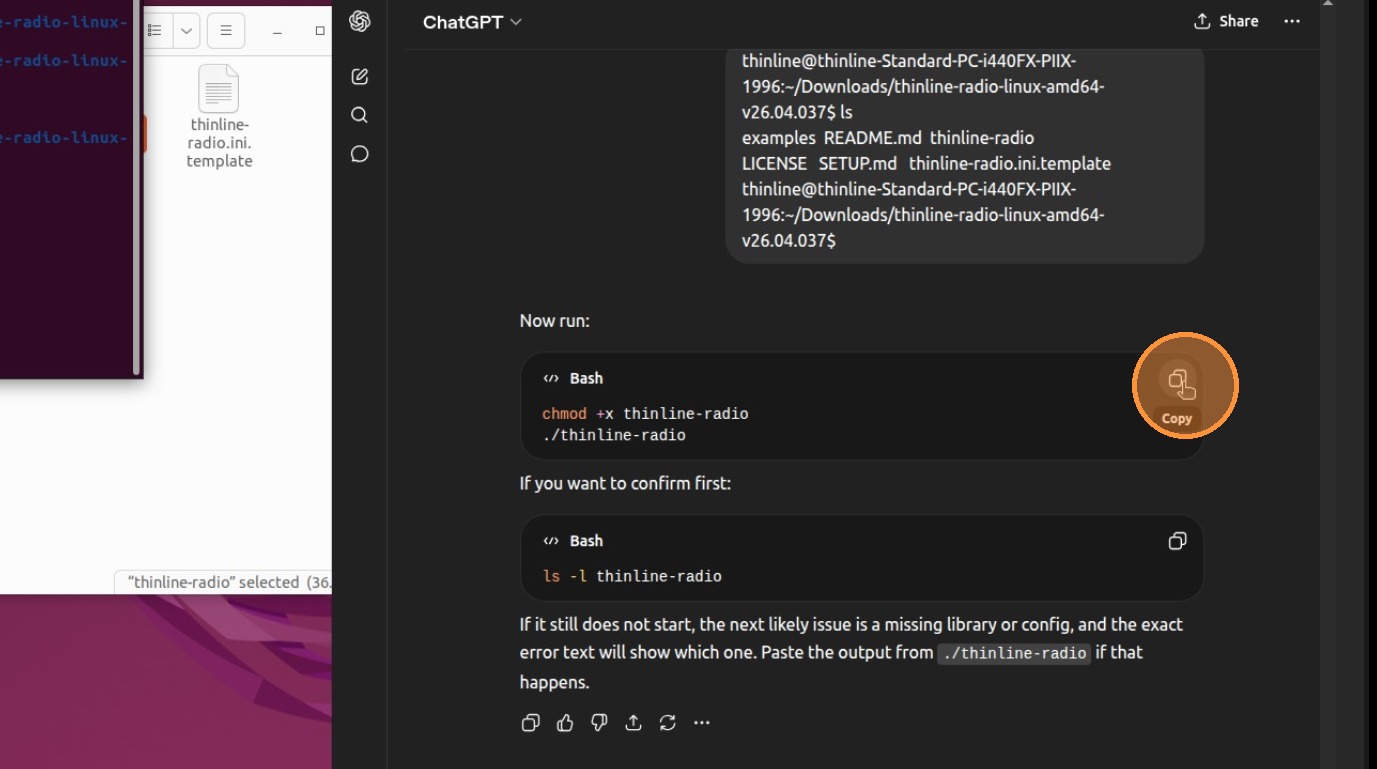
28. Press Return
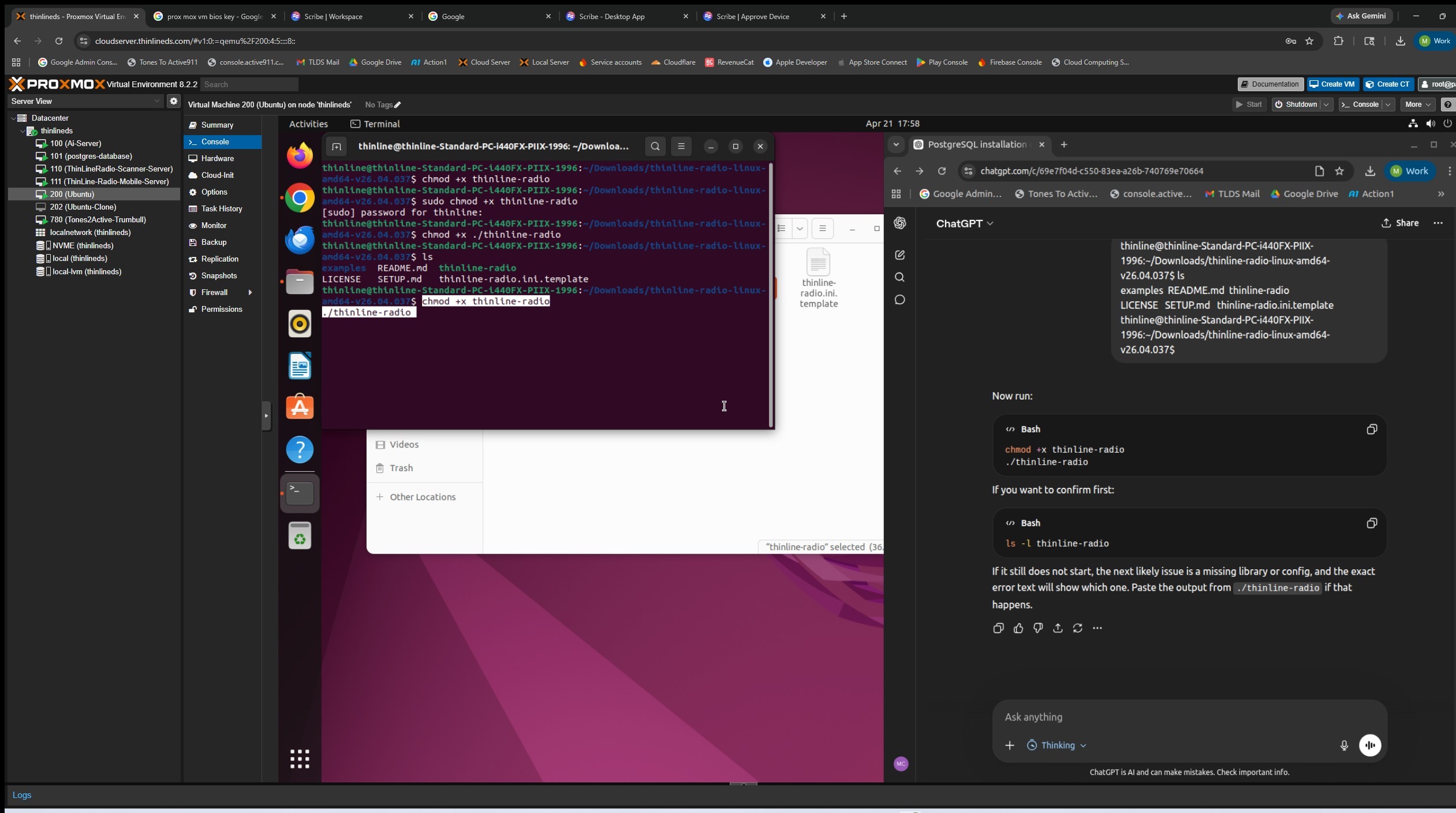
29. If you have followed this guide and installed postgres locally just press enter, if your database is running on a different machine, enter its IP address, then press enter.
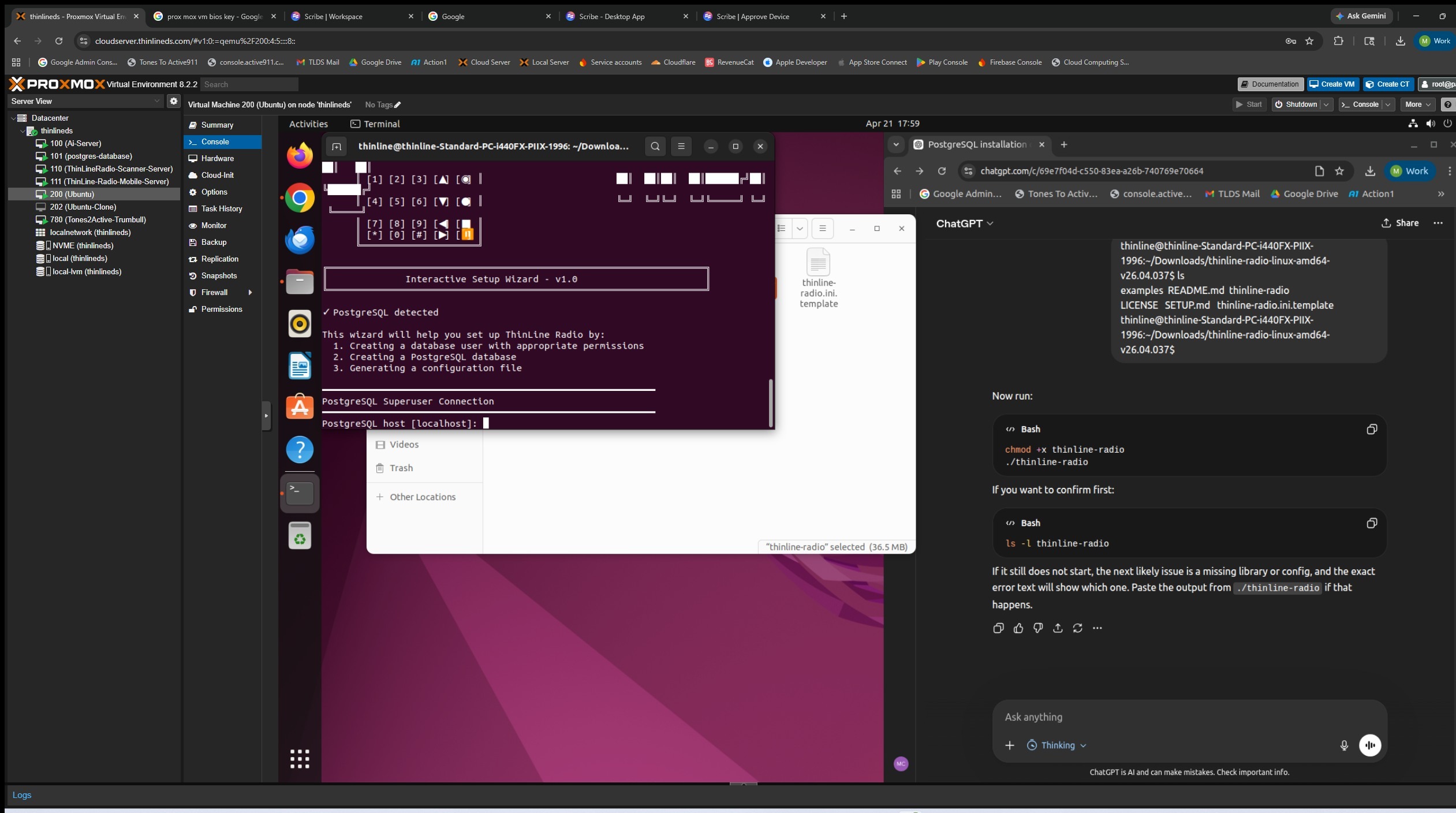
30. Press enter unless your running on the non default port.
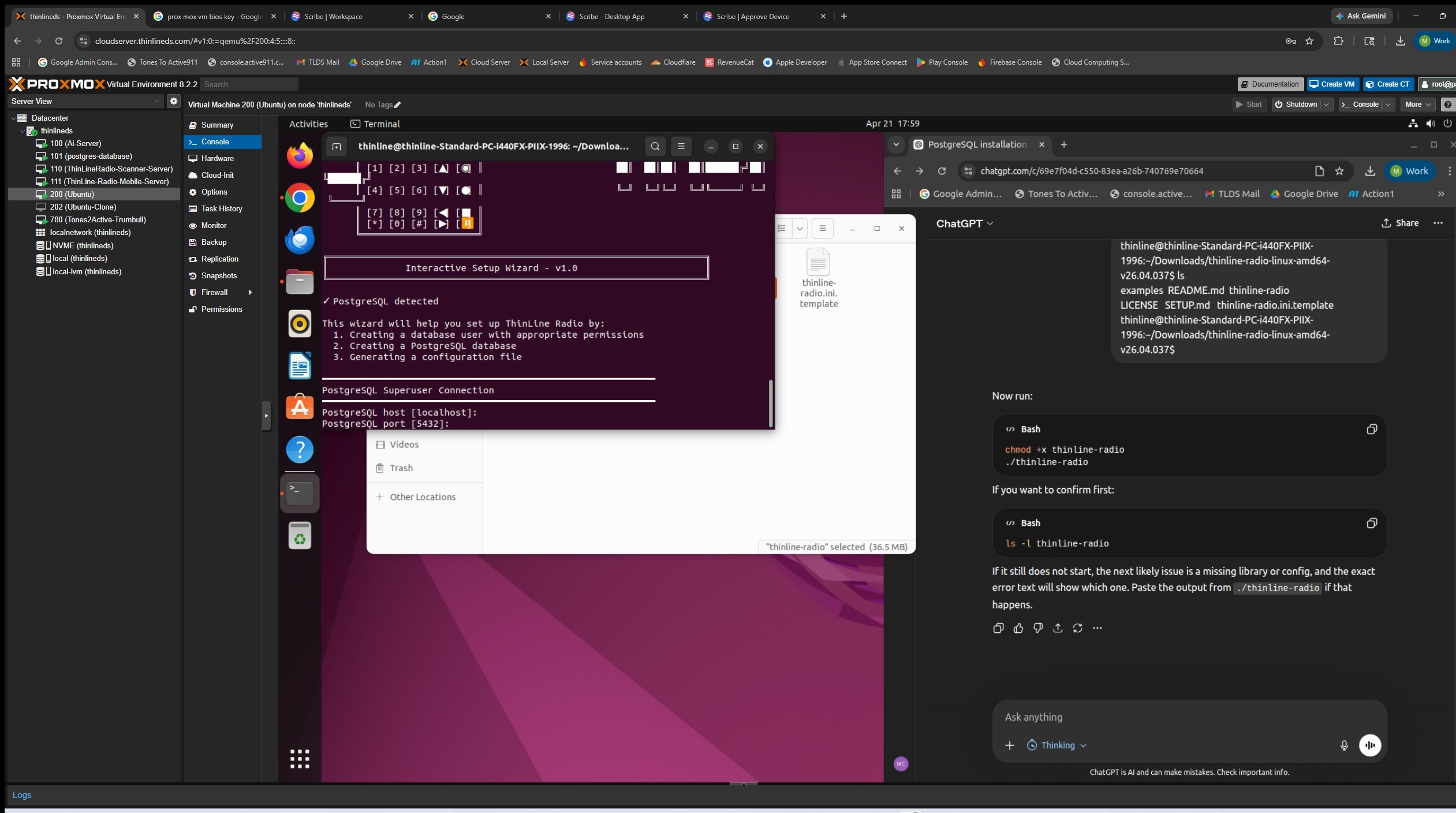
31. Press enter if you haven't changed the postgres super user name
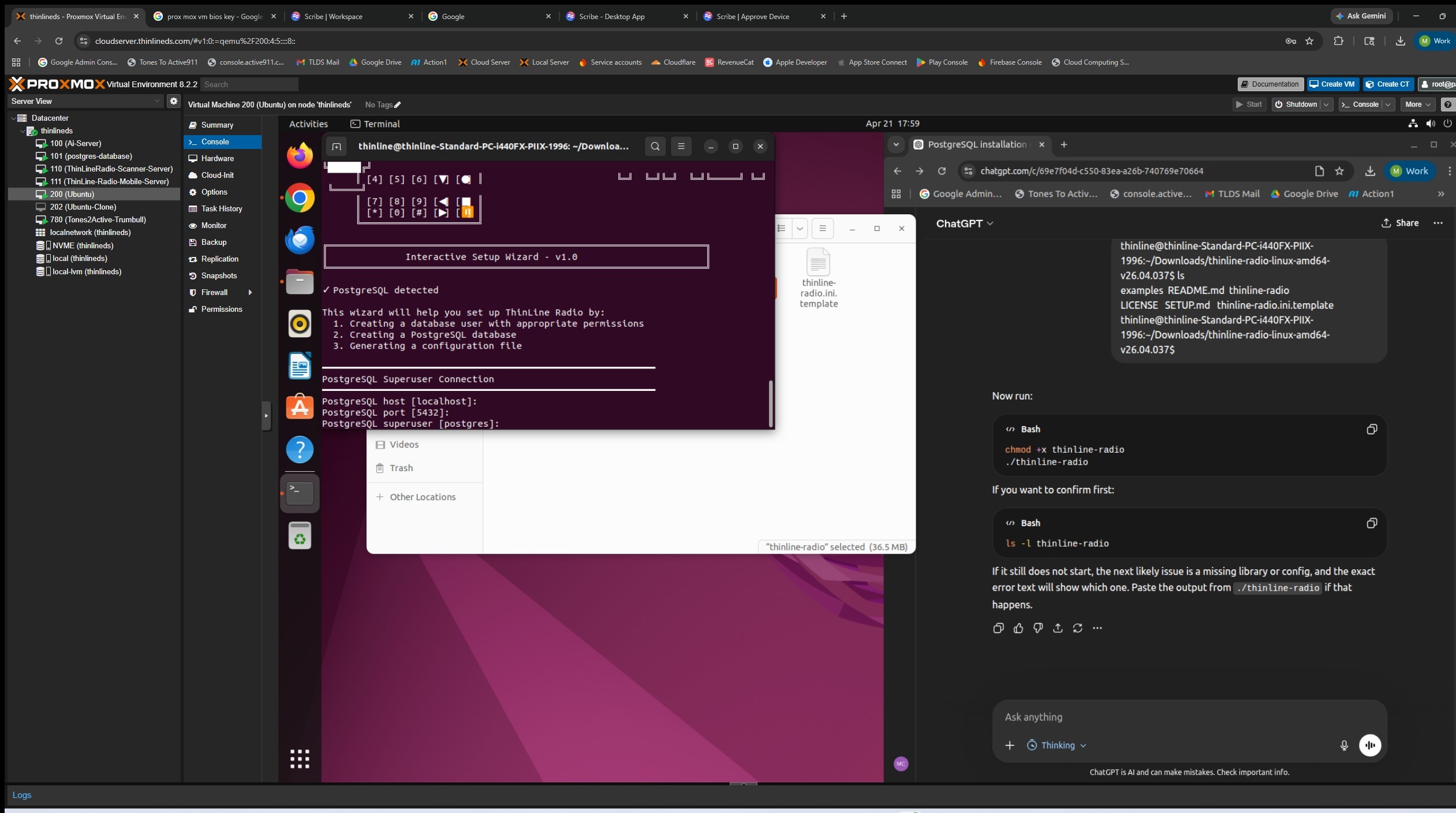
32. Enter the password that you created when installing postgres
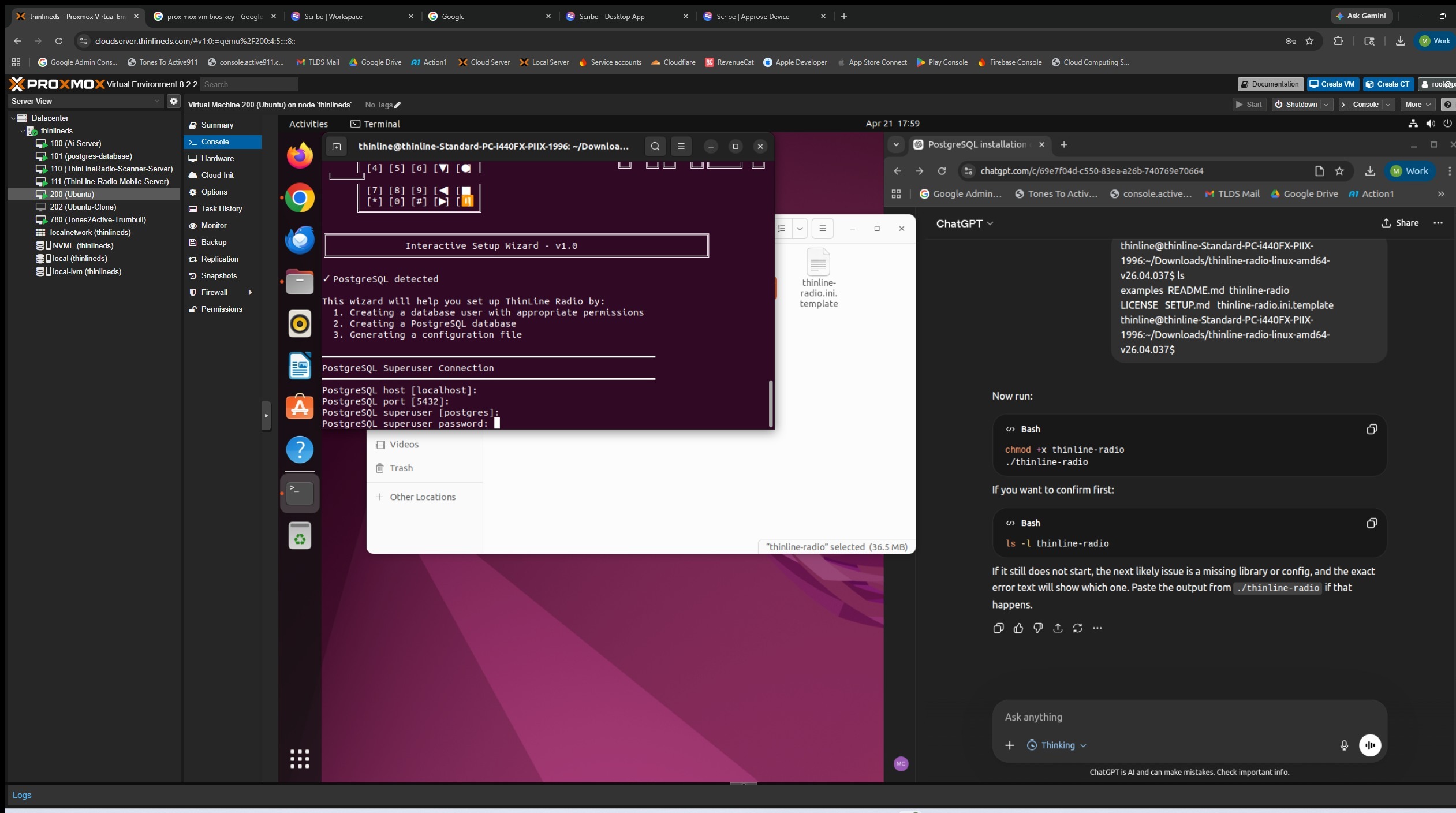
33. If you want to change the database name, type it or just press enter.
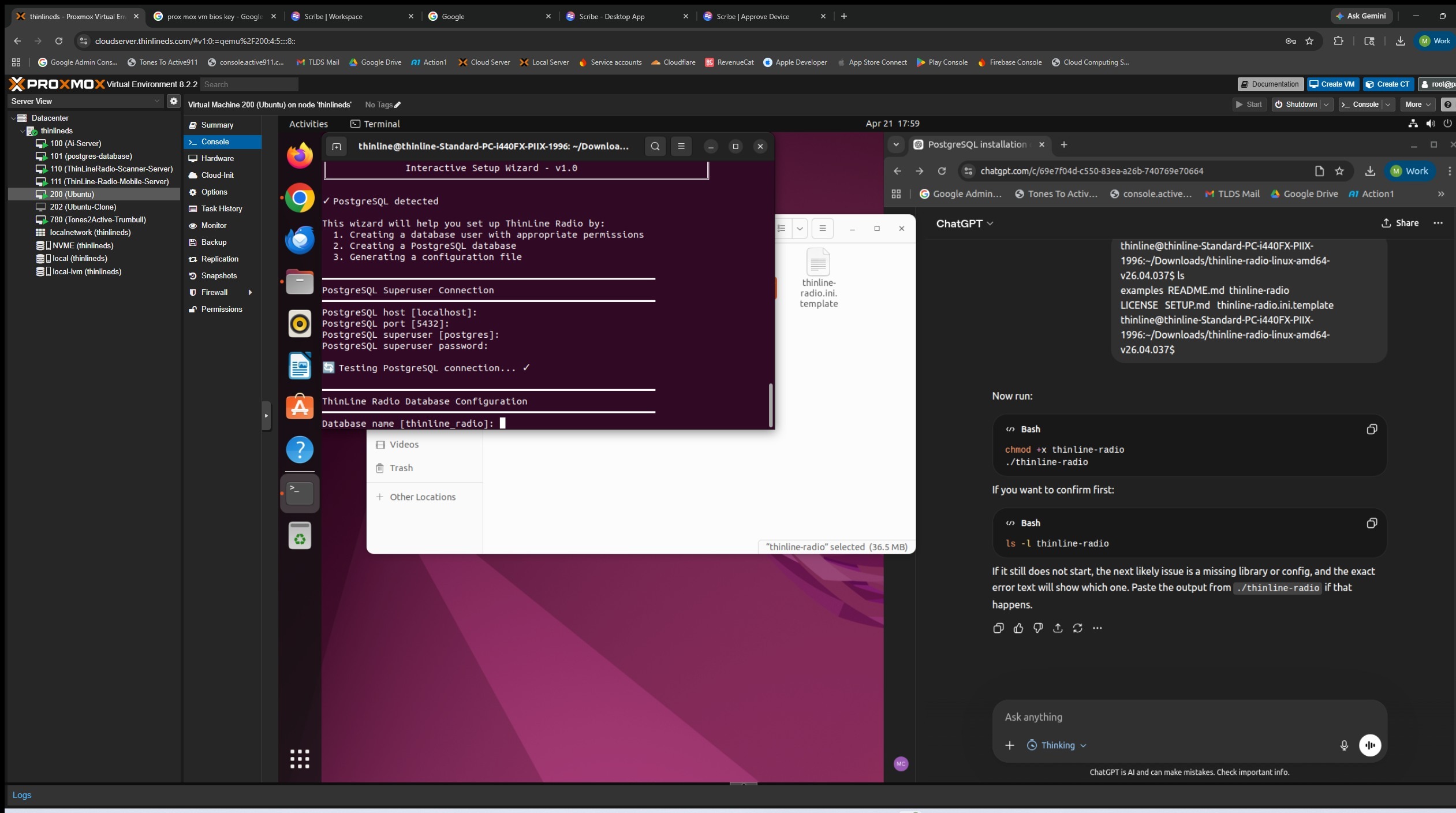
34. If you want to change thinline radios user database name type it or just press enter for the default.
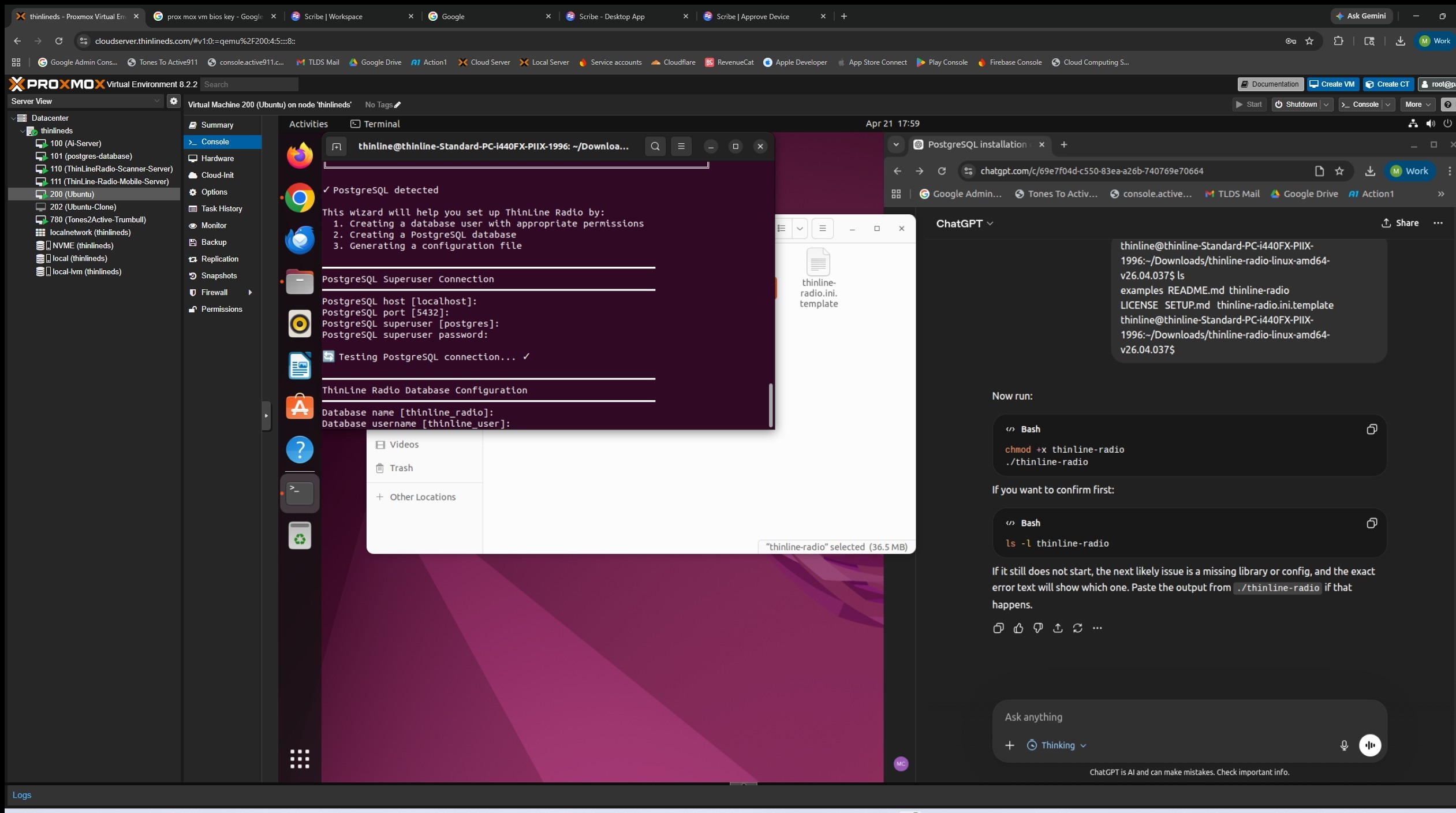
35. Enter a new password for the database user, then press enter. "Note password will not show you typing"
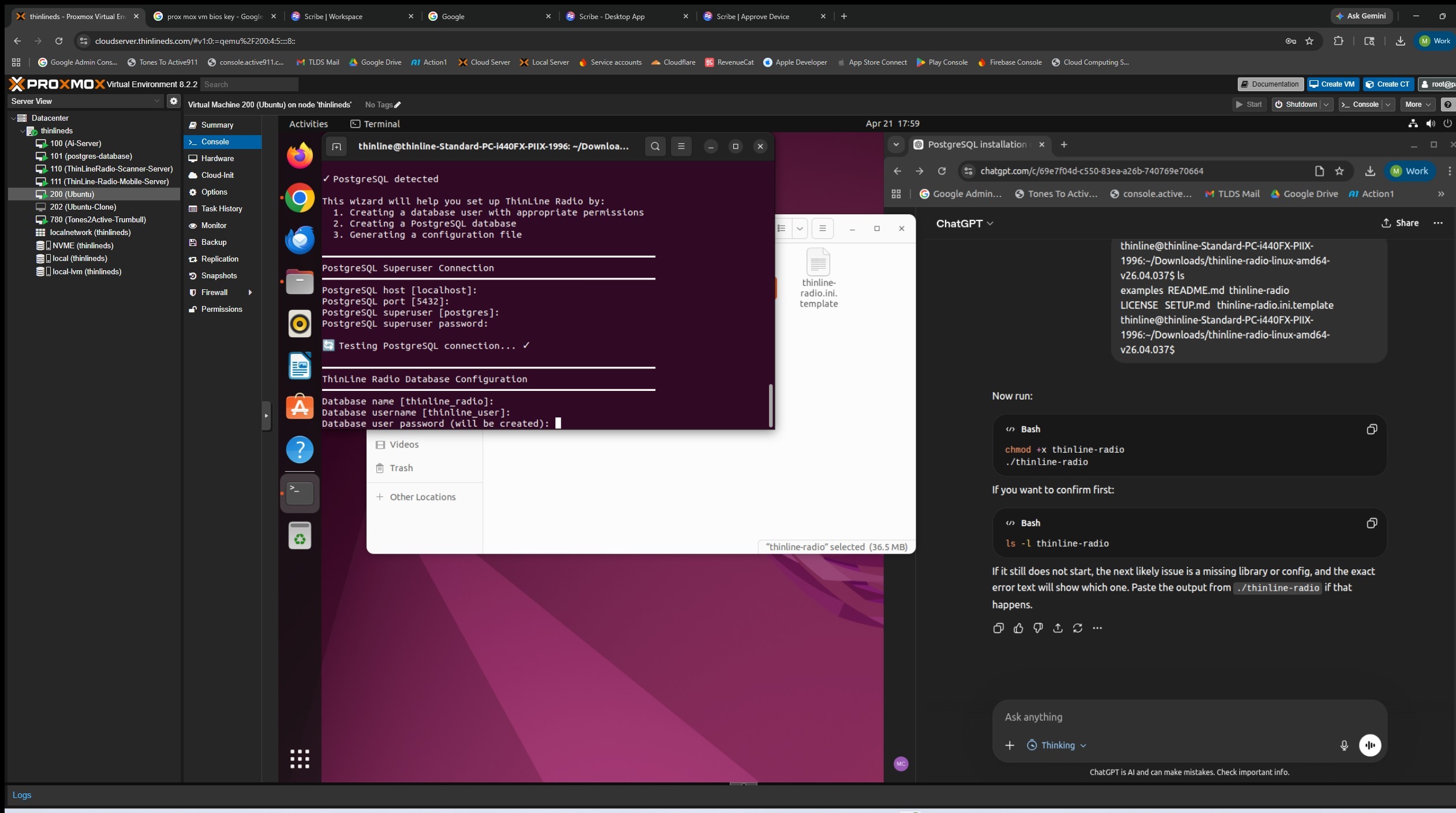
36. Confrim the password you just entered.
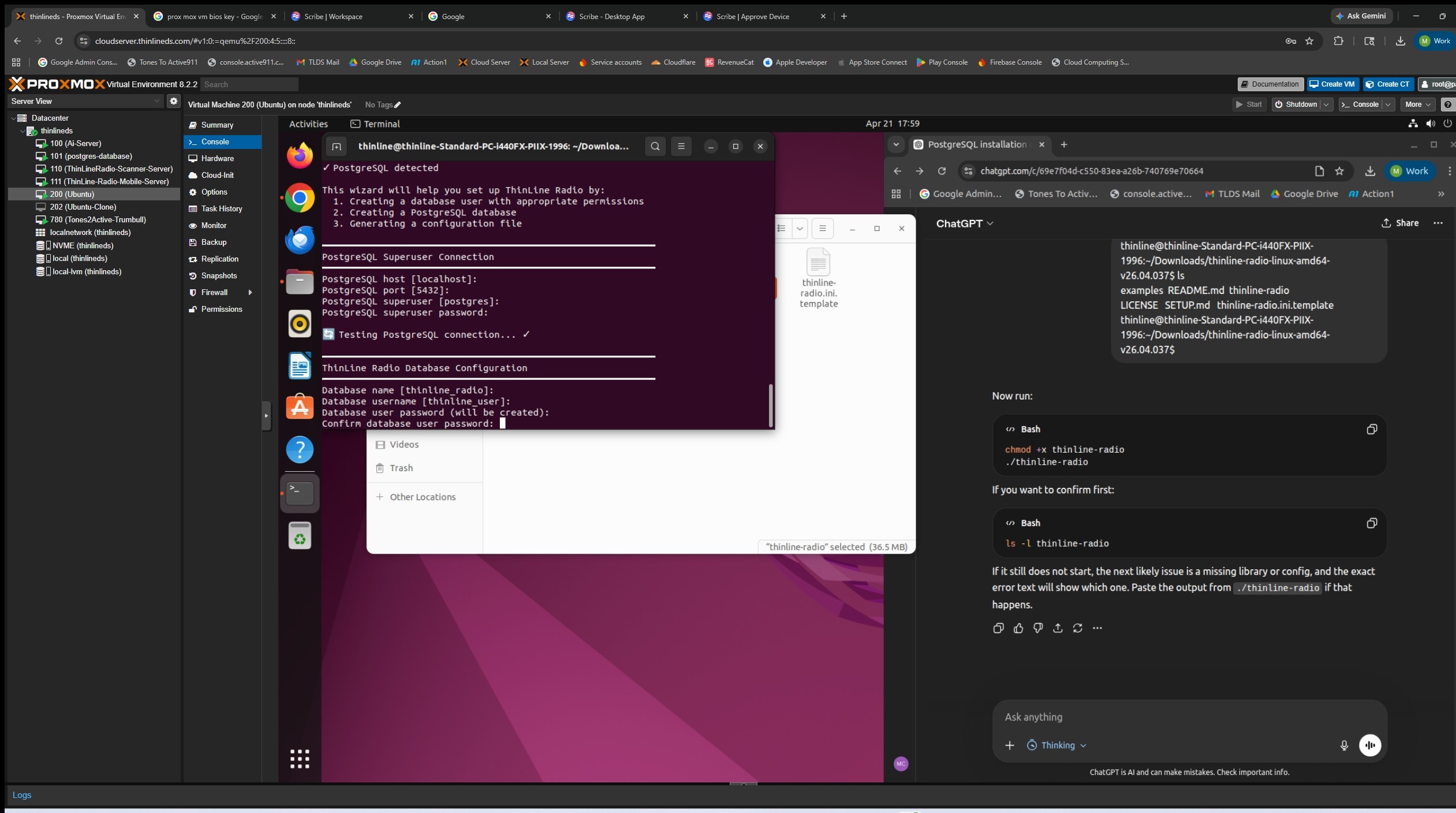
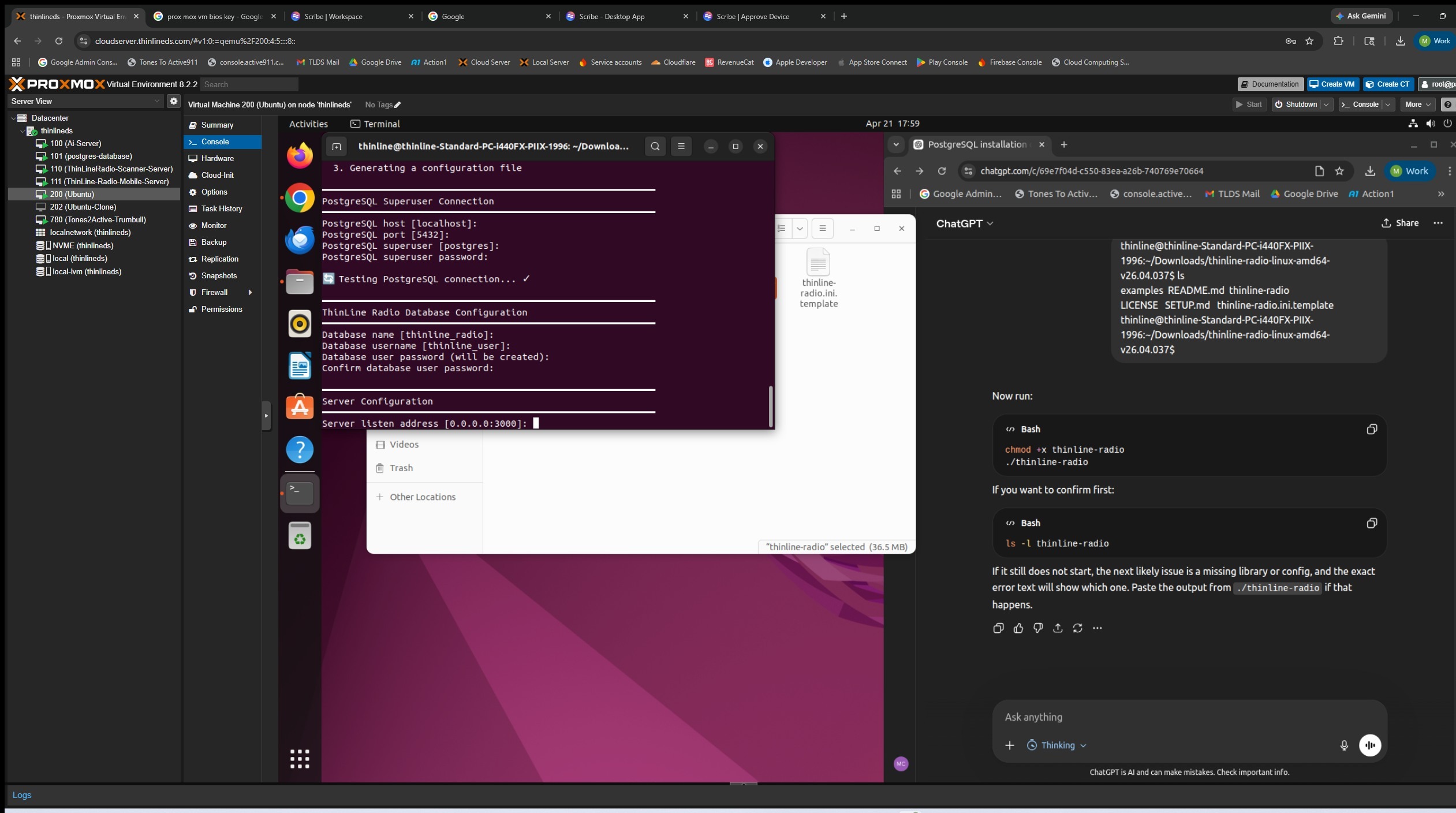
37. Set your server port, you can enter a number or press enter to use the default.
38. You have now completed the assisted setup creating the database and the ini file for Thinline Radio
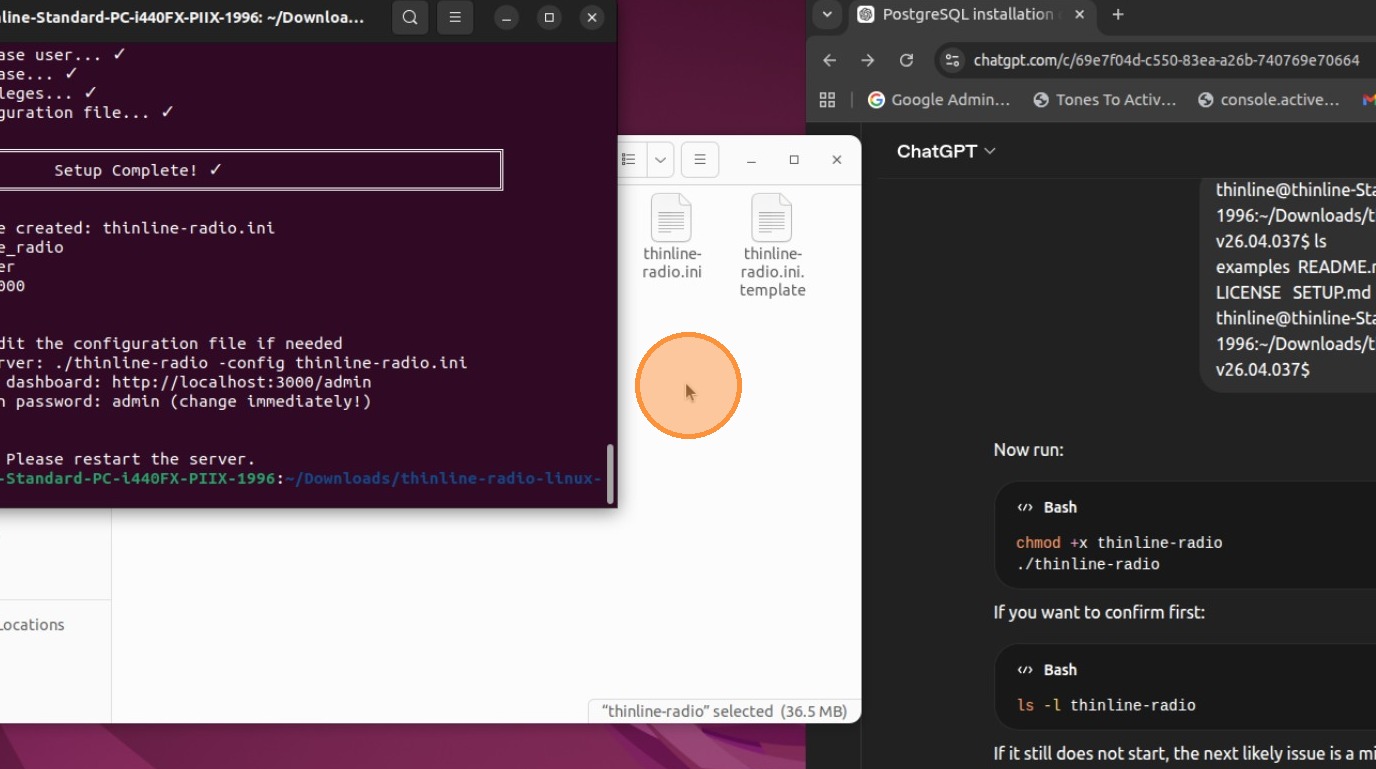
39. Server will start and you can access the admin page in the web browser. The default admin password is "admin"