Graphical user interface between Mapsforge tile server and MyTourbook
MyTourbook supports offline Mapsforge maps as 2.5D Tour Maps out of the box using VTM (Vector Tile Map) renderer. Prebuilt Mapsforge maps are provided amongst others by mapsforge.org and openandromaps.org.
MyTourbook however is also able to handle 2D Tour Maps provided as raster tiles by a Tile Map Service (TMS), which is mainly used by web mapping servers. To make local Mapsforge maps nevertheless available as 2D Tour Maps within MyTourbook, a local tile server can be set up to render these Mapsforge maps and to interact with MyTourbook via TMS protocol. The corresponding Mapsforge tile server is available at this mapsforgesrv repository.
This project’s intension is to easily let the user interactively and comfortably select the numerous available options of Mapsforge tile server. In addition, option settings as well as position and font size of graphical user interface automatically get saved and restored. Mapsforge tile server and MyTourbook get started/restarted using these options without need to manually set up any configuration files.
Graphical user interface is a single script written in Tcl/Tk scripting language and is executable on Microsoft Windows and Linux operating system. Language-neutral script file Mapsforge-for-MyTourbook.tcl requires an additional user settings file and at least one localized resource file. Additional files must follow Tcl/Tk syntax rules too.
User settings file is named Mapsforge-for-MyTourbook.ini. A template file is provided.
Resource files are named Mapsforge-for-MyTourbook.<locale>, where <locale> matches locale’s 2 lowercase letters ISO 639-1 code. English localized resource file Mapsforge-for-MyTourbook.en, French localized resource file Mapsforge-for-MyTourbook.fr and German localized resource file Mapsforge-for-MyTourbook.de are provided. Script can be easily localized to any other system’s locale by providing a corresponding resource file using English resource file as a template.
Screenshot of graphical user interface:

-
MyTourbook
If not yet installed, download and install latest MyTourbook version from Github.
Note: Run MyTourbook at least once to initialize program's settings. -
Java runtime environment (JRE) or Java development kit (JDK)
JRE version 11 or higher is required. JRE version 17 or higher is recommended.
Each JDK contains JRE as subset.
Windows: If not yet installed, download and install JRE or JDK, e.g. from Oracle, OpenLogic or Adoptium.
Linux: If not yet installed, install JRE or JDK using Linux package manager.
(Ubuntu: apt install openjdk-<version>-jre or apt install openjdk-<version>-jdk with required or newer <version>)
macOS: If not yet installed, install JDK using Homebrew package manager by brew install java. -
Mapsforge tile server
Open mapsforgesrv releases.
Download most recently released jar file mapsforgesrv-fatjar.jar from <release>_for_java11_tasks assets.
Windows: Copy downloaded jar file into Mapsforge tile server’s installation folder, e.g. into folder %ProgramFiles%/MapsforgeSrv.
Linux / macOS: Copy downloaded jar file into Mapsforge tile server’s installation folder, e.g. into folder ~/MapsforgeSrv.
Note: Mapsforge tile server version 0.22.0.0 or higher is required. -
Alternative Marlin rendering engine (optional, recommended)
Marlin is an open source Java2D rendering engine optimized for performance, replacing the standard built into Java. Download is available at Marlin-renderer releases.
For JRE version lower than 17, download jar file marlin-*.jar
from Marlin-renderer <latest version> for JDK11+ section's assets.
For JRE version 17 or higher, download jar file marlin-*.jar
from Marlin-renderer <latest version> for JDK17+ section's assets.
Windows: Copy downloaded jar file into Mapsforge tile server’s installation folder, e.g. into folder %ProgramFiles%/MapsforgeSrv.
Linux / macOS: Copy downloaded jar file into Mapsforge tile server’s installation folder, e.g. into folder ~/MapsforgeSrv. -
Tcl/Tk scripting language version 8.6 or higher binaries
Windows: Download and install latest stable version of Tcl/Tk, currently 9.0.
See https://wiki.tcl-lang.org/page/Binary+Distributions for available binary distributions. A suitable Windows binary distribution is from Magicsplat repository. Select most recent installation file tcl-9.0.3-installer-2.0.6-x64.msi or newer. Install into your Tcl/Tk installation folder, e.g. %ProgramFiles%/Tcl.
Linux: Install packages tcl, tcllib, tcl-thread, tk, tklib, x11-utils and wmctrl using Linux package manager. (Ubuntu: apt install tcl tcllib tcl-thread tk tklib x11-utils wmctrl)
macOS: If not yet installed, install tcl-tk using Homebrew package manager by brew install tcl-tk. Unfortunately, tklib containing required package tooltip is not part of tcl-tk. Download tklib0.9 from sourceforge.net and install into folder <root>/Cellar/tcl-tk/<version>/lib/tklib0.9. -
Mapsforge maps
Download Mapsforge maps for example from openandromaps.org. Each downloaded OpenAndroMaps map archive contains a map file (file extension .map). Mapsforge tile server will render this map file. -
Mapsforge themes
Mapsforge themes Elevate and Elements (file extension .xml) suitable for OpenAndroMaps are available for download at openandromaps.org.
Note:
In order "Hillshading on map" to be applied to rendered map tiles, hillshading has to be enabled in theme file too. Elevate and Elements themes version 5 or higher do enable hillshading. -
DEM data (optional, required for hillshading)
Download and store DEM (Digital Elevation Model) data for the regions to be rendered. Notes:
Either HGT files or ZIP archives containing 1 single equally named HGT file may be supplied.
Example: ZIP archive N49E008.zip containing 1 single HGT file N49E008.hgt.
While 1" (arc second) resolution DEM data have a significantly higher accuracy than 3" resolution, hillshading assumes significantly much more time. Therefore 3" resolution usually is better choice.- HGT files with 3" resolution SRTM (Shuttle Radar Topography Mission) data are available for whole world at viewfinderpanoramas.org. Unzip downloaded ZIP files to DEM folder.
- HGT files with 1" resolution DEM data are available for selected regions at viewfinderpanoramas.org. Unzip downloaded ZIP files to DEM folder.
- ZIP archives with 3" and 1" resolution compiled and resampled by Sonny are available for selected regions at Sonny's Digital LiDAR Terrain Models of European Countries. LiDAR data where available are more precise than SRTM data. Store downloaded ZIP files to DEM folder. -
Mapsforge for MyTourbook graphical user interface script
Download language-neutral script file Mapsforge-for-MyTourbook.tcl, user settings file Mapsforge-for-MyTourbook.ini and at least one localized resource file.
Windows: Copy downloaded files into Mapsforge tile server’s installation folder, e.g. into folder %ProgramFiles%/MapsforgeSrv.
Linux / macOS: Copy downloaded files into Mapsforge tile server’s installation folder, e.g. into folder ~/MapsforgeSrv.
Note: Edit user-defined script variables settings section of user settings file Mapsforge-for-MyTourbook.ini to match files and folders of your local installation of Java, Mapsforge tile server and MyTourbook. Always use character slash “/” as directory separator in Mapsforge-for-MyTourbook.ini file, for Microsoft Windows too!
Windows:
Associate file extension .tcl to Tcl/Tk window shell’s binary wish.exe. Right-click script file and open file’s properties window. Change data type .tcl to get opened by Wish application e.g. by executable %ProgramFiles%/Tcl/bin/wish.exe. Once file extension has been associated, double-click script file to run.
Linux:
Either run script file from command line by
wish <path-to-script>/Mapsforge-for-MyTourbook.tcl
or create a desktop starter file Mapsforge-for-MyTourbook.desktop
[Desktop Entry]
Version=1.0
Type=Application
Terminal=false
Name=Mapsforge-for-MyTourbook
Exec=wish <path-to-script>/Mapsforge-for-MyTourbook.tcl
or associate file extension .tcl to Tcl/Tk window shell’s binary /usr/bin/wish and run script file by double-click file in file manager.
macOS:
Either run script file from command line by
wish <path-to-script>/Mapsforge-for-MyTourbook.tcl
or use Automator -> Application -> Run Shell Script -> /usr/local/bin/wish "$@" to create an application for Tcl/Tk window shell’s binary wish, then associate all .tcl files to this application and run script file by double-click file in file manager.
Having .tcl files associated to this application, a desktop starter from script file can be created by Make Alias and dragging the alias and dropping it to desktop.
- After selecting task(s), map(s), theme file, theme style, style's overlays etc. in graphical user interface, hit Start button to start Mapsforge tile server. After MyTourbook has started successfully, activate MyTourbook's map MapsforgeMap to show map(s) and/or _MapsforgeHillshading to show hillshading selected in graphical user interface. When changing settings while MyTourbook is running, a reload of maps is required to adopt new settings. To reload, first hit Start button again and MyTourbook's tile cache containing tiles already loaded with previous settings gets cleared. Second, right-click MyTourbook's 2D Tour Map and force MyTourbook to reload failed map images or by zooming in and out via mouse wheel.
- Closing either graphical user interface or MyTourbook window will close Mapsforge tile server too.
- Use keyboard keys Ctrl-plus to increase and keyboard keys Ctrl-minus to decrease font size of graphical user interface and/or output console.
- See output console for Mapsforge tile server’s and MyTourbook's output.
Import 2D Map map provider files with Drag&Drop or Import button in the preference page for 2D Map map providers.
- File mapsforgemap.xml defines 2D Map custom map provider MapsforgeMap fetching map tiles from Mapsforge tile server.
- File mapsforgehillshading.xml defines 2D Map custom map provider MapsforgeHillshading fetching alpha-transparent hillshading tiles from Mapsforge tile server if selected in graphical user interface.
- File mapsforgemaphillshading.xml defines 2D Map map profile MapsforgeMapHillshading which composes Mapsforge server's map tiles with Mapsforge server's alpha-transparent hillshading.
Edit imported map providers and make sure that port number(s) in MyTourbook’s Custom Url match port number(s) defined in Mapsforge-for-MyTourbook graphical user interface server configuration's TCP port(s).
Set map provider MapsforgeMapHillshading visible, whether hillshading in graphical user interface is enabled or not and whether "Hillshading on map" or "Hillshading as map" is selected in graphical user interface.
Custom map provider MapsforgeHillshading can also be used in other map profiles to supply map with alpha-transparent hillshading, e.g. OpenStreetMap. File openstreetmaphillshading.xml defines 2D Map map profile OpenStreetMapHillshading which composes MyTourbook's built-in map provider OpenStreetMap with Mapsforge server's alpha-transparent hillshading.

Note:
Zoom levels shown in Map Profile Configuration are one higher than zoom levels internally used by query to the Mapsforge tile server.
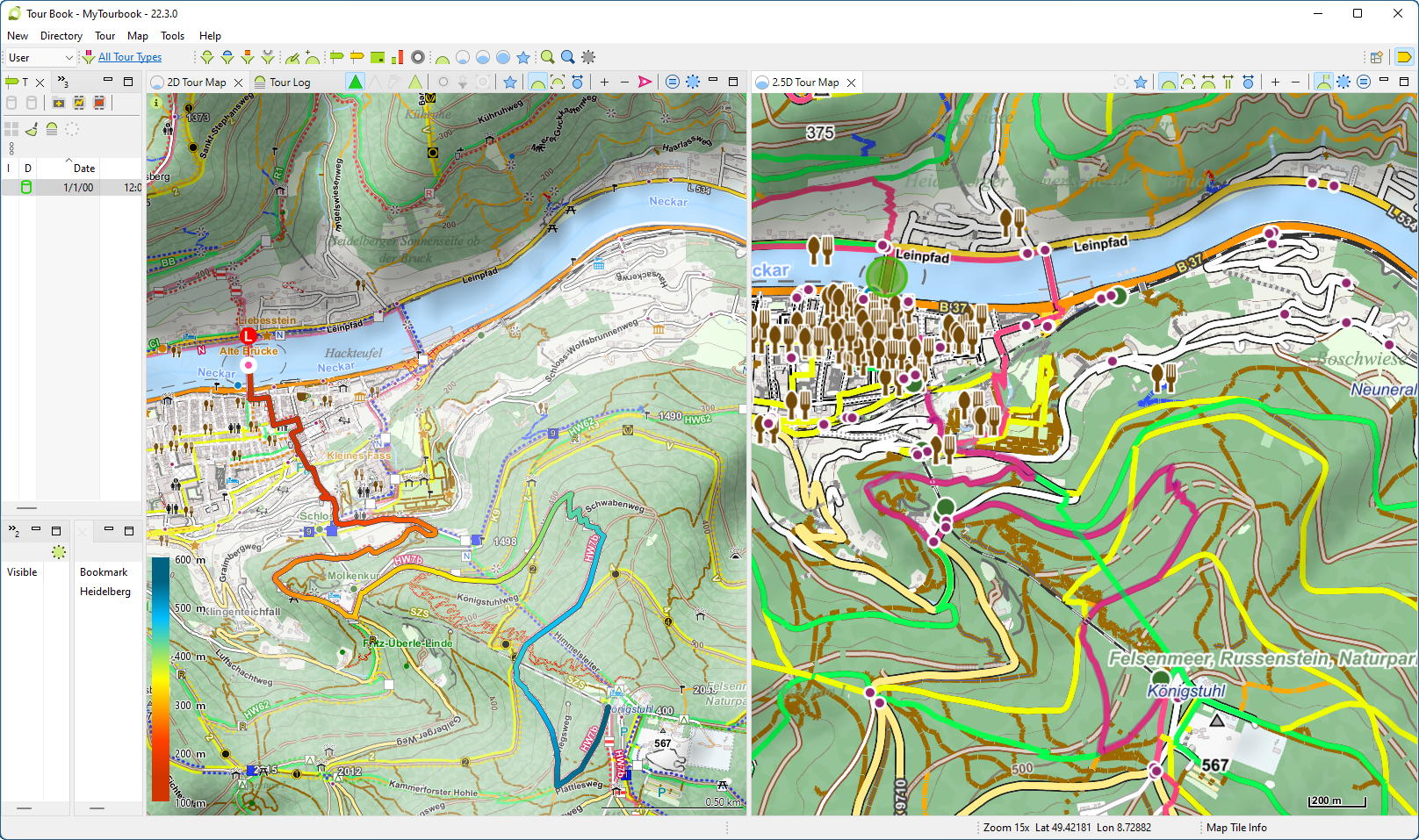
Screenshot of MyTourbook showing Heidelberg (Germany), comparing 2D Tour Map and 2.5D Tour Map, where 2D Tour Map using
- Map provider MapsforgeMapHillshading
- OpenAndroMaps map file Germany_oam.osm.map
- OpenAndroMaps rendering theme Elevate
- Theme file's style elv-hiking aka Hiking
- Style's default overlays plus additional overlay elv-waymarks aka Waymarks
- Hillshading settings as above
- Output console
While console output of Mapsforge tile server and/or MyTourbook can be informative and helpful to verify what is happening as well as to analyze errors, writing to console costs some performance. Therefore the console should be hidden if not needed. - Built-in world map
Since the built-in Mapsforge world map only shows the coastline, it only serves as a rough overview. Due to map's low resolution, coastlines show inaccurate at high resolution.
In order not to cover an accurate map, the built-in world map has been automatically deactivated at higher zoom levels.
Starting with server version 0.23.0.3, built-in world map is rendered with lower priority than user-defined accurate maps. Zoom level restriction was therefore removed. - Hillshading
- When selecting "Hillshading on map", map and hillshading are rendered into one single map.
- When selecting "Hillshading as map", map and hillshading are rendered as two separate maps. Post-processing hillshading, gray value of flat area gets mapped to full transparency. Thus the flatter the area, the more the original colors of the map shine through. Finally, hillshading can be used as an alpha-transparent overlay for any map.
OpenTopoMap uses same hillshading technique as hillshading algorithm "diffuselight".