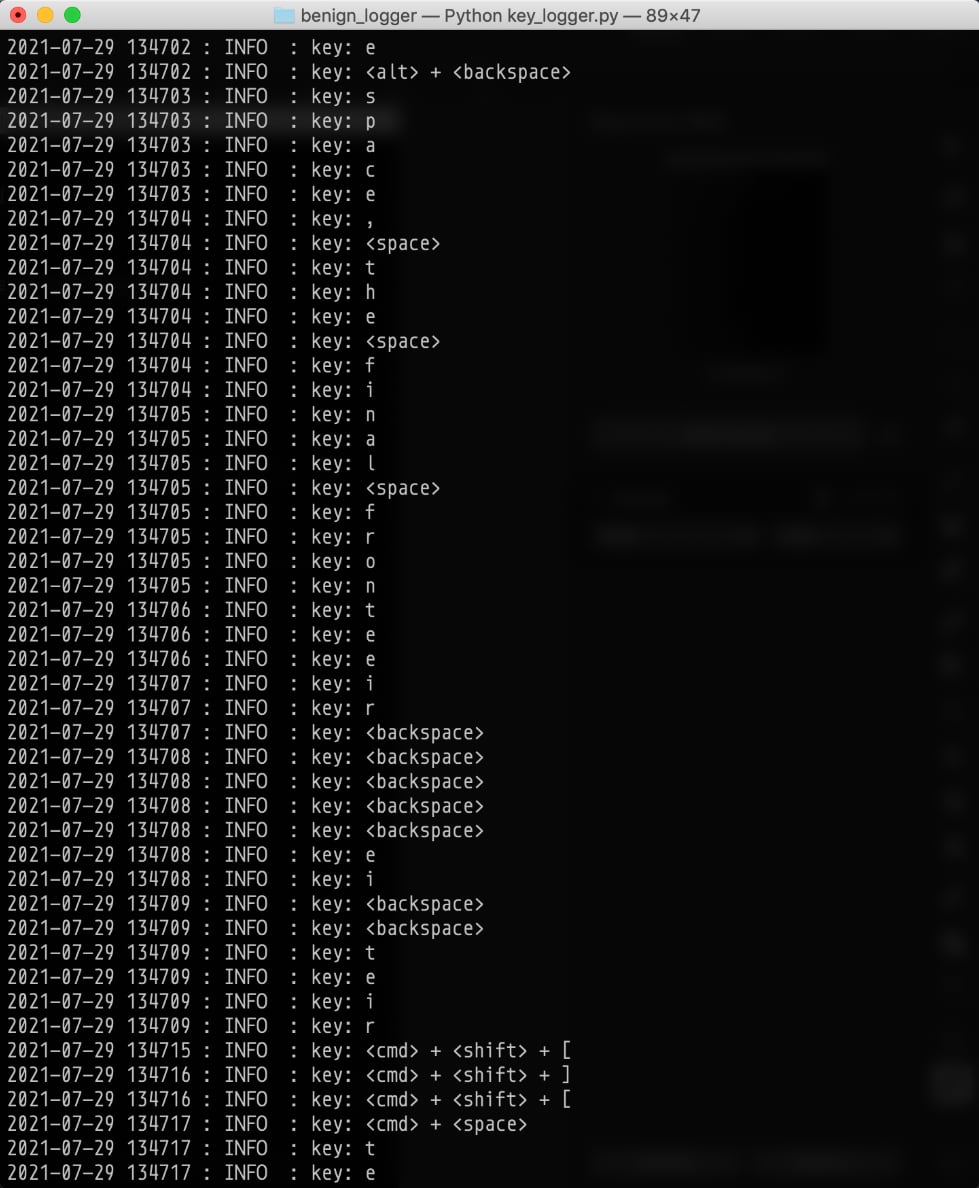
A simple, transparent, open-source key logger, written in Python, for tracking your own key usage, originally intended as a tool for keyboard layout optimization.
I started looking into mechanical keyboards and the variation in layouts—QWERTY, AZERTY, Colemak, Dvorak, etc.—is just the beginning. You can very rapidly descend into fascination/madness with layers, hotkeys, tap-mods, and more, especially as you get down from full-size (100+ keys) boards to the smaller ones (like 36-key boards, and sometimes even less). All of this is based on making your typing optimal, comfortable, fast, and maybe a few other personally important adjectives.
One key input to these choices is knowing what keys and combos you really use most often. A key logger is a convenient way to self-analyze and see what your key usage looks like in practice. (As opposed to simply analyzing language averages, or short samples of work.) Across people, it could vary greatly depending on what language you work in (English, Swedish, Portuguese), and whether you're a programmer, author, etc. So, when I tried to find a key logger for this purpose, most of what I found was tagged with headlines like "get credit card info..." or "catch your cheating girlfriend". Moreover, and perhaps more importantly, they were either closed-source, executable files, or too complicated to understand. (I'm curious about my typing, but not enough to take even a small risk of putting an actually nefarious key logger on my system!)
Make a key logger simple enough that a moderately experienced programmer can quickly read through, understand, and be convinced that nothing nefarious is going on.
Use standard and/or known libraries, and use as few as possible.
Keep all data local and simply consolidated. Send nothing, anywhere, off the computer.
Comment the code extensively to explain not only what's happening, but additionally the thinking behind each choice.
The code is still written in the spirit of transparency, but these days that clarity comes from a mix of comments and explicit structure. The script is organized around a small configuration object and a single application object so the runtime state is easier to follow than when everything lived in globals. I still want every important decision to be easy to audit, both in what it does and why it's there.
I use this on my Mac, running on Python3 (3.8.1, but I presume any Python3 version would work), and haven't tried it on any other operating system. I presume it would work, but it seems easy to believe that there are details that I don't know of. If anyone tries it and finds ways to improve/extend it, that'd be great.
The output goes into a single file in the directory you run the script from. SQLite is the default, and by default it stores aggregate counts, not your exact keystrokes.
- Aggregate counts in SQLite (default). Keystrokes are tallied into time buckets (10 minutes by default,
--bucket-minutesto change). The database keeps one row per(bucket, key)and per(bucket, key1, key2)bigram, incremented in place. Because only per-bucket counts are stored, the exact sequence you typed — passwords included — is never written to disk and can't be read back out. - Exact per-keystroke rows in SQLite (opt-in,
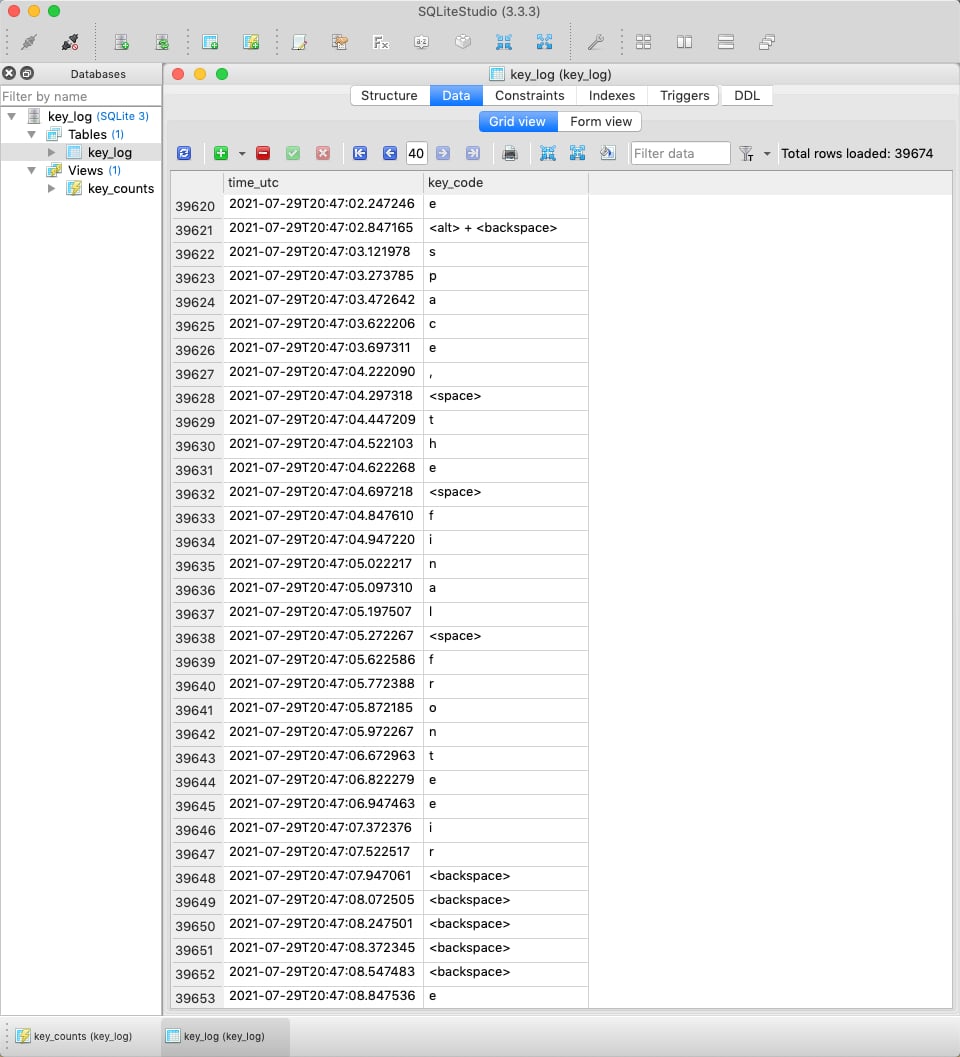
--raw-events). Restores the old behavior of one row per keystroke, with a precise timestamp, in akey_logtable. This does preserve the exact typed order, so it's off by default; only turn it on if you understand and want that. - Plaintext text file (opt-in,
--file). One entry per line, also the exact sequence. Off by default.
You can combine these. The storage options are all exposed through the command line.
Rounding timestamps alone would not protect you: as long as one row per keystroke exists, the exact sequence is recoverable from the rows' insertion order regardless of the timestamp. The real protection is collapsing keystrokes into counts so the ordering is gone. The aggregate tables are deliberately declared WITHOUT ROWID, so they don't even keep SQLite's implicit insertion-order rowid — rows live only in sorted key order, leaving counts as the only information present. Two caveats worth knowing:
- Bigrams (counted live at capture time, since they can no longer be reconstructed from stored rows) re-introduce adjacency information. For a short secret typed in an otherwise-quiet bucket, bigram counts can partially reconstruct it; in busy/mixed buckets that signal drowns out. To limit this, bigram chains are broken across pauses (more than a couple of seconds) and across bucket boundaries, and trigrams are off by default (
--trigramsto enable — they leak noticeably more). - macOS Secure Input Mode already suppresses logging in proper password fields (login,
sudo, Keychain, most browser password boxes), but not secrets typed into ordinary visible fields, editors, or apps that don't trigger it. Aggregation is what protects the cases Secure Input misses.
A side benefit: aggregation bounds how large the database gets, which matters if you leave the logger running continuously.
Because the output contains sensitive data, the logger now creates its log files with owner-only permissions (0600) and will tighten existing log files if they are more permissive. That applies to the text log, the main SQLite file, and the common SQLite sidecar files (-journal, -wal, and -shm) if they exist.
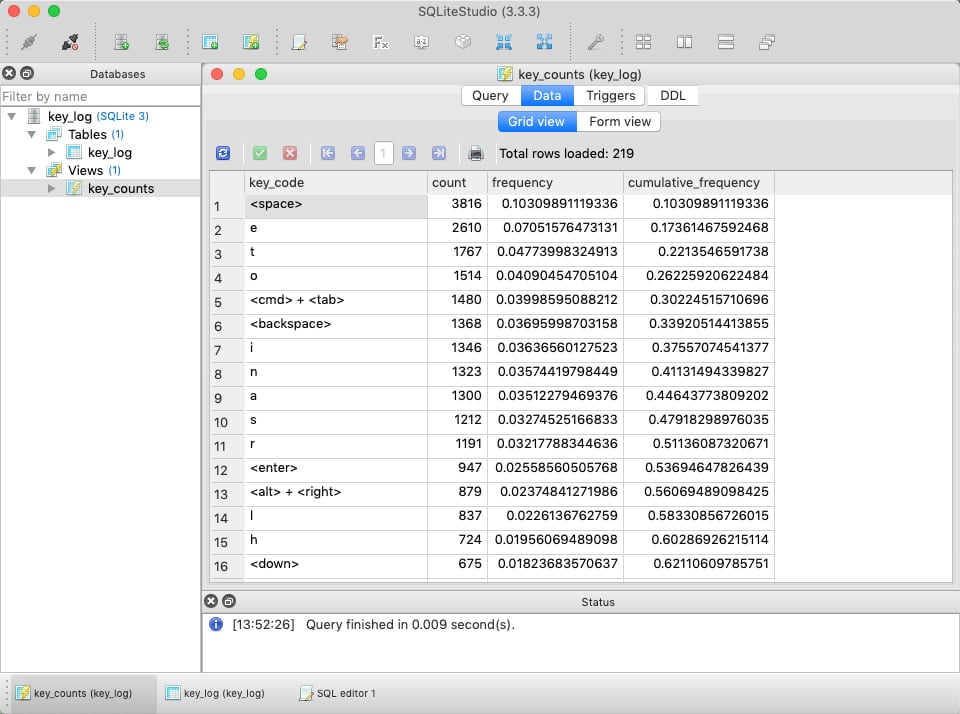
I chose SQLite because the output is a single file that you can delete anytime you want, and it doesn't require any separate database engine. If you're not familiar with it, it's much like putting your data in a text file, but it does so in a structured way that, when you use a program that knows how to read that structure, gives you the power of SQL. The nice thing is that 100% of the data is in that one file. Having the counts in a database makes it easy (if you know SQL) to answer questions like "Show me the keys I press in descending order, by frequency?" or "What percentage of key strokes is the space bar?" The predefined key_counts and bigram_counts views (and trigram_counts with --trigrams) summarize exactly this, reading from the aggregate tables. Because the default tables hold only per-bucket counts, questions that need exact per-keystroke timing — like "How fast do I type?" — require the opt-in --raw-events mode; coarse time-of-day questions still work off the 10-minute bucket_utc.
To avoid paying the full SQLite commit cost on every single keystroke, the logger batches writes and commits them every 50 events or every 5 seconds, whichever comes first, and then performs a final flush on clean shutdown. (In the default count mode a single keystroke issues more than one write — the unigram plus, when applicable, a bigram — so commits happen a little more often than one-per-keystroke would suggest.)
If you want better behavior while inspecting the database at the same time the logger is writing to it, there is also a --wal option. It is off by default to keep the file model as simple as possible. If you turn it on, SQLite uses write-ahead logging, which can improve read/write concurrency, but it also means you should expect sidecar files like -wal and -shm to appear while the database is active.
By default the logger records the resulting character or combo, so Shift+a is logged as A. If you would rather log the physical key plus modifiers, use --physical-keys. In that mode, Shift+a is logged as <shift> + a, and similarly Shift+1 is logged as <shift> + 1.
By default the plaintext file log prepends a UTC ISO timestamp to each entry. If you want the old simpler plaintext format, use --no-file-timestamps.
By default left and right modifiers are still remapped together in the log (<shift_l> and <shift_r> both become <shift>, and similarly for Control, Alt, and Command). If you want to preserve those distinctions, use --modifier-sides.
Among other options, two applications I use to look at and query the SQLite data file are
The Python logging module is used to provide INFO, DEBUG, WARNING, etc. messages. Those operational messages still go to the screen, not to a file. However, the actual captured key strokes are not echoed to stdout by default anymore. Terminal scrollback often persists much longer than people expect, so printing every key press by default creates a second plaintext copy of the data. If you want to watch the key stream in the terminal while the logger runs, you can opt in with the --stdout flag described below. If you want to see the program's internal state transitions, remapping decisions, batching activity, and similar implementation details without echoing your keystrokes, use --debug. By default the logger shows only INFO (and above) messages. If you want the logged content itself to represent physical keys instead of resulting characters, use --physical-keys.
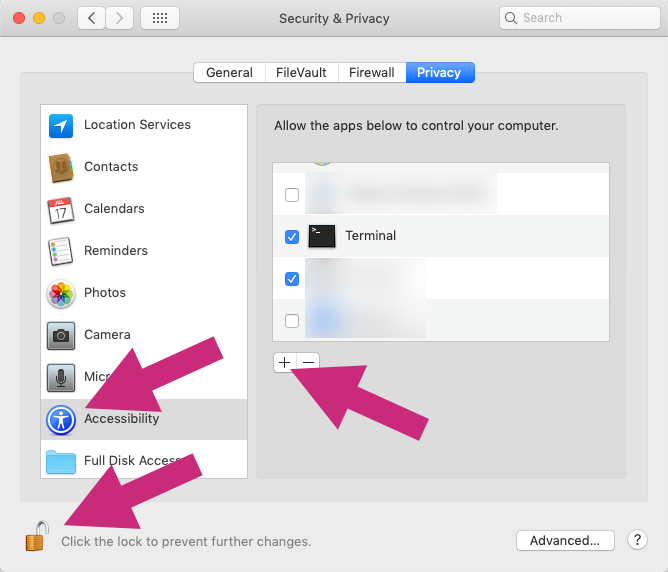
I only know how (and even if you need) to grant keyboard access on a Mac. You must give the script Accessibility permissions in System Preferences > Security & Privacy > Privacy > Accessibility. (Don't forget that you likely need to unlock this Preferences screen to make any changes.) This gives the app you run it from permission to see the keyboard events. I usually use the Terminal, but you can also run it from your code editor. Without this step, the script will just sit there silently, deaf to all keyboard events. macOS automatically suppresses logging when it switches into Secure Input Mode (passwords). So, through no effort of my own, it very nicely avoids logging any information typed into OS-labeled password text boxes. At least for me, this is even true for password fields in my browser. Nice! (I don't know if Windows or Linux has anything comparable, so if you use it there, be aware that your passwords may or may not be tracked by the logger.)
You'll need to install pynput. You can see more details on that library from PyPi or GitHub, and you can read its documentation as well. The other items are all Python-standard libraries: datetime, logging, and sqlite3. I purposefully do not put pynput here in this repo because I don't want you to have to trust that the version included hasn't been tampered with. You can use pip to install it: pip3 install pynput.
I run it from the Terminal with python3 key_logger.py. If you explicitly want the captured keys echoed to stdout while the program runs, use python3 key_logger.py --stdout.
You can see the available options at any time with python3 key_logger.py --help.
The help output shows the current defaults, and the program prints a short startup summary of the effective configuration and output paths when it begins listening.
Some common examples:
- Default aggregate-count logging (10-minute buckets):
python3 key_logger.py - Aggregate counts with a different bucket size:
python3 key_logger.py --bucket-minutes 30 - Also aggregate trigrams (higher reconstruction risk):
python3 key_logger.py --trigrams - Also store exact per-keystroke rows (less private):
python3 key_logger.py --raw-events - Old behavior, exact rows only with no count tables:
python3 key_logger.py --no-counts --raw-events - Physical key logging instead of resulting characters:
python3 key_logger.py --physical-keys - Preserve left/right modifier distinctions:
python3 key_logger.py --modifier-sides - Inspect the logger's internal behavior without echoing captured keys:
python3 key_logger.py --debug - SQLite plus plaintext log file:
python3 key_logger.py --file - Plaintext file with timestamps:
python3 key_logger.py --file - Plaintext file without timestamps:
python3 key_logger.py --file --no-file-timestamps - Plaintext file only:
python3 key_logger.py --no-sqlite --file - SQLite with the verbose full event table:
python3 key_logger.py --full-events - SQLite with WAL enabled for concurrent inspection:
python3 key_logger.py --wal - Physical key logging plus live echo:
python3 key_logger.py --physical-keys --stdout - Physical key logging with left/right modifier distinctions:
python3 key_logger.py --physical-keys --modifier-sides - Show both internal debug output and live key echo:
python3 key_logger.py --debug --stdout - Custom output filenames:
python3 key_logger.py --sqlite-file my_keys.sqlite --log-file my_keys.txt --file
You could add execution permissions to the file (chmod +x key_logger.py) and then run it like a script (./key_logger.py), since it does have the Python shebang at the top; however, in the spirit of being benign, I don't like the idea of making the file executable, even though I know it's not an EXE, but ¯\_(ツ)_/¯.
If you want the logger to start by itself every time you log in — handy for building up usage stats over weeks without remembering to launch it — there is a ready-made macOS LaunchAgent in the launchd/ folder. It runs the exact same script with the exact same privacy-preserving defaults (aggregate counts only — no stdout echo, no raw per-keystroke rows, no trigrams), so leaving it running is no more revealing than a normal foreground run.
A few things are worth understanding before you install it:
- It's a LaunchAgent, not a LaunchDaemon. It loads into your logged-in GUI session (
gui/<uid>). A daemon runs outside your session and would capture nothing, so this is deliberate. - You must grant keyboard access to the Python interpreter itself. When
launchdstarts the script there is no Terminal in the picture, so any Accessibility/Input Monitoring permission you granted to Terminal does not carry over, and macOS will not pop up a prompt. You add the interpreter manually (the installer prints the exact path). Grant it Input Monitoring, and if events still don't show up, also add it to Accessibility. - Without that permission it fails silently.
pynputkeeps running but receives zero events — it does not error or crash — so the only reliable way to confirm it works is to check that the database is growing.
To install and load it:
sh launchd/install.shThat script fills the absolute paths into launchd/local.benign-key-logger.plist.template, writes the result to ~/Library/LaunchAgents/local.benign-key-logger.plist, validates it with plutil -lint, and loads it with launchctl bootstrap. The database goes to key_log.sqlite in this repo folder and operational logs to ~/Library/Logs/benign-key-logger/. It does not modify key_logger.py and does not change any permissions for you. (If your interpreter isn't at the default conda path, run it as PYTHON_OVERRIDE=/path/to/python sh launchd/install.sh.)
What you'll need to set for your own machine. The installer auto-detects the repo location and writes the database and logs relative to it, so the only thing most people must supply is the Python interpreter that has pynput installed. It defaults to $HOME/opt/miniconda3/envs/keylogger/bin/python; if yours is elsewhere, pass it explicitly with PYTHON_OVERRIDE=/path/to/your/python sh launchd/install.sh, and the installer prints the exact resolved binary path you must grant in the next step. To use a different agent name, change the LABEL near the top of launchd/install.sh and launchd/uninstall.sh and rename launchd/<label>.plist.template to match.
Then grant the permission the installer printed, e.g.:
System Settings → Privacy & Security → Input Monitoring → + → Cmd+Shift+G → paste the interpreter path that
install.shprinted (e.g./Users/<your-username>/miniconda3/envs/keylogger/bin/python3.11) → enable the toggle.
To confirm it's actually capturing:
launchctl print "gui/$(id -u)/local.benign-key-logger"   # shows state and last exit status
tail -n 20 ~/Library/Logs/benign-key-logger/launchd.err.log       # expect "starting to listen for keyboard events"
sqlite3 key_log.sqlite "SELECT COALESCE(SUM(count),0) FROM key_counts_agg;"   # type a bit; this should rise
To stop and remove it:
sh launchd/uninstall.shThat unloads the agent and deletes the installed plist; it leaves your captured data alone and does not touch System Settings (revoke the interpreter's Input Monitoring grant yourself if you want a clean slate).
Two caveats:
- Changing how it runs: edit
launchd/local.benign-key-logger.plist.template(for example to add a flag such as--bucket-minutes 30) and re-runsh launchd/install.sh; it re-installs in place. - Rebuilding the conda env may break the grant. macOS ties the permission to the resolved real binary (
.../bin/python3.11); if you recreate thekeyloggerenv, that binary changes and you'll have to grant Input Monitoring once more. (For a rock-stable identity you could wrap the script in a small signed.appbundle, but for a single user the one-time re-grant is simpler.)
This tool does not send your data anywhere, but the files it writes are still sensitive and should remain owner-only on disk. The program enforces that automatically for the files it creates and warns when it has to tighten existing permissions, which helps reduce local disclosure risk on shared machines or under a permissive umask. The default aggregate-count storage further reduces sensitivity by never recording your exact keystroke sequence — but note that the opt-in --raw-events and --file modes do record exact sequences, so treat those outputs with extra care.
If you want a quick trust checklist before running it, here are the main things to verify:
- No network behavior: the script imports no networking libraries and sends nothing anywhere.
- Debug output is opt-in:
--debugenables internal state logging but does not imply key echo. - Physical key logging is opt-in:
--physical-keysswitches from logging the resulting character to logging the physical key plus modifiers. - Left/right modifier distinction is opt-in:
--modifier-sideskeeps modifier sides separate instead of remapping them together. - Stdout echo is off by default: keystrokes are only printed to the terminal if you pass
--stdout. - SQLite is on by default: the database is used unless you disable it with
--no-sqlite(the master switch for all database sinks). - Aggregate counts are the default sink: keystrokes are stored as per-bucket counts, not exact sequences, so passwords can't be read back out. Disable with
--no-counts. - Exact per-keystroke logging is opt-in:
--raw-eventsrestores one-row-per-keystroke storage (the less-private mode); it is off by default. - Trigram aggregation is opt-in:
--trigramsenables trigram counts, which leak more ordering than bigrams; off by default. - Bucket size is configurable:
--bucket-minutes(default 10) controls how coarsely keystroke times are grouped. - Plaintext file logging is off by default: the text log is only enabled with
--file. - Plaintext timestamps are on by default:
--no-file-timestampsreverts the plaintext file log to bare key entries. - Output files are owner-only: the logger creates or tightens log files to
0600, including SQLite sidecar files when present. - Full event capture is opt-in:
--full-eventsenables the more verbose key up/down table in SQLite. - Leftover sensitive tables are flagged, not silently kept: on startup the logger warns if the database still holds a
key_log,full_key_log, ortrigram_counts_aggtable that the current run isn't writing (e.g. left behind by an earlier--raw-events/--full-events/--trigramsrun). It never migrates or deletes that data for you — the warning prints the exactDROP TABLE …;to remove it yourself. - WAL is opt-in:
--walenables SQLite write-ahead logging for concurrent inspection. - Password handling depends on the OS: on macOS, secure input mode usually suppresses logging in password fields, but that behavior is provided by the OS, not by custom filtering in this script.
- Auto-start is opt-in and self-contained: the
launchd/LaunchAgent only runs if you install it withsh launchd/install.sh. It runs the same script with the same default counts-only settings, adds no flag that records exact sequences, and is removed withsh launchd/uninstall.sh. - The launch tooling is plain text you can read:
launchd/local.benign-key-logger.plist.templateand the install/uninstall scripts contain no network calls and write only to~/Library/LaunchAgents/, the repo'skey_log.sqlite, and~/Library/Logs/benign-key-logger/. - The logger itself is unchanged by auto-start: no
launchctl/subprocesswas added tokey_logger.py; all launch tooling lives inlaunchd/.