GitHub Codespaces is a browser-based environment that you can use to complete the exercises from this workshop without installing anything on your local machine. This document explains how to launch and configure the Codespaces environment.
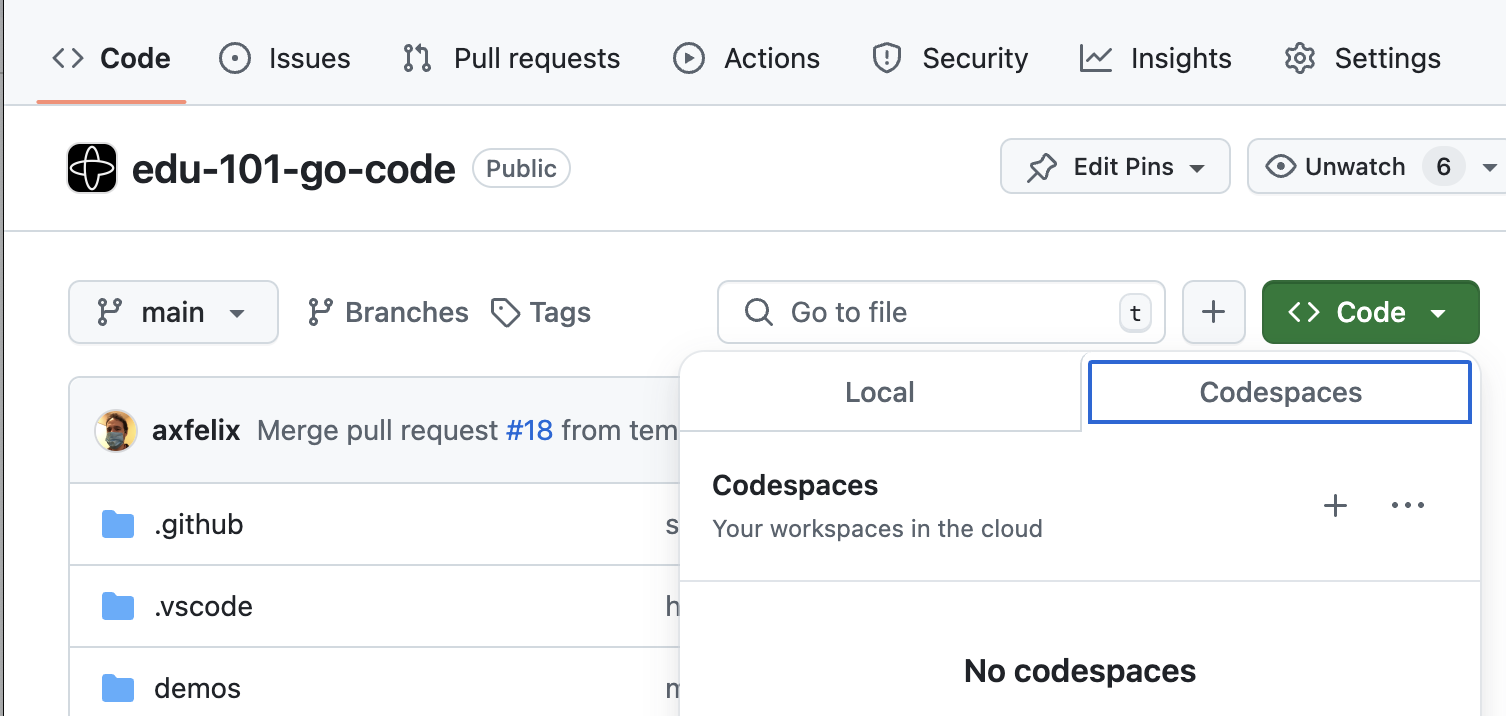
To launch the Codespace, click the green "Code" drop-down menu in the top-right corner of the repository display (to the left of the right-hand sidebar), navigate to the Codespaces sub-tab if it is not already focused, and click the + icon.
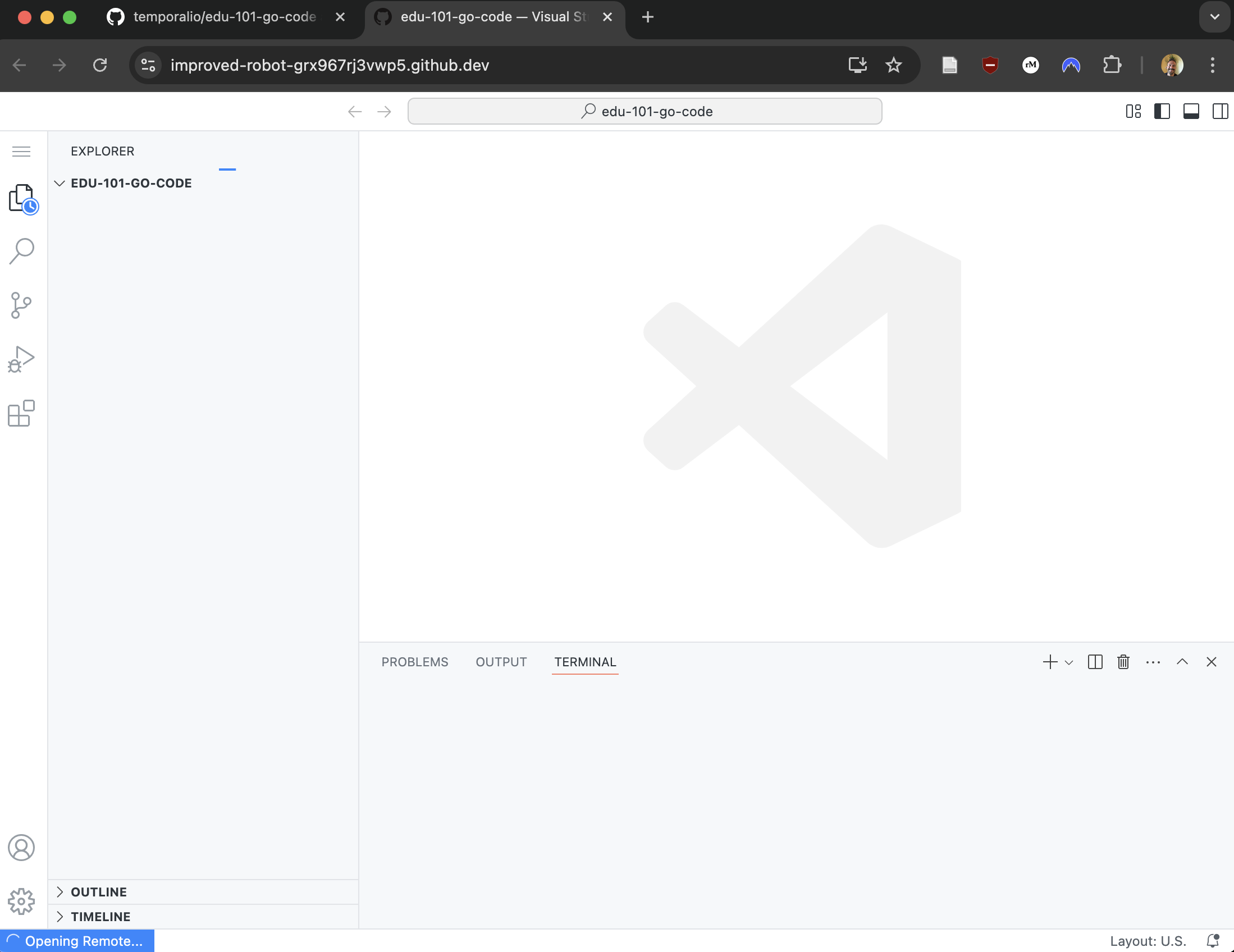
This will open a new tab containing a familiar VSCode-style interface. It may take up to a minute for the tab to populate, during which time you'll see an "Opening Remote…" message in the bottom-left corner.
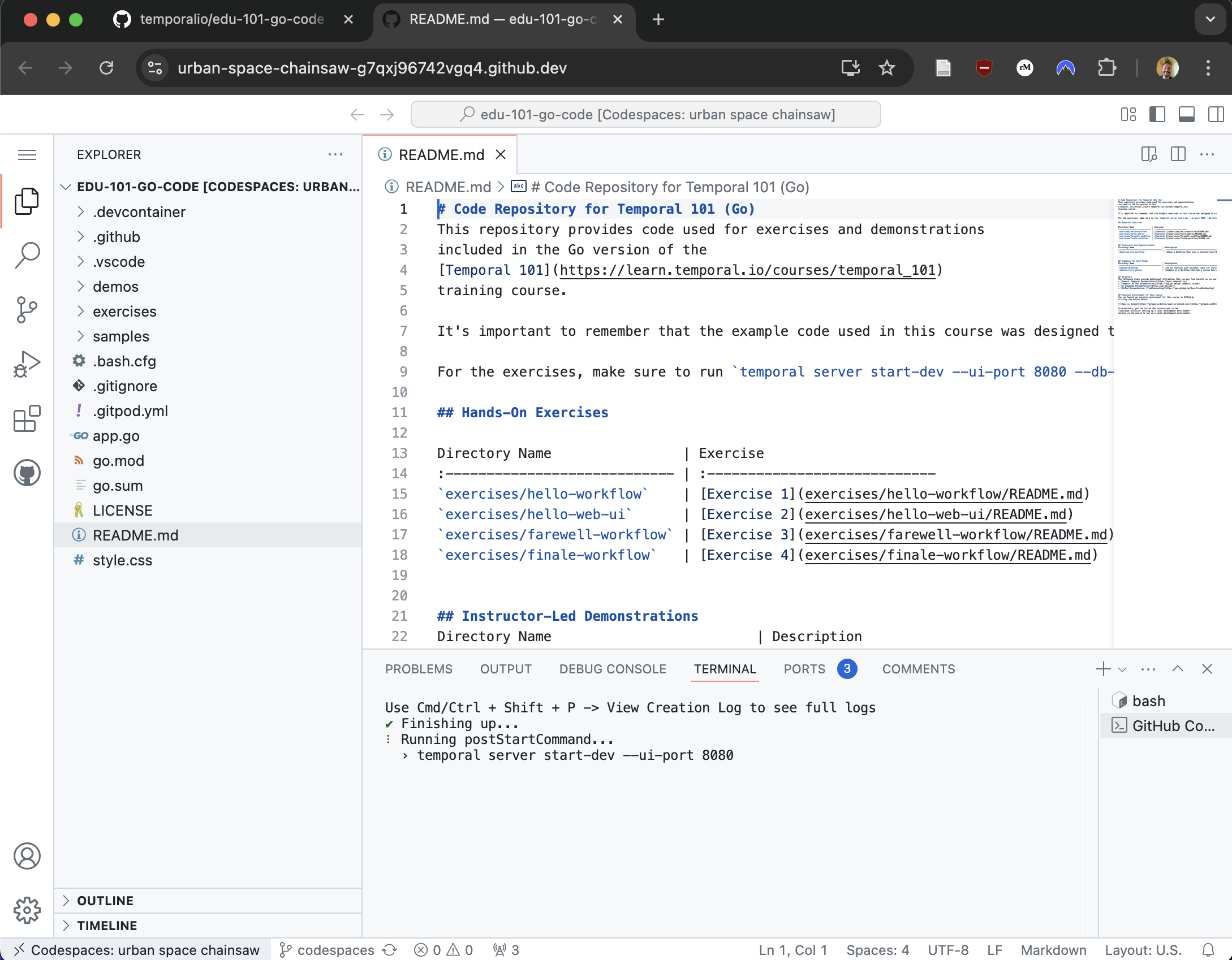
Eventually, the Codespace will display the README for the repository in the upper two-thirds of the screen, and a Temporal Service running on the command line in the lower third of the screen:
Before getting started, you'll want to open the Web UI and also open some
terminal windows to work in. When your Web UI opens (as you can see in the next section), you can open a new tab and start the exercises without waiting for the postStartCommand to finish running.
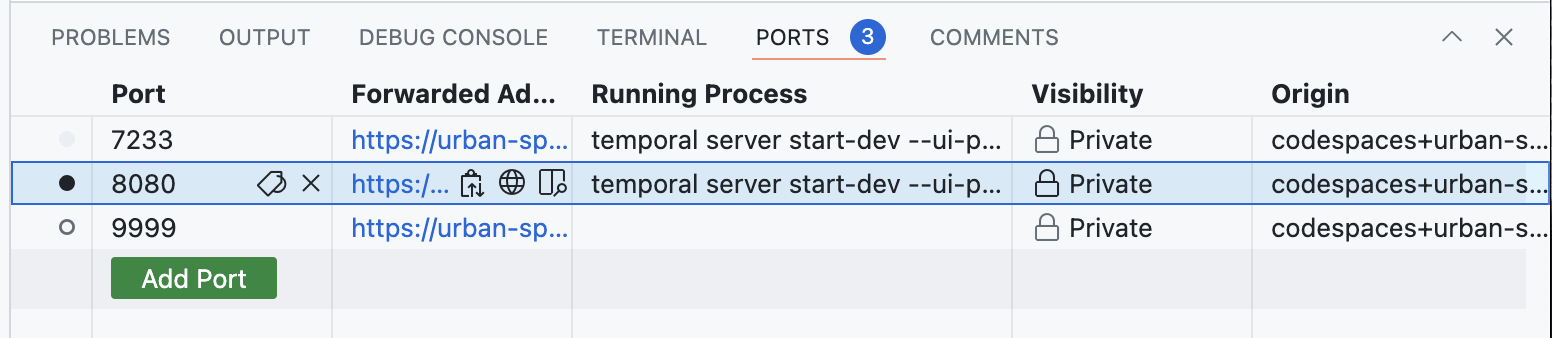
To open the Web UI, click the "PORTS" tab near the middle of the screen (there may be a highlighted number next to it):

Then, on the row for Port 8233 (note that this differs from the screenshot, which uses port 8080), Ctrl+click (Cmd+click on Mac) on the "Forwarded Address" link highlighted in blue like a regular URL:
This will open the Temporal Web UI in a separate tab:
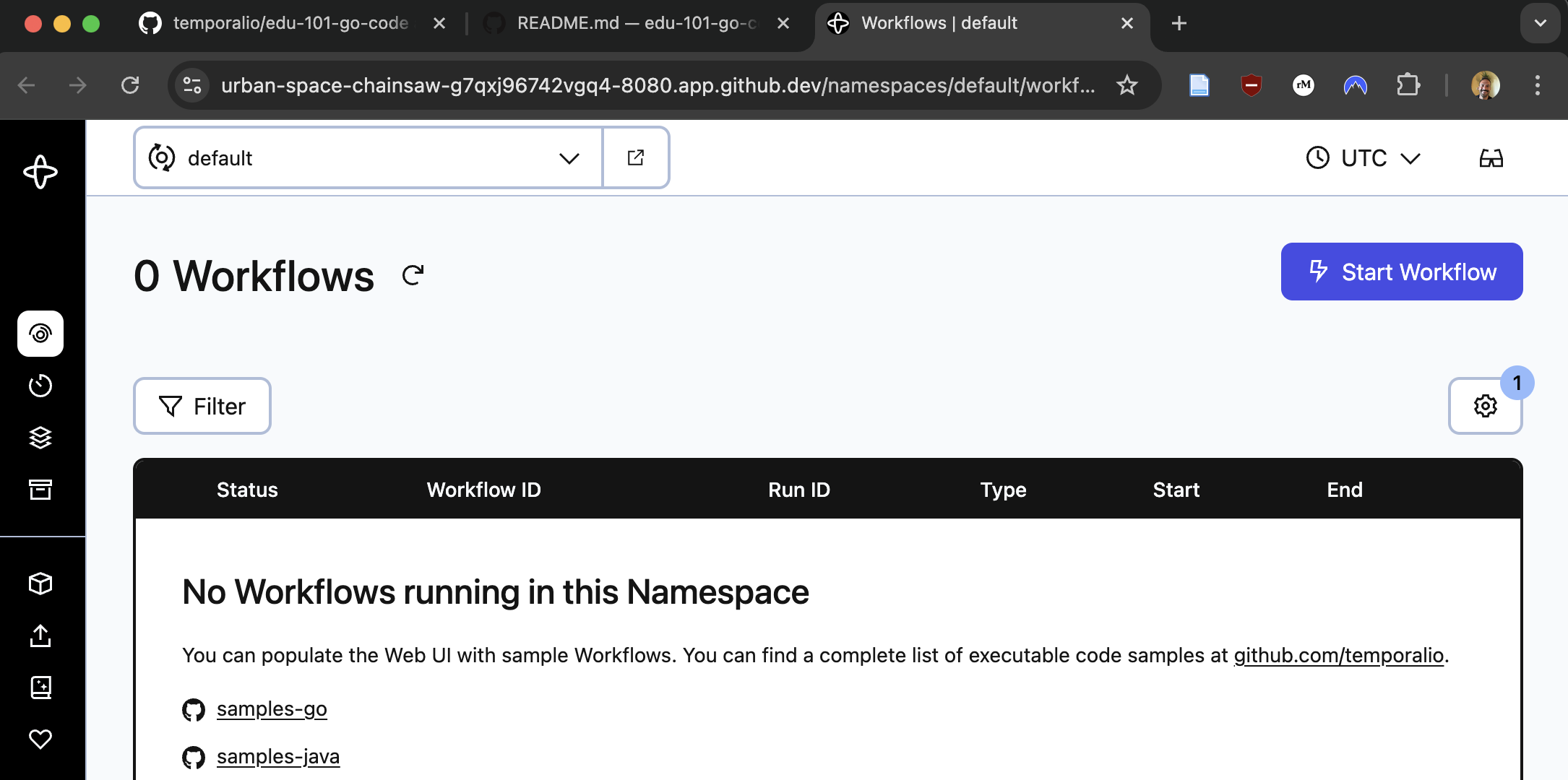
You should navigate to this tab any time you need to access the Web UI.
To open some work terminals, navigate back to the Codespaces tab, and click on "TERMINAL" next to the "PORTS" tab that you clicked on earlier.
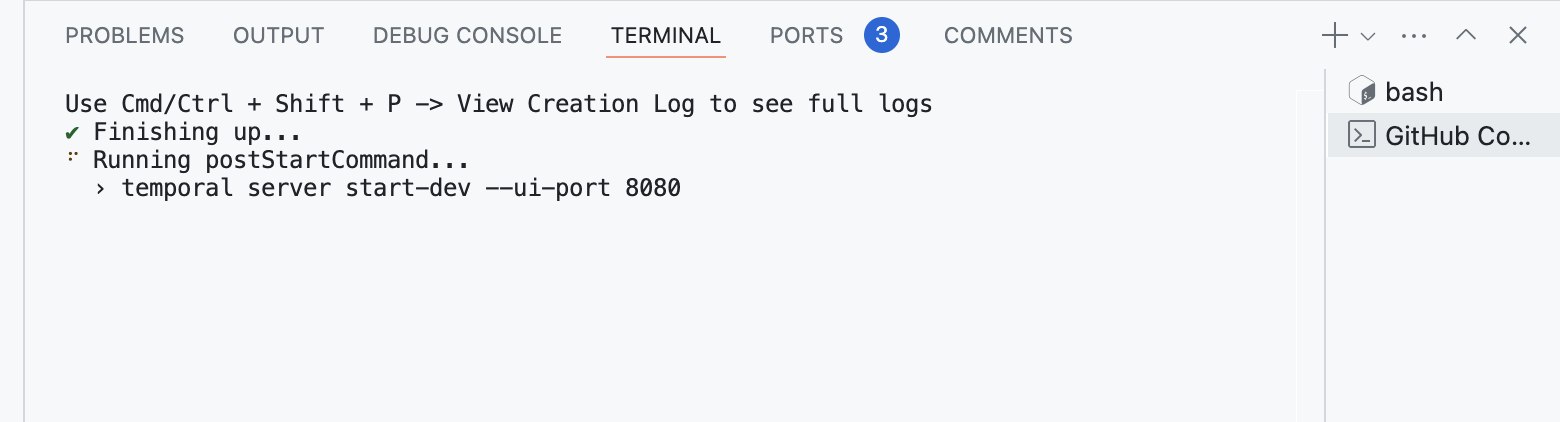
You should see "bash" in the sidebar on the right. Click on "bash" to get a work terminal:
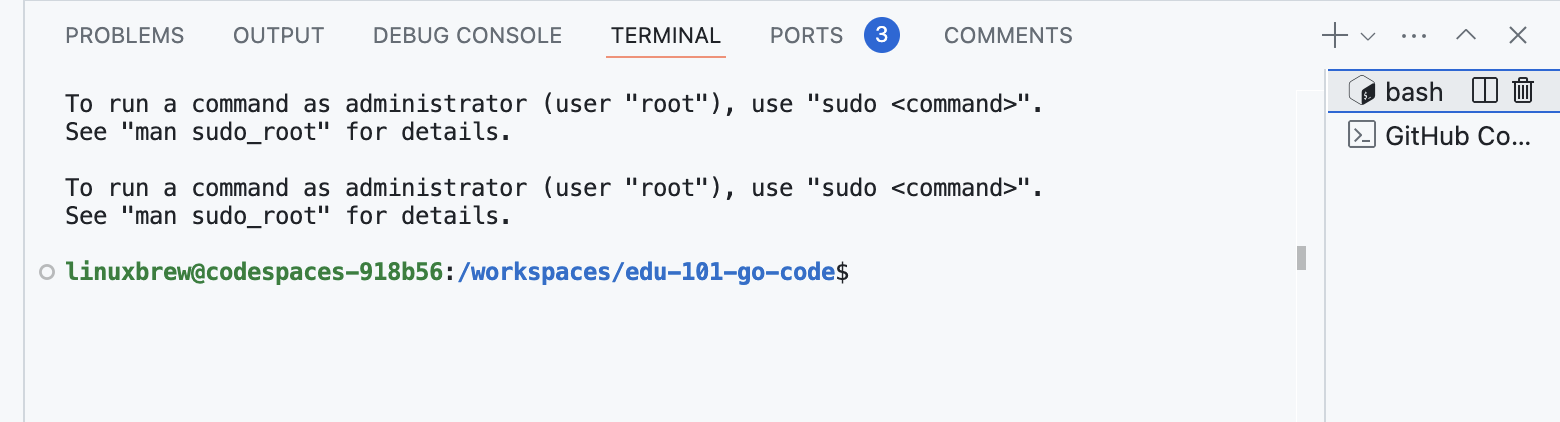
Then, to create more work terminals for this workshop–you’ll usually need 2 or 3 – use the drop-down arrow next to the "+" sign on top of where it says bash, and in that drop-down menu, navigate to "Split Terminal," and then "bash (Default)."
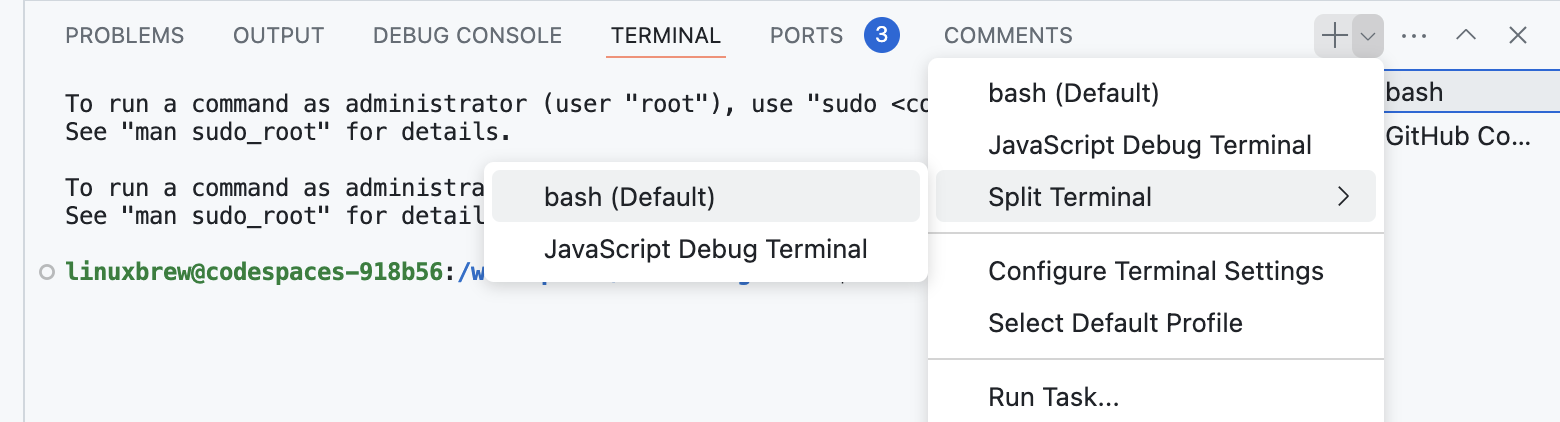
Repeat this for as many terminals as you need:
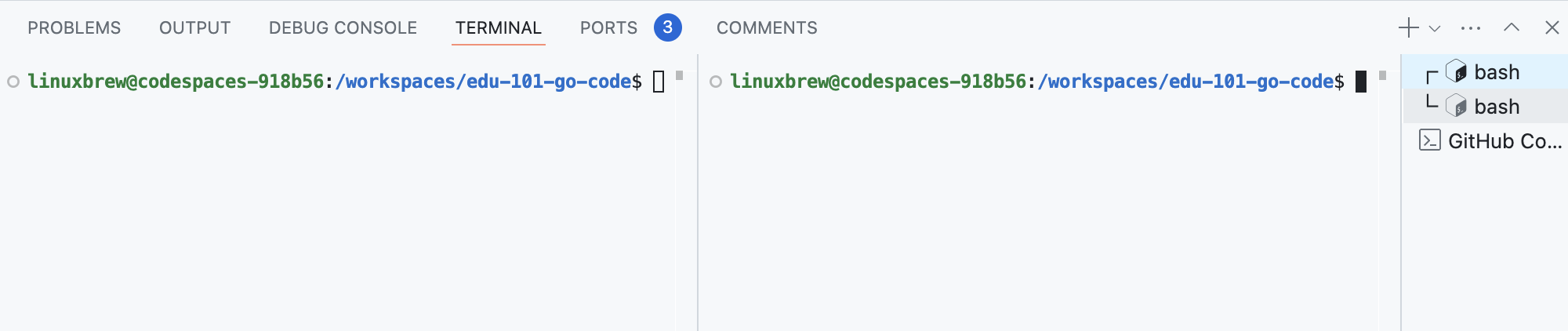
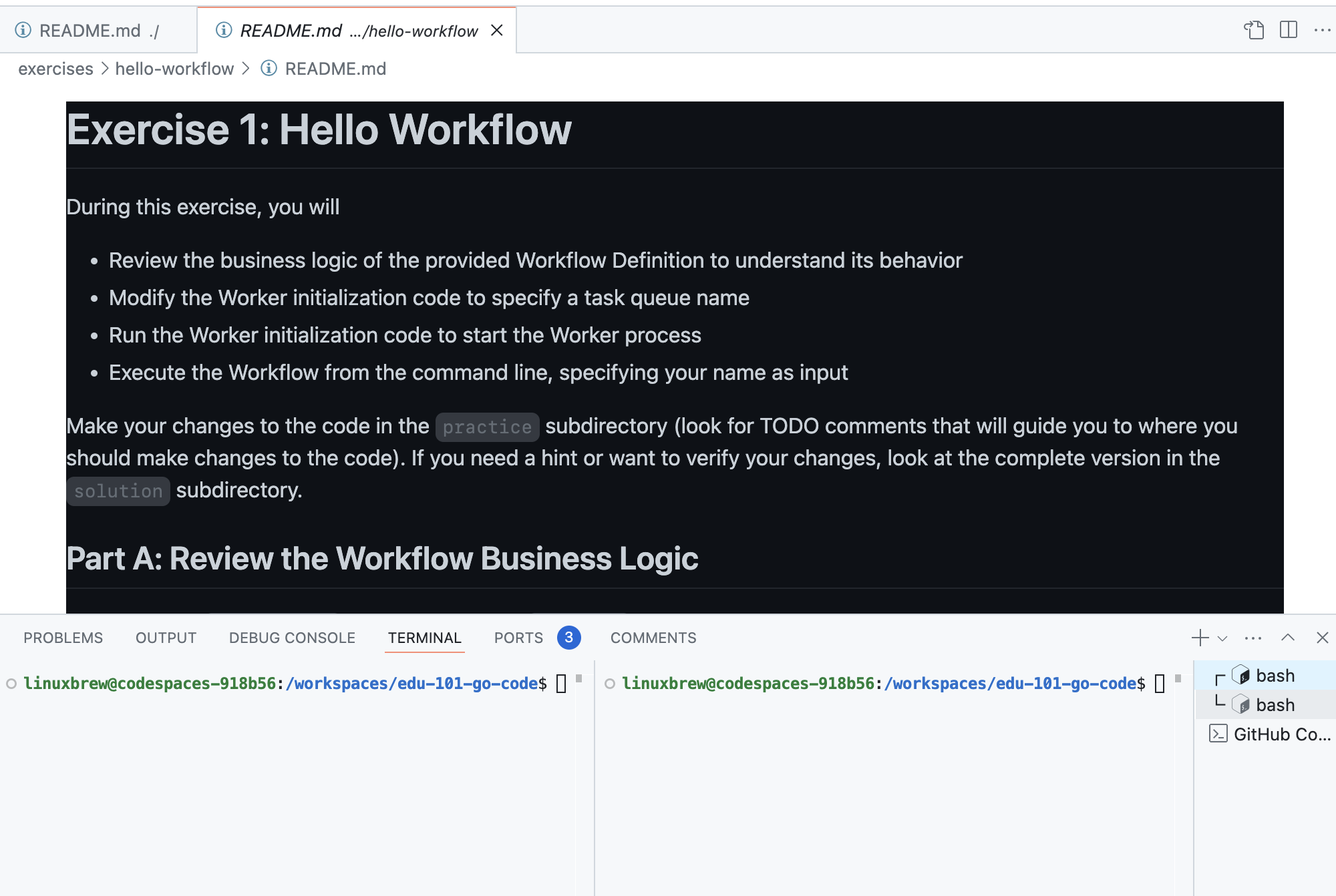
You're all set. Don't forget that you can Ctrl+click on the links displayed in the repository README to open the README for each individual exercise as you progress through the workshop:
Your Codespace will automatically stop 30 minutes after you close the browser tab. This is to prevent excessive resource utilization. It can be resumed from the same part of the Github UI if needed, within 30 days of the last time it was used.
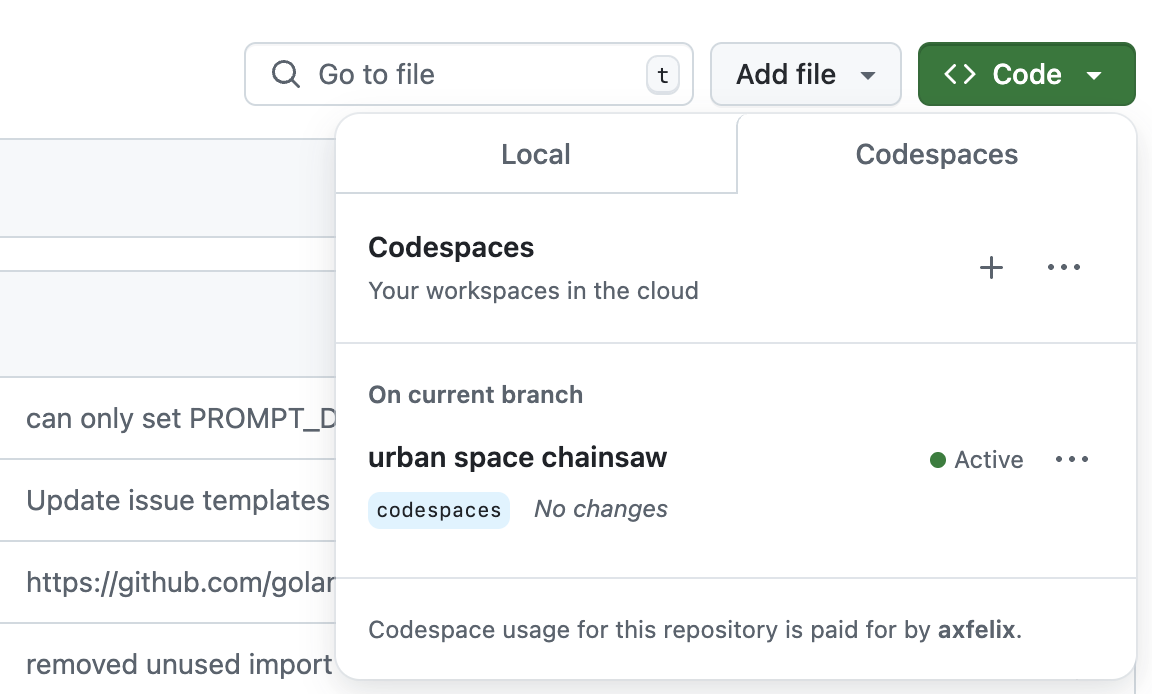
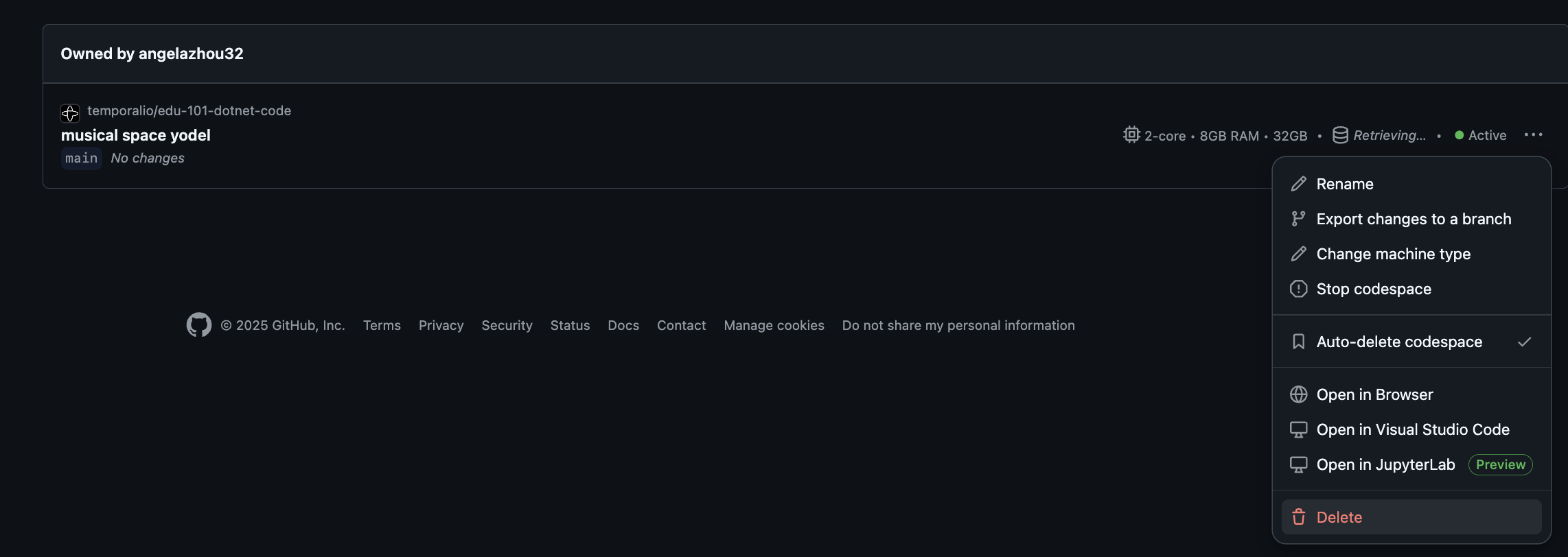
Once you are done with this workshop's exercises, manually delete your Codespaces. There are costs associated with storing Codespaces. You should therefore delete any Codespaces you no longer need. Here are the steps you need to take to delete your Codespaces:
- Visit your Codespaces page here.
- To the right of the Codespace you want to delete, click the three dots,
then click
Delete: