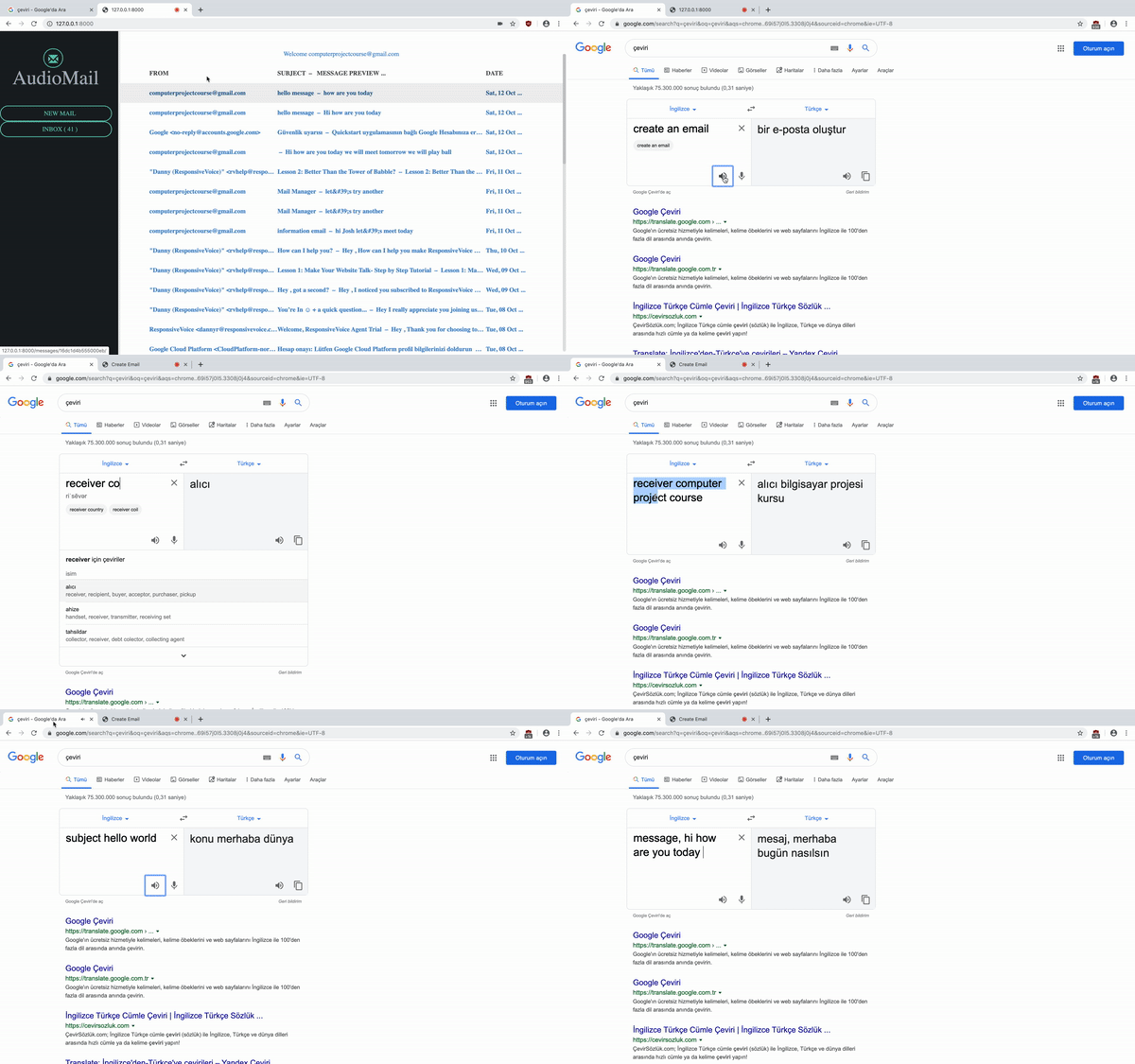
Visually impairment is ability loss for someone’s eyes. It is known that life gets harder when people cannot see around. It cannot be restricted in daily life, so even technology becomes hard to use for visually impaired person. Because of these, an email application which takes commands with speech and serves emails as a speech is our subject. This is large subject that anybody can implement in different areas like Mobile Applications, Desktop Applications or Web Applications. In this project, I choosed to create a Web Application.
Basically, a web application that works on only Chrome. It uses Speech to Text and Text to Speech API for managing application with voice. For email service, it uses Gmail API.
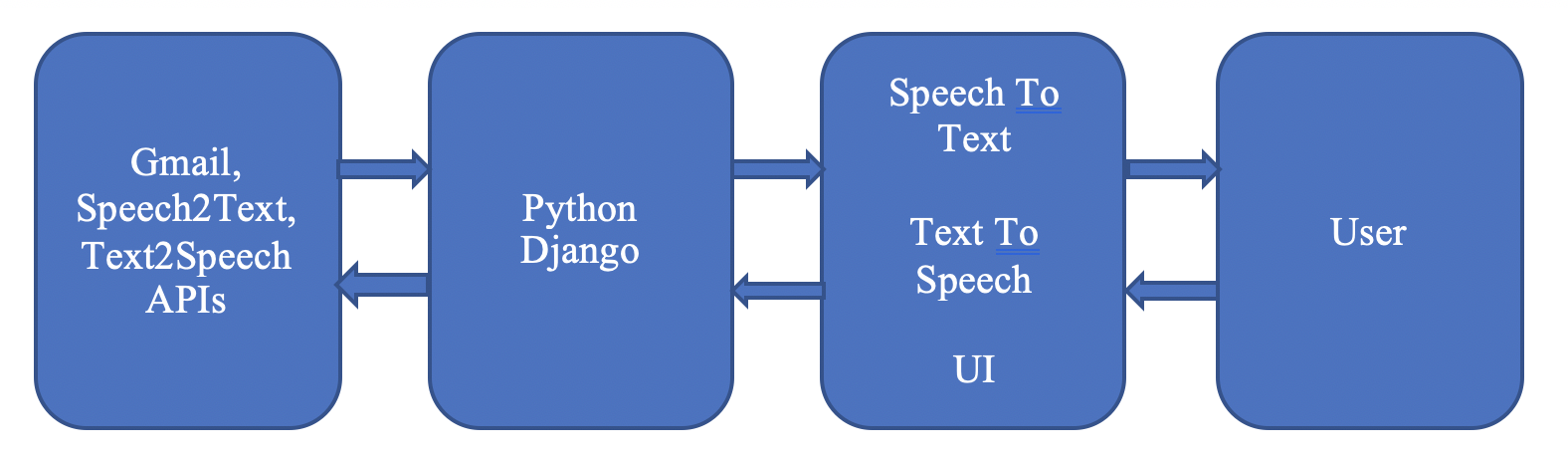
Application uses Gmail API for mail server. So, you need to enable your Gmail API from https://console.developers.google.com/. If you don’t have a project create it.
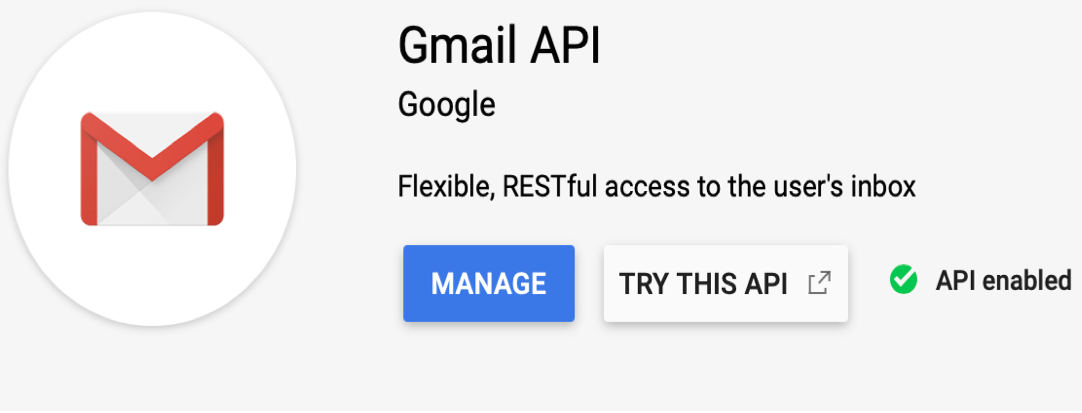
After that you need to create a secret key from your identity access management (iam) and administrator tab then download it to application directory. Don’t forget to give owner role. Note that don’t share anywhere your downloaded file which contains your secret key.
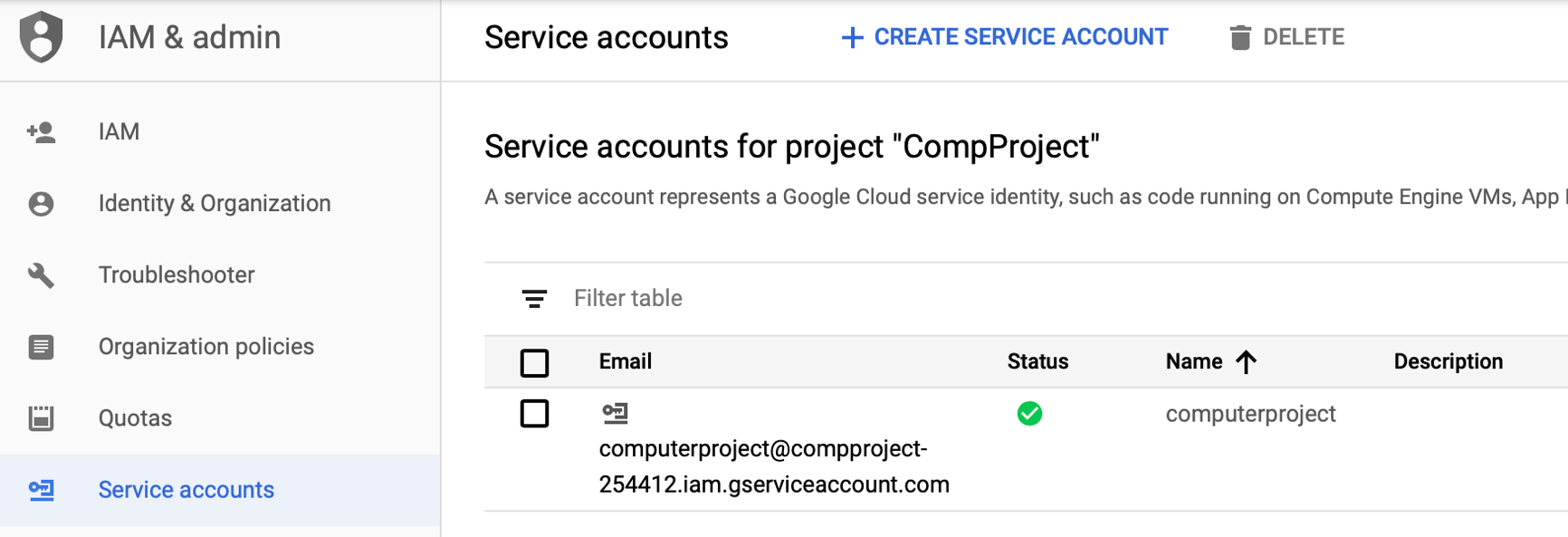
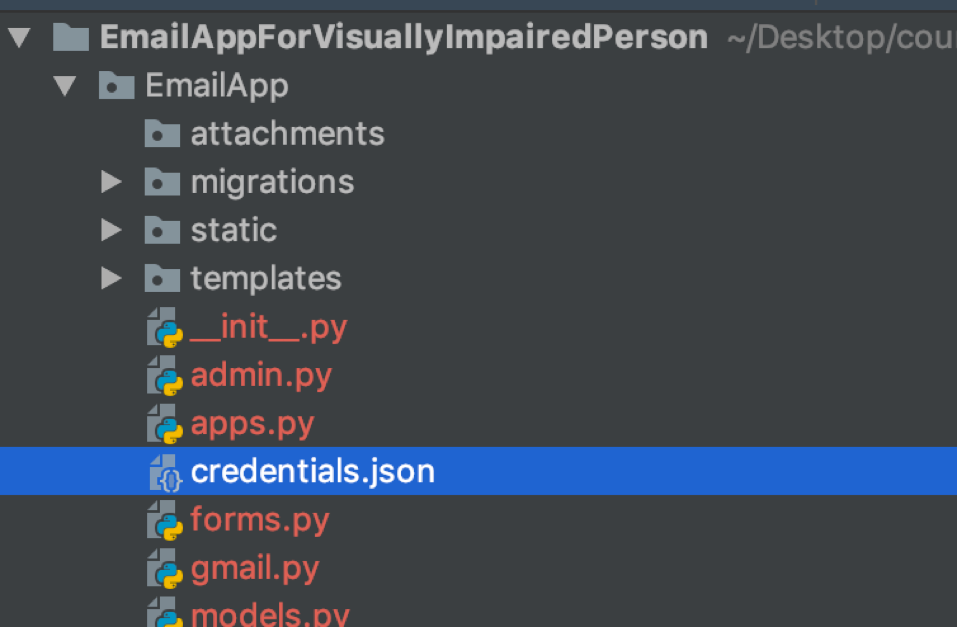
Put the file into your application directory with name “credentials.json”.
You can install these required packages to your app using pip install
  Django==2.1.5
  django-crispy-forms==1.7.2
  django-bootstrap4==0.0.7
  word2number==1.1
  google-api-core==1.14.3
  google-api-python-client==1.7.11
  google-auth==1.6.3
  google-auth-httplib2==0.0.3
  google-auth-oauthlib==0.4.0
  google-cloud-core==1.0.3
  google-cloud-speech==1.2.0
  google-cloud-storage==1.20.0
  google-cloud-texttospeech==0.5.0
  google-resumable-media==0.4.1
  googleapis-common-protos==1.6.0
I used one database table to manage attachments. You need to make migrations to use it. Follow these commands.
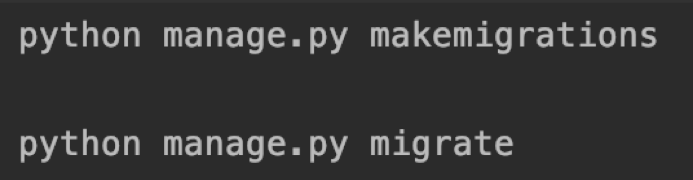

After migrations, you can reach database table form http://127.0.0.1:8000/admin. Give username and password that you created as a super user.
You must know that you need to use Google Chrome to use this application properly. For Mac users Safari and other browsers do not support WebKitSpeechRecognition. For running application follow the commands.
python manage.py runserver
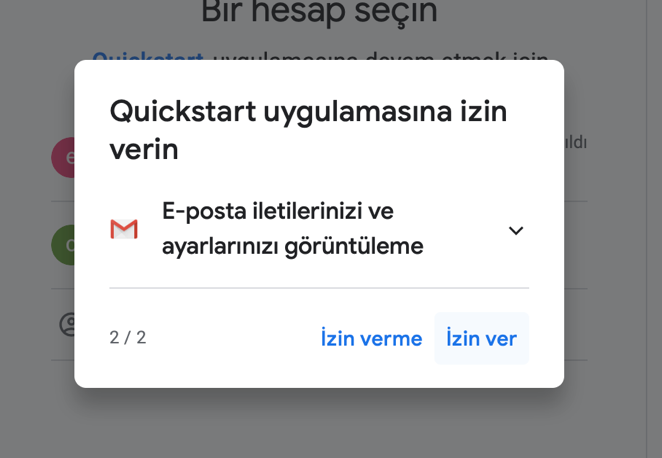
In first launch, Google opens a new tab to authenticate the application and waiting permission from user to manage its mail account.

Trust it and allow what needs to application.
After that app starts and allow microphone
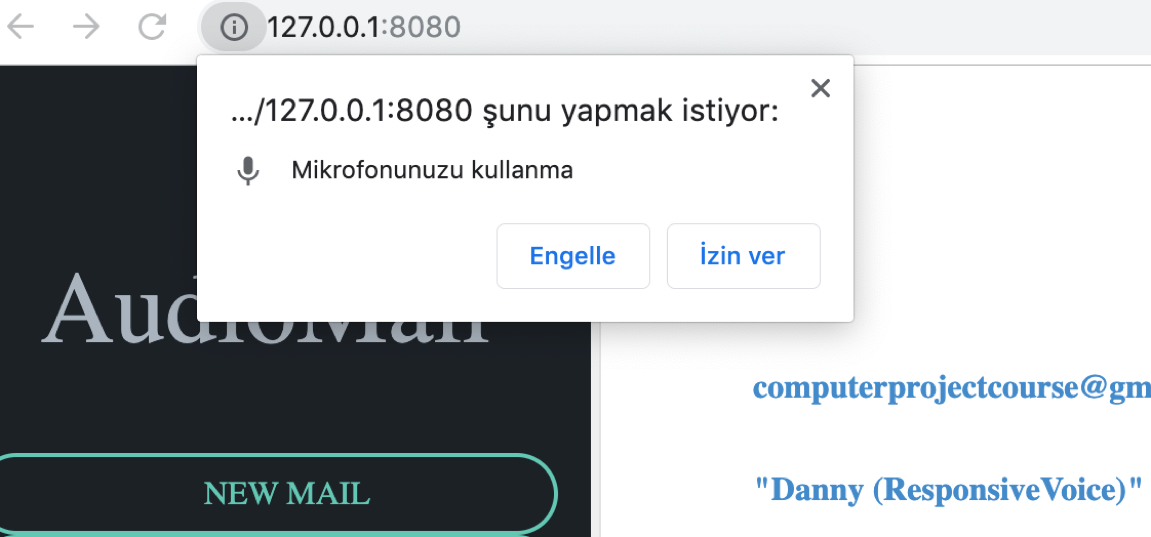
Note that; you must specify your application running port as 8000 because we used some static code written in a brute force way.
Create an email -> Goes to email creation page
Send an email -> Goes to email creation page
Go to inbox -> Goes to inbox
Open inbox -> Goes to inbox
Open email with number <say a number> -> Goes to Read Email Page
Go to inbox -> Goes to inbox
Open inbox -> Goes to inbox
Receiver -> Starts to fill receiver area
Subject -> Starts to fill subject area
Message -> Starts to fill message area
Send this email -> Submits email and returns inbox
In this page voice commands are not allowed. Just wait to message reading to stop and it immediately returns to inbox page. Also in this page, it downloads attachments automatically and when you click anywhere on the page you can listen whole message again.
The gif below, shows how to manage interface with voice using Google Translate Voice. I used Google Translate to create speech because I am not a native speaker and sometimes misunderstandings happen. You can use your own voice to give commads. Lets try it :)
Note: in gif app name is audio mail. I changed it.